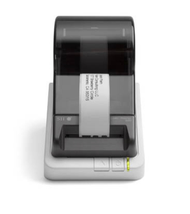
How Do You Print Retail Barcode Labels Easily?
28th Jan 2026
Key Highlights
-
Using barcode labels speeds up checkout and simplifies inventory management.
-
Choosing the right printer, like direct thermal or thermal transfer printers, is crucial for quality.
-
You can create labels directly from systems like the Square Retail POS app or Dashboard.
-
Proper label printing requires selecting the correct label size and type for your products.
-
Barcode printers from brands like Seiko are compatible with many retail systems.
-
Effective barcode printing in retail environments depends on simple design and high-contrast printing for accuracy.
Struggling with slow checkouts, pricing errors, or constant confusion during inventory counts? Many retail and warehouse teams deal with wasted time and frustrated customers when product identification isn't fast or accurate. Without a reliable labeling system, small mistakes quickly turn into lost revenue and operational stress.
Barcode labels offer a simple, powerful way to fix these issues by giving every product a scannable identity. They speed up restocking, reduce human error, improve tracking, and keep your systems updated automatically, creating a smoother workflow for your team and a better experience for shoppers.
In this blog, you’ll learn how barcode labels work, why they matter, and how to choose the right label type, printer, and layout for your business. You’ll also discover real examples, printing tips, and tools that make barcode labeling easy and cost-effective.
Why Are Barcode Labels Essential for Retail Operations?
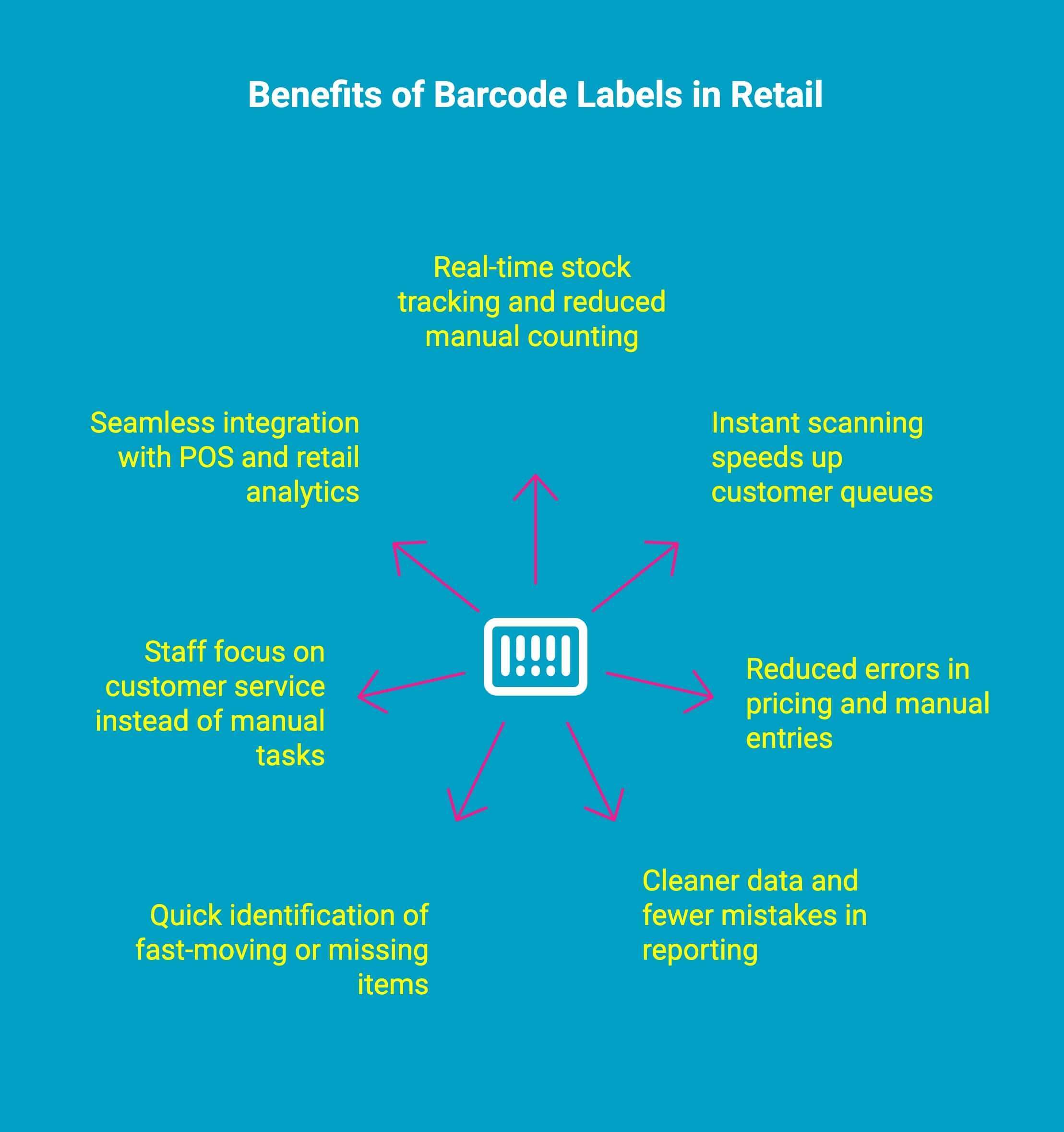
Barcode labels play a crucial role in keeping retail operations organized, efficient, and customer-friendly. Whether you're managing a small shop or a large retail chain, barcodes simplify the way products are tracked, priced, and handled across the entire workflow.
Here are the key reasons barcode labels matter for retailers:
-
Streamlined Inventory Management: Track stock levels in real time, reduce manual counting, and prevent overstocking or stockouts.
-
Faster Checkout Experience: Cashiers can scan items instantly, speeding up queues and creating a smooth customer journey.
-
Improved Pricing Accuracy: Barcodes reduce the risk of pricing errors that occur with manual entries.
-
Reduced Human Error: Automated scanning ensures cleaner data, fewer mistakes, and better overall reporting.
-
Better Stock Tracking: Retailers can identify fast-moving, slow-moving, or missing items quickly.
-
Enhanced Operational Productivity: Staff spend less time on manual tasks and more time assisting customers.
-
Supports Modern Retail Systems: Barcodes integrate seamlessly with POS systems, inventory software, and retail analytics tools.
A reliable barcode system is no longer optional; it’s a foundational element of efficient, modern retail.
To explore must-have retail tools for the year ahead, read What Retail Store Equipment Do Retailers Need In 2025?
How to Choose the Right Barcode Label Printer for Retail?
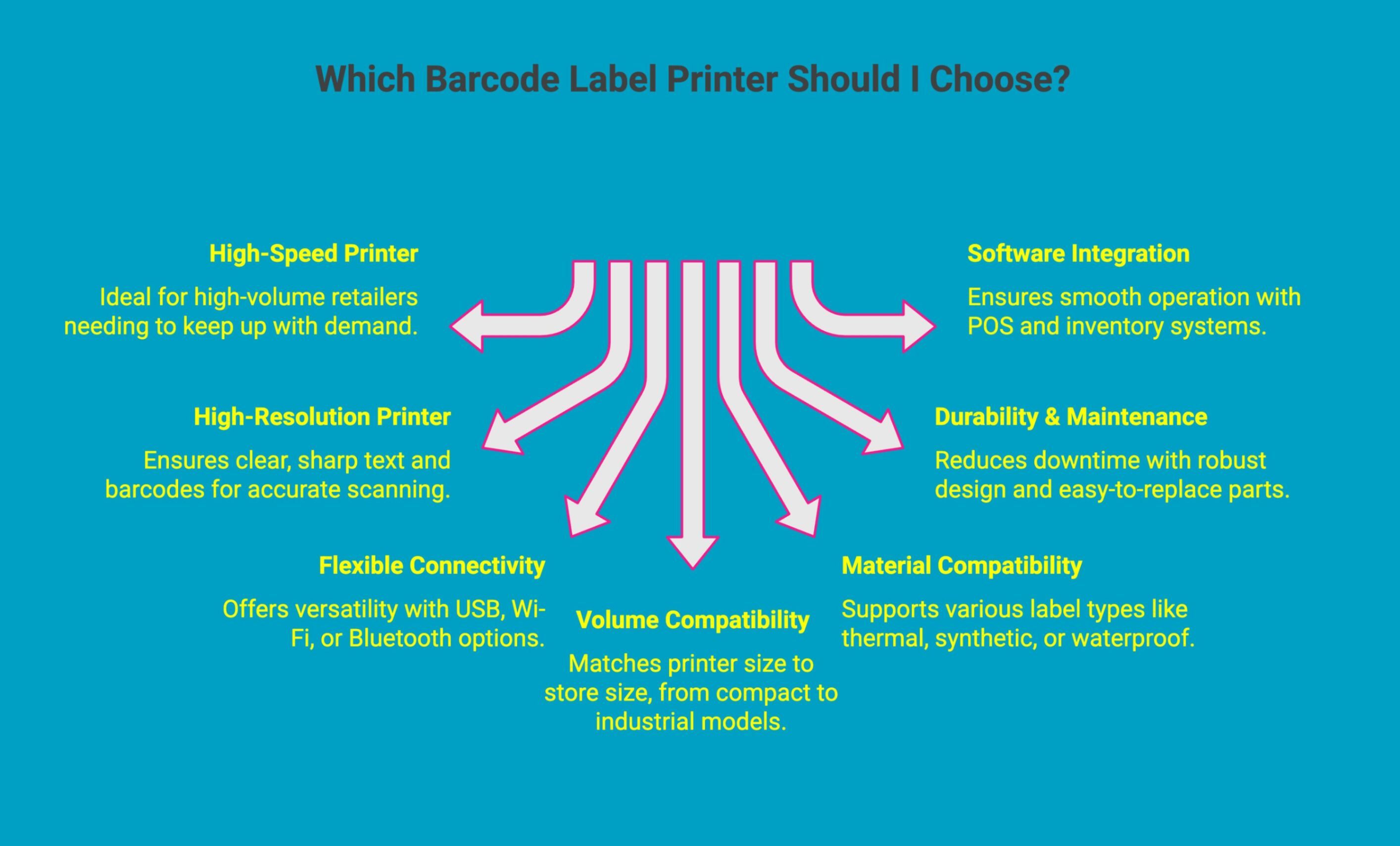
Selecting the right barcode label printer can significantly impact how smoothly your retail operations run. The right machine ensures accurate labels, faster workflows, and consistent performance, all essential for today’s fast-paced retail environment.
Key factors to consider when selecting a barcode label printer:
-
Printing Speed: High-volume retailers need faster printers to keep up with demand, especially during peak seasons.
-
Print Resolution: Clear, sharp text and barcodes reduce scanning issues and ensure accurate product identification.
-
Connectivity Options: Look for USB, Wi-Fi, or Bluetooth, depending on how flexible and mobile your setup needs to be.
-
Label Volume & Usage: Small stores may need compact desktop printers, while larger retailers may require industrial-grade models.
-
Label Material Compatibility: Ensure the printer supports the label types you use, such as thermal, synthetic, or waterproof labels.
-
Durability & Maintenance: A robust machine with easy-to-replace parts reduces downtime and long-term costs.
-
Software Compatibility: Check if the printer integrates smoothly with your POS, inventory management, or label design software.
Choosing the right printer ensures reliable, high-quality labels that keep your retail operations efficient and customer-ready.
How to Create Retail Barcode Labels Easily With a Retail Barcode Label Printer?
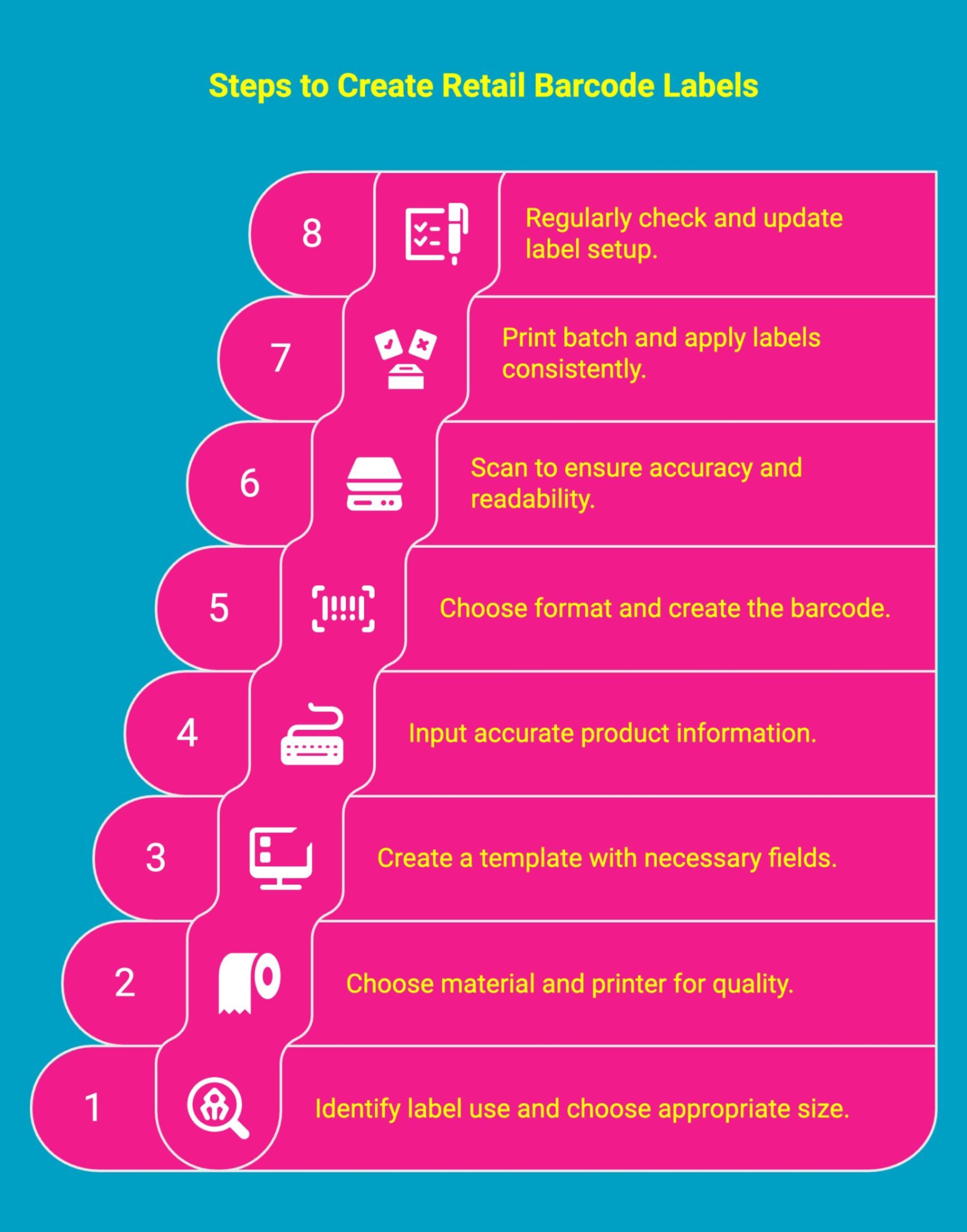
Creating barcode labels becomes much simpler when each stage is broken down clearly. Follow these steps for accurate, scannable labels that support smooth retail operations.
Step 1: Define The Purpose And Choose The Label Size
Start by identifying what the label will be used for, whether it’s a price tag, inventory sticker, or shipping label. Then choose a size that fits the product without covering key information. The right size ensures clean placement and easy scanning.
Step 2: Pick The Right Label Type And Printer
Select a label material that suits the product environment. Paper works for everyday items, while synthetic or waterproof labels are better for high-contact or moisture-exposed products. Pair this with a reliable thermal printer, such as a Seiko model, to ensure consistent print quality.
Step 3: Set Up Your Label Template
Open your label design software or label maker interface and create a template with fields for product name, SKU, price, or any required details. Ensure proper margins so the barcode prints cleanly without being cut off.
Step 4: Enter Accurate Product Data
Input all relevant product information into your template. Double-check spellings, codes, and spacing. A quick preview helps prevent errors that could disrupt checkout or inventory systems.
Step 5: Select The Barcode Type And Generate It
Choose the appropriate barcode format, UPC for retail items, QR codes for additional info, or other types based on your system. Generate the barcode using your label maker and verify that it meets scanning standards. Barcode labeling shelves in retail makes product organization faster, reduces restocking errors, and helps staff quickly locate items.
Step 6: Print A Test Label And Scan It
Before printing a full batch, print one test label and scan it using your POS or a scanner app. Confirm it reads instantly and matches the correct product record. Adjust sizing or contrast if needed.
Step 7: Print Your Labels And Apply Them Properly
Once everything checks out, print the batch and apply labels smoothly and consistently across products. Proper placement helps cashiers and stock teams scan items quickly without fuss.
Step 8: Review And Maintain Your Label Setup
Regularly re-scan sample labels, update templates for new items, and keep spare rolls and maintenance parts ready. This helps prevent downtime and ensures long-term accuracy.
To understand the role of receipt printers in modern retail, read Thermal POS Receipt Printers: What Retailers Need to Know in 2025.
Which Printers Are Best for Printing Retail Barcode Labels?
Choosing the right printer for retail barcode labels comes down to print quality, durability, speed, and seamless compatibility with your label materials. While many brands deliver decent performance, Seiko stands out for retailers who want dependable, high-clarity printing without complexity.
Here’s how Seiko models fit common retail needs.
Seiko SLP-620
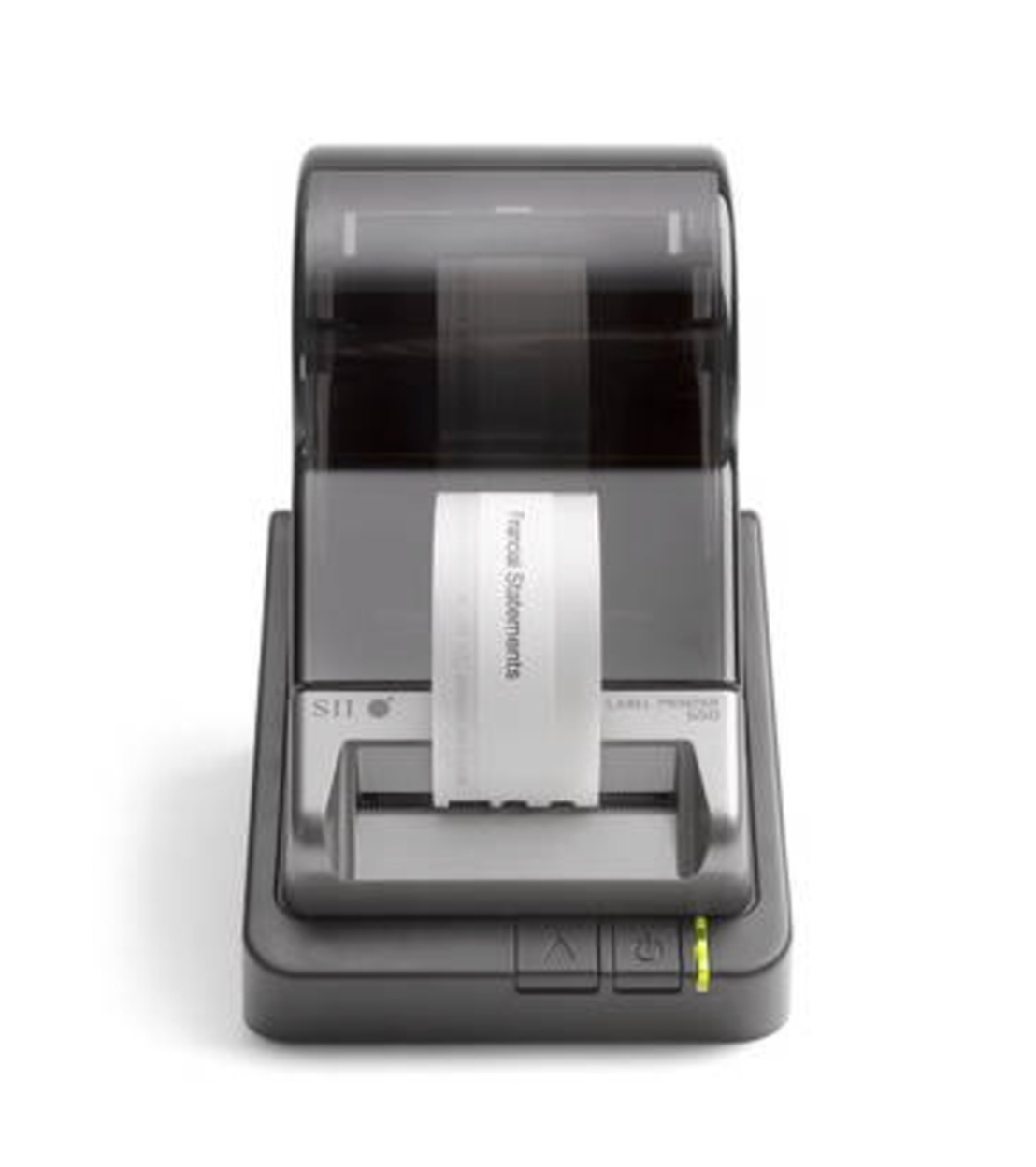
The Seiko SLP-620 is a great entry-level option for small retail shops printing everyday barcode labels like shelf tags, price stickers and POS labels.
Key features:
-
203 dpi print resolution for clean, readable barcodes.
-
Print speed up to 2.76 inches per second.
-
Direct thermal printing, no ink or toner required.
-
Compact design ideal for counters and backrooms.
-
USB connectivity for easy plug-and-print setup.
Seiko SLP-650
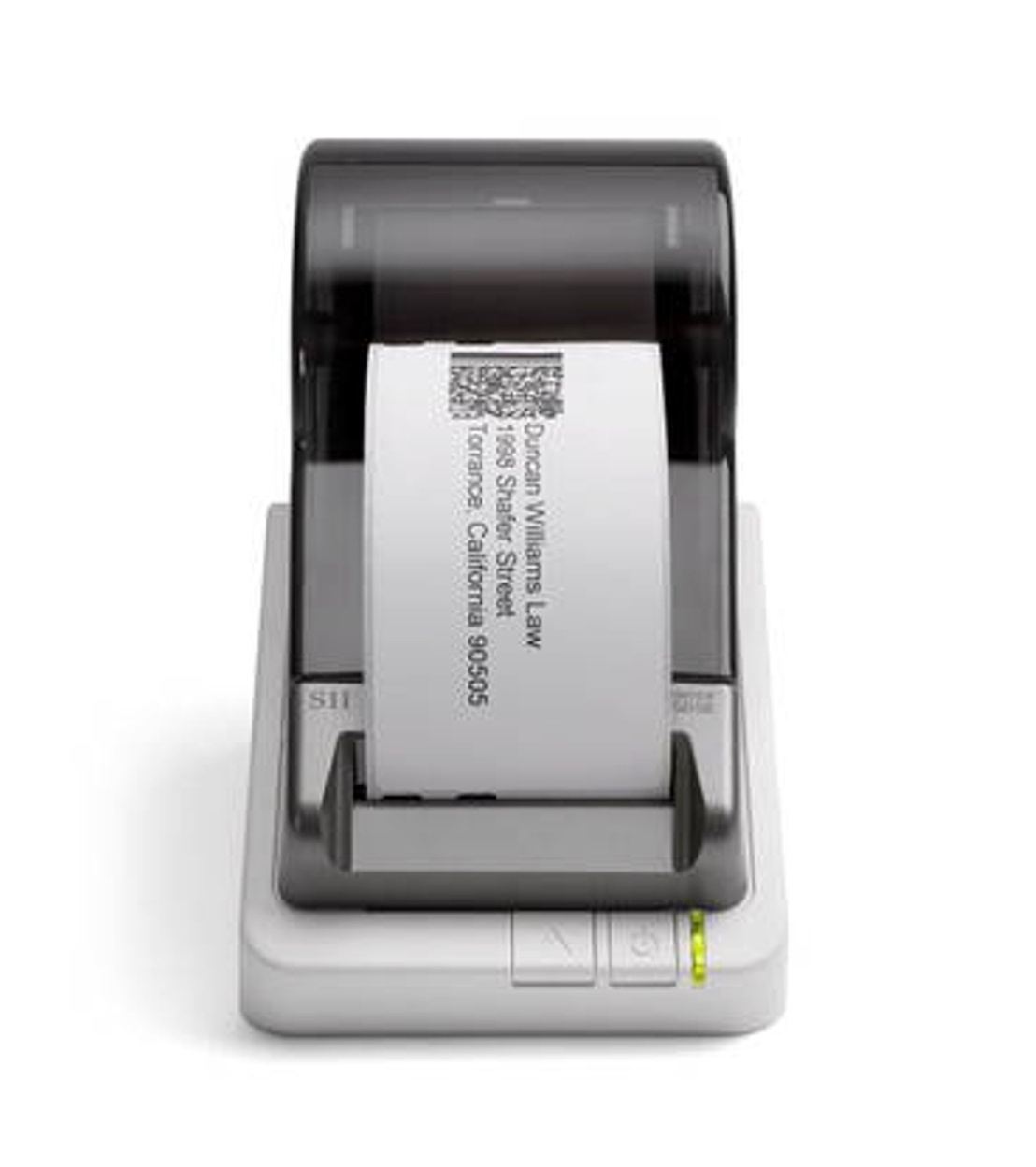
The Seiko SLP-650 is perfect for busy retailers who need sharper barcode detail and faster printing for higher-volume labeling.
Key features:
-
300 dpi high-resolution printing for crisp barcodes and SKU labels.
-
Fast printing up to 3.94 inches per second.
-
Handles a variety of label types and sizes.
-
Reliable for batch printing and stock updates.
-
Direct thermal technology keeps running costs low.
Seiko SLP-650SE
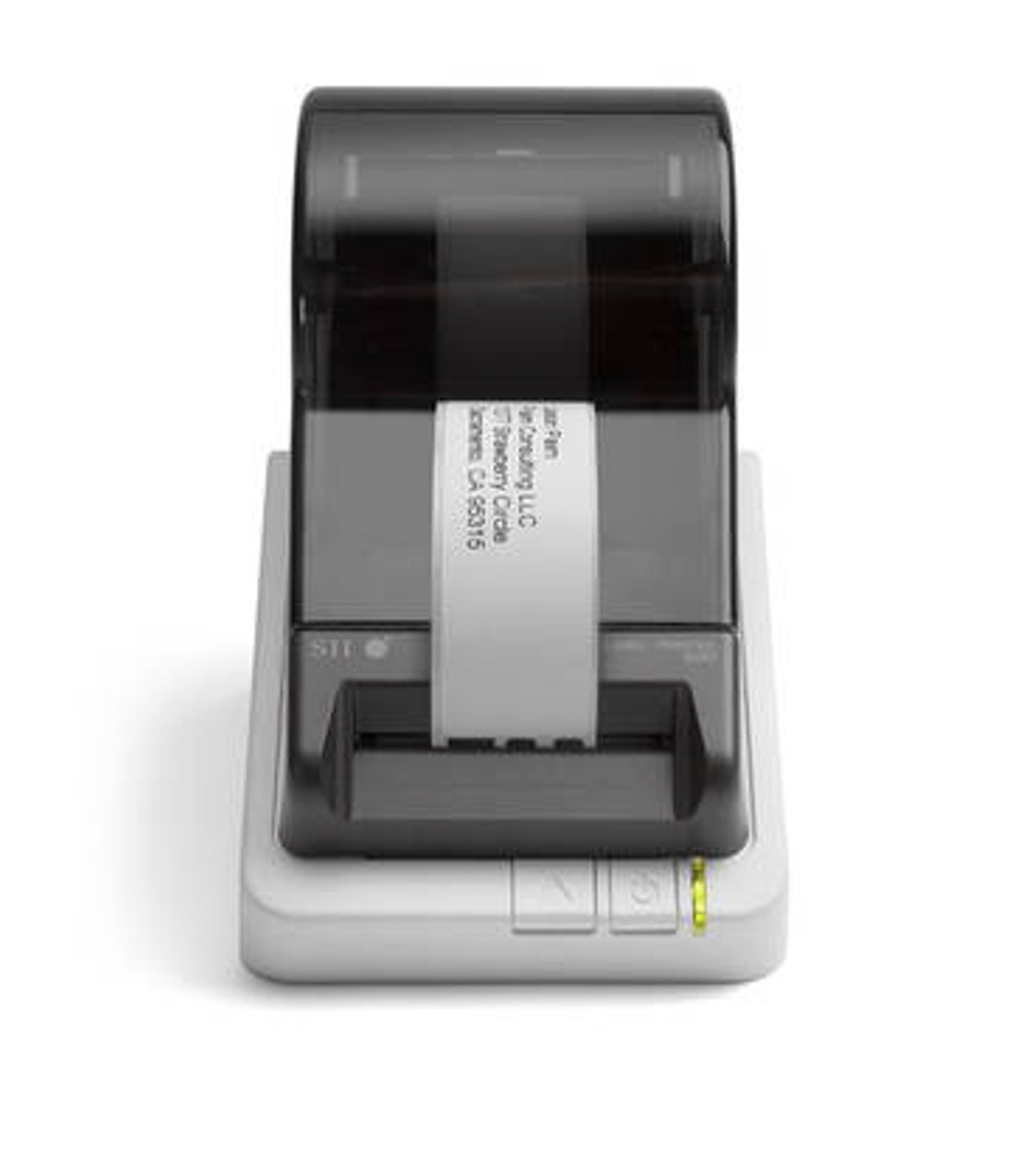
The Seiko SLP-650SE is built for high-volume retail environments, warehouse backrooms and multi-user setups.
Key features:
-
300 dpi resolution and fast 3.94 inches per second print speed.
-
Network and serial connectivity for team access.
-
Compatible with advanced label materials.
-
Ideal for pricing, inventory tracking and shipping labels.
-
Designed for continuous, heavy-duty performance.
What Are the Most Common Retail Barcode Label Applications?
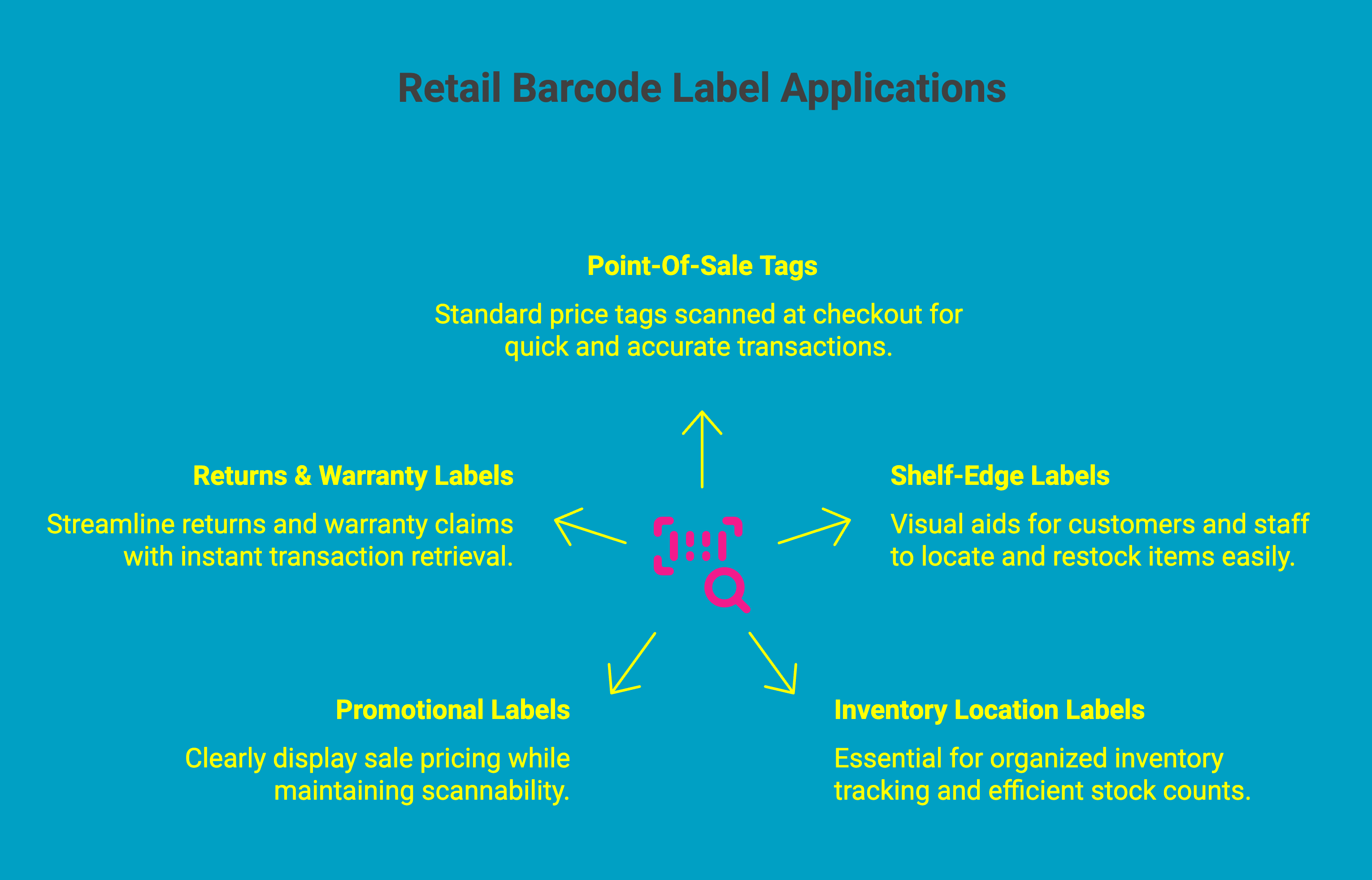
Barcode labels support far more than checkout; they help organize shelves, track stock, speed up fulfillment, and maintain accurate records. A retail barcode label maker allows stores to produce professional labels on demand. When used across your retail workflow, they reduce errors, improve efficiency, and give your team the clarity they need to move faster.
Let's have a look at the common applications of retail barcode labels:
1. Point-Of-Sale Tags
POS barcode labels are the standard price tags scanned at checkout. They typically include the barcode, product name, SKU, and price, allowing your POS system to instantly identify the item. Whether you use Square, Shopify, or another platform, generating these tags is quick and helps prevent pricing mistakes while keeping lines moving smoothly.
2. Shelf-Edge Labels
Shelf-edge labels make it easier for customers to find items and for staff to restock accurately. By placing labels directly on shelves or bins, you create a visual system that eliminates guesswork. These labels don’t require heavy-duty materials, so a simple desktop printer and label sheets are often all you need.
3. Inventory Location Labels
Barcode labels on bins, racks, and shelves are essential for organized inventory tracking. Scanning a location barcode and then scanning the products within it speeds up stock counts and reduces errors. Integrated apps on platforms like Shopify and Square ensure these labels sync seamlessly with your online inventory.
4. Promotional Labels
Promotional or markdown labels clearly display sale pricing while staying fully scannable. They typically show both the original and discounted prices along with the same barcode used for regular stock. Printing these labels in batches keeps discount events running smoothly without manual checkout overrides.
5. Returns & Warranty Labels
Barcodes make returns and warranty claims far easier to manage. Scanning the original label instantly retrieves the transaction, speeding up the return process. Assigning a unique barcode for warranties links the item to the purchase date and customer details, creating a clear record for future service or replacements. Creating a retail label with a barcode improves accuracy during checkout and inventory tracking.
If you are launching a new product and need a barcode, read How to Get a Barcode for Your Product in 5 Easy Steps.
What Are the Best Tips for Effective Barcode Labeling in Retail?
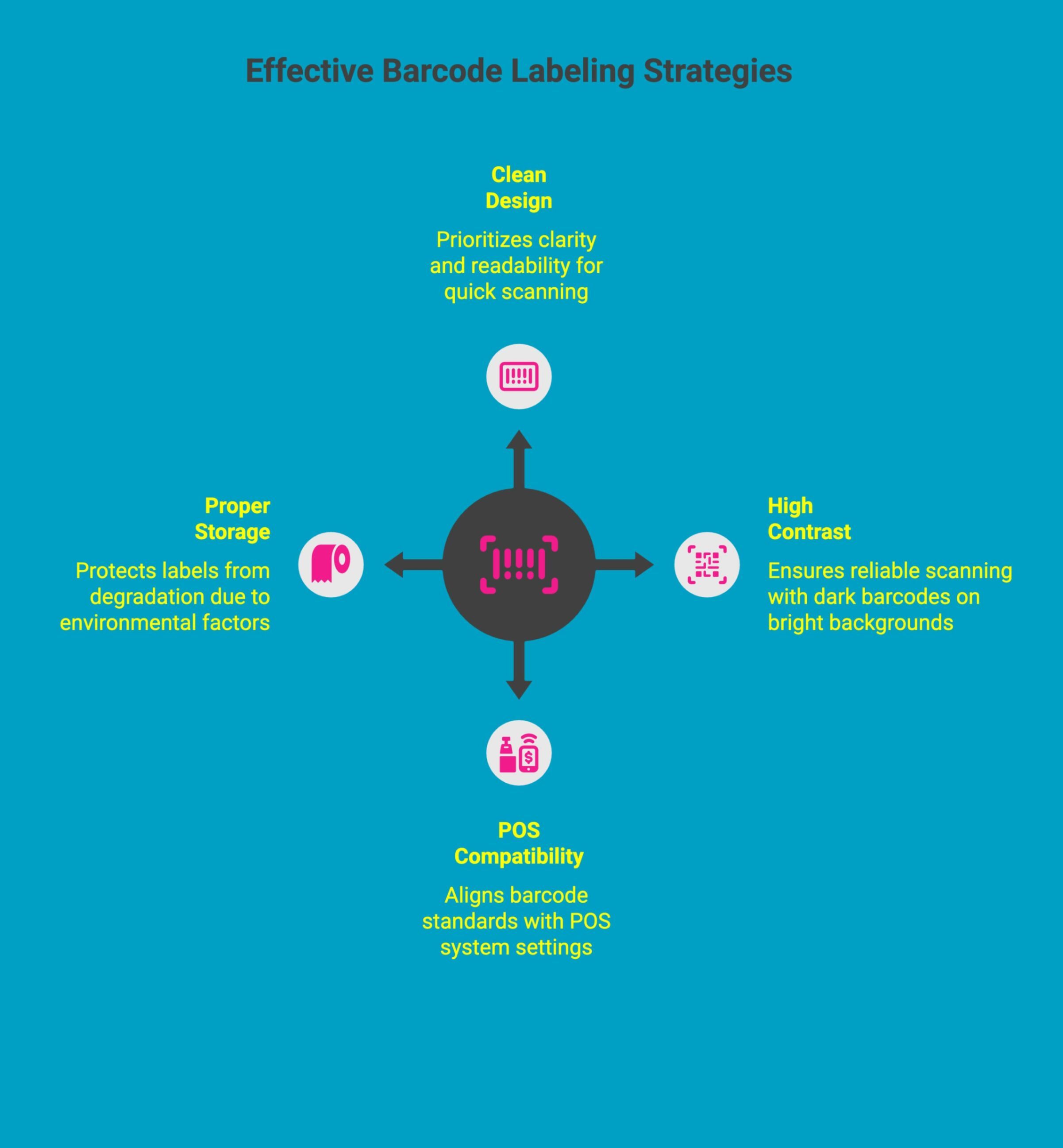
Once you know where barcode labels fit into your retail workflow, the next step is making sure they work flawlessly every time. Effective labeling is about more than printing a barcode; it’s about designing labels that scan quickly, print clearly, and hold up in real retail conditions.
These practical tips help you maintain accuracy, speed, and consistency across your entire store.
1. Keep Label Design Clean
A simple label design always scans better. Too much text or clutter weakens readability and slows down checkout. Prioritize a clear barcode, essential product details, and a readable font. Leave enough white space around the code and make sure it’s large enough to scan instantly. Whether you’re printing for Shopify, Square, or another platform, clarity is what keeps your system running smoothly.
2. Use High-Contrast Printing
Scanners rely on contrast, so a dark barcode on a bright background is essential. Thermal printers excel here because they create sharp, solid black lines that scan reliably. Lower-contrast prints, like faint inkjet blacks or smudged toner, lead to scan errors and delays. Keep your printhead clean and always aim for the darkest, crispest output possible.
3. Match Barcodes to Your POS Standards
Your barcodes must use the same standards your POS system supports. Whether you’re printing SKUs for internal tracking or GTIN/UPC codes for universal identification, the format has to align with your POS settings. Before printing large batches, confirm your system configuration so every label scans correctly during inventory checks and at checkout.
4. Store Labels Properly
Labels can degrade if stored in the wrong conditions. Keep unused rolls in a cool, dry, shaded place to protect the material and adhesive. Direct thermal labels are especially sensitive to heat and humidity, which can cause darkening or premature fading. Proper storage ensures every label prints cleanly, scans reliably, and reduces waste.
What Are the Most Common Barcode Labeling Challenges and How Do You Fix Them?
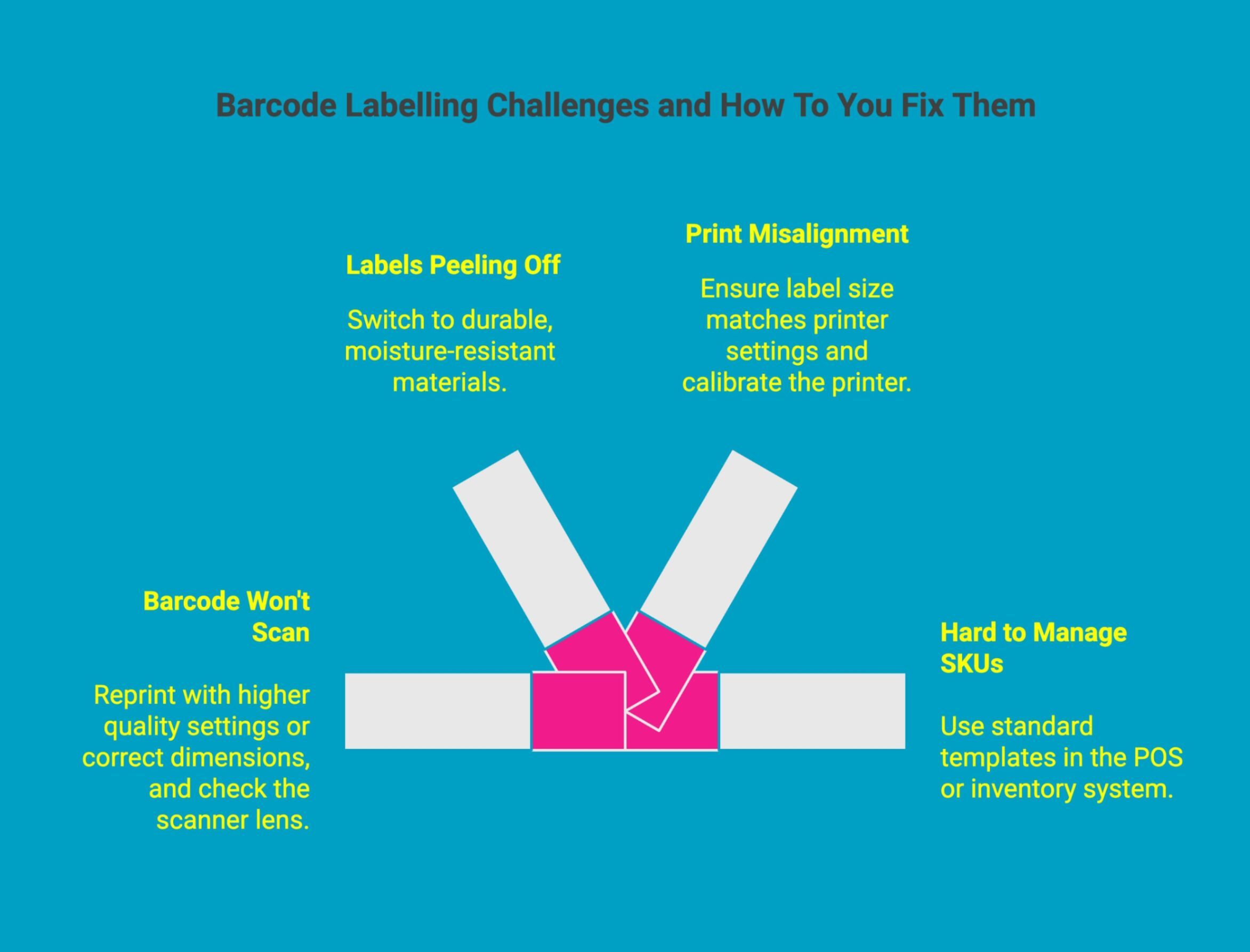
Even with a strong system, barcode issues can still appear, from labels that won’t scan to printouts that don’t align. The good news is that most problems are easy to diagnose and fix once you know what to look for. Here’s how to keep your labeling process smooth and reliable.
1. Barcode Won’t Scan
A non-scannable barcode usually comes from low print contrast, poor sizing, or label damage. Reprint the label with higher quality settings or correct dimensions, and check the scanner lens if the issue persists. A clean, crisp print is essential for quick reads at checkout.
2. Labels Peeling Off
Peeling labels is almost always caused by using the wrong adhesive for your environment. Heat, bright lighting, or humidity can weaken standard paper labels. Switching to durable, moisture-resistant materials ensures labels stay put, especially on refrigerated or high-touch products.
3. Print Misalignment
Misaligned labels typically indicate mismatched printer settings or a calibration issue. Make sure the selected label size matches what’s loaded, then run a quick calibration. Also, confirm the roll is seated correctly with the guides snug to prevent shifting during printing.
4. Hard To Manage Across Many SKUs
Managing labels for hundreds of SKUs becomes messy without templates. Using standard templates in your POS or inventory system keeps layouts consistent and lets the software auto-fill product data. This saves time and ensures every label looks uniform and professional.
Where Can You Buy the Best Printers for Retail Barcode Labels That Truly Last?
DuraFast Label Company is the go-to destination for retailers who need reliable, professional barcode label printing that keeps up with real-world demands. Instead of basic office printers that struggle with durability and clarity, DuraFast offers purpose-built thermal printers engineered for retail shelves, POS counters and warehouse operations.
Why retailers choose DuraFast Label Company:
-
Genuine Seiko barcode printers optimized for clarity, speed and heavy use.
-
Direct-thermal printing means no ink or toner ever, reducing long-term costs.
-
Crisp, scannable barcodes for POS labels, shelf tags, price stickers and SKUs.
-
Matching label rolls and supplies for consistent print quality and secure adhesion.
-
Fast Canadian shipping and support from real barcode labeling specialists.
-
Competitive pricing with expert guidance to help you choose the right model.
DuraFast Label Company gives you everything in one place, making it easy to build a reliable, efficient barcode labeling system that improves accuracy and speeds up your workflow. Contact us today to start simplifying your business.
Conclusion
Creating retail barcode labels is an essential aspect of streamlining your business operations. By following the outlined steps and tips, you can ensure that your labels are not only effective but also enhance your overall retail strategy. Using a retail business barcode label maker saves time and supports smoother daily operations, and if you use platforms like Square for Retail, setting up barcode labels is straightforward since you can generate and print them directly through the Dashboard. Remember to choose the right printer, keep your designs clear, and regularly assess your labeling process to avoid common challenges.
Frequently Asked Questions
Can I use a regular printer to print barcode labels for my store?
Yes. A regular inkjet printer with sheet labels works for light use, but barcode accuracy suffers. Thermal printers create sharper, longer-lasting, scannable labels ideal for busy retail environments and consistent daily operations.
How do barcode labels connect to my retail inventory system?
Each generated barcode links to an item in your POS database. When scanned, the system updates stock levels, product details, and sales data automatically, keeping your entire inventory accurate without manual entry or additional steps.
What is the best way to print barcodes for Shopify or Square stores?
Use a compatible thermal label printer and print directly through Shopify or Square’s built-in tools. This ensures accurate product data, correct barcode formatting, seamless inventory syncing, and consistently scannable, professional-grade barcode labels.
What type of printer is used to print retail barcode labels?
Retailers typically use thermal printers. Direct thermal works for everyday price tags, while thermal transfer creates durable labels. Some stores also use mobile printers for on-floor labeling from brands like Zebra, DYMO, and Seiko.
How do I create and print barcodes for retail products?
Enter product details into your POS or barcode software, generate a barcode for each item, choose the correct label size, then print using a compatible thermal printer for clear, accurate, easily scannable retail labels.
Can I use one barcode label printer for both products and shelves?
Yes. A single printer works for multiple label types as long as it supports different sizes. Simply switch the label roll to print small product tags or larger shelf-edge labels without buying another machine.
Are there online tools to generate retail barcode labels quickly?
Yes. Platforms like Shopify, Square, and various barcode generator tools let you create barcodes fast. Pairing them with a thermal printer ensures accurate printing, smooth POS integration, and reliable scanning across your retail workflow.
What software can I use to generate retail barcode labels?
You can generate retail barcode labels using software like Seiko Smart Label Creator, BarTender, NiceLabel or Shopify’s built-in barcode generator, which support UPC, EAN, QR and custom label design formats.
How do barcode label apps work with Shopify for retail stores?
Barcode label apps connect directly to your Shopify product catalog, importing SKUs, prices and inventory data automatically, letting you design and print barcode labels for products, shelf tags or shipping with one-click syncing.
Which brands offer reliable barcode label printers for retail operations?
Reliable barcode label printer brands for retail include Seiko, Zebra, Brother and Dymo, known for fast thermal printing, durable retail-grade performance, strong software compatibility and consistent barcode clarity in high-volume workflows.