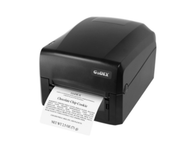
How to Print Labels for Clean, Accurate Results?
9th Jul 2026
Key Highlights
-
Learning how to print labels correctly starts with choosing the right printer type and label material for your specific use case
-
Inkjet, laser, and thermal printers each serve different label printing needs, volumes, and budget requirements
-
Brother P-Touch printers simplify label printing with built-in templates and Bluetooth or USB connectivity
-
Proper printer setup and calibration are essential to prevent misalignment, cut-offs, and wasted labels
-
Using the right label templates ensures consistent sizing, clean layouts, and professional results
-
Most label printing issues stem from incorrect settings or materials, not from faulty printers
Ever hit “print” on a sheet of labels and realized halfway through that something is off? Crooked alignment, cut-off text, or labels that simply do not line up are common frustrations, even when the task seems straightforward. Knowing how to print labels sounds easy, but in reality, small mistakes can lead to wasted supplies, reprints, and lost time, especially for teams handling shipping, inventory, or product labelling.
Label printing works best when every part of the process is aligned. The printer, label material, software, and settings all play a role in how labels turn out. When one element does not match the others, even a good printer can deliver poor results. This is why general office printers often struggle with tasks better suited to dedicated label printing equipment.
This guide breaks the process down into simple, practical steps. You will learn how to print labels on a printer correctly, understand different printer technologies, and see how tools like Brother P-Touch printers make everyday label printing faster, cleaner, and far more predictable.
Why Is Label Printing Important?
Label printing plays a direct role in efficiency, accuracy, and professionalism. Whether labels are used for shipping, safety, asset identification, or product packaging, clarity and consistency are essential.
Well-printed labels help reduce human error and ensure information is readable at a glance. In operational environments, this clarity supports faster decision-making and safer handling of equipment and materials.
Label printing is important because it:
-
Supports organized inventory and asset tracking
-
Simplifies mailing and shipping workflows
-
Enhances product labelling and compliance
-
Improves brand presentation and consistency
-
Saves time by eliminating handwritten or manual labels
As operations scale, learning how to print out labels efficiently becomes a core business requirement rather than an occasional task.
What Are the Different Types of Label Printers?
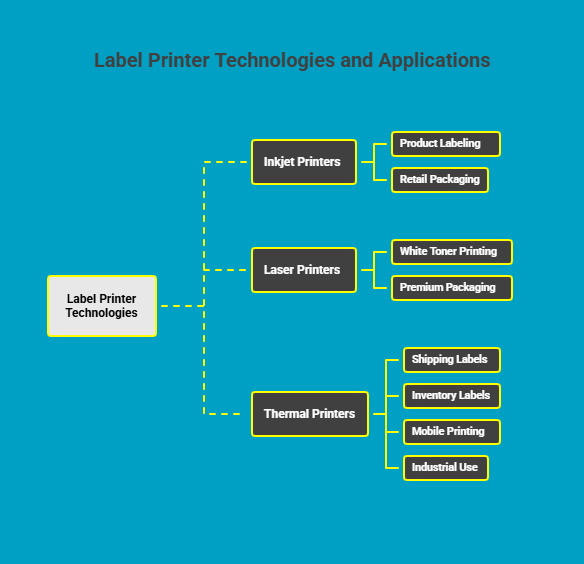
Understanding printer technologies is a key step in learning how to print labels efficiently and consistently. Each type of label printer is designed for specific print volumes, environments, and durability needs. Choosing the right technology early helps reduce label waste, speed up workflows, and control long-term operating costs.
The three most common label printer technologies used by businesses today are inkjet, laser, and thermal printers, each serving a distinct purpose.
1. Inkjet Printers
Inkjet label printers use liquid ink to produce high-resolution, full-colour labels. They are commonly chosen for product labelling where branding, colour accuracy, and visual appeal matter.
Inkjet printers are best suited for businesses that:
-
Require full-colour labels with images, gradients, or logos
-
Print low to medium label volumes
-
Focus on retail or shelf-ready packaging
For businesses exploring in-house colour label printing, there are wide range of offers with scalable options based on volume and budget.
Recommended inkjet label printers include:
-
Primera LX500 Colour Label Printer
The lowest-cost entry-level colour label printer at $2,275 CAD, ideal for small businesses producing short-run product labels. -
Afinia L502 Colour Label Printer
A top-selling mid-range model at $4,495 CAD, offering improved speed and colour consistency for growing label volumes. -
VIPColor VP550 Industrial Colour Label Printer
An industrial, high-speed solution priced at $6,600 CAD, capable of 1,600 dpi resolution and print speeds up to 8 inches per second, making it ideal for high-throughput colour label production.
While inkjet printers deliver excellent visual results, they are best used in controlled environments rather than high-wear operational settings.
2. Laser Printers
Laser label printers use toner and heat to fuse images onto label materials. They are preferred for applications requiring durability, precision, and specialty printing, such as white toner.
Laser printers are ideal when:
-
Labels require white printing on clear or dark materials
-
Smudge resistance and long-term durability are critical
-
Professional-grade product labelling is required
For premium product labelling, the laser printer offering includes:
-
Afinia LT5C CMYK + White Colour Laser Label Roll Printer
Priced at $21,750 CAD, this printer supports full-colour printing plus white toner, allowing businesses to print white on clear or white on black labels with professional results.
Laser printers are typically selected for high-end packaging and specialty label applications rather than everyday shipping or inventory labels.
3. Thermal Printers
Thermal label printers use heat instead of ink or toner, making them the most cost-effective and reliable option for most operational labelling needs. Due to low running costs and durability, thermal printers dominate shipping, warehousing, manufacturing, and field service environments.
DuraFast.ca Label offers one of the largest selections of thermal label printers in Canada, covering handheld, desktop, industrial, and mobile use cases.
Industrial Handheld Thermal Printers
Handheld thermal printers are designed for technicians and on-site labelling tasks where portability and speed matter.
Popular handheld options include:
-
Brother PT-E110 P-Touch Handheld Label Printer at $135 CAD
-
Brother PTE560BTVP | P-Touch Edge 560BTVP at $525 CAD, featuring Bluetooth connectivity and a dual auto-cutter for labels up to 24 mm wide
These printers allow teams to print labels directly at the point of work, reducing errors and rework.
Desktop Thermal Printers
Desktop thermal printers are widely used for shipping, barcode, and inventory labels up to four inches wide. They balance speed, footprint, and affordability.
Common desktop models include:
-
Godex GE300 Desktop Thermal Printer at $629 CAD
-
Godex G530 Desktop Thermal Printer at $861 CAD
These printers are ideal for warehouses, offices, and shipping stations handling daily label printing.
Industrial Thermal Printers
Industrial thermal printers are built for high-volume, continuous operation in demanding environments.
Recommended industrial models include:
-
Godex ZX430i+ Thermal Transfer Printer at $1,575 CAD, supporting USB, RS232, and Ethernet
-
Brother Titan TJ-4522TNWB Industrial Label Printer at $4,396 CAD, offering 300 dpi resolution, speeds up to 12 inches per second, Wi-Fi connectivity, a touch panel, and internal full-roll rewind
These printers are commonly used in manufacturing plants, logistics hubs, and distribution centres.
Mobile Thermal Printers
Mobile thermal printers allow labels to be printed wherever work happens, supporting field service, retail, and logistics teams.
Popular mobile options include:
-
Zebra ZQ630 Plus Mobile Label Printer at $2,223 CAD
-
Seiko Instrument MP-B30L Mobile Printer at $900 CAD
-
TSC Alpha-40L Mobile Thermal Printer at $1,899 CAD
Mobile printers reduce delays, improve accuracy, and support real-time labelling across operations.
Choosing the right label printer comes down to how often you print, where labels are used, and how durable they need to be. Once the printer technology matches your workflow, label printing becomes faster, more reliable, and easier to scale as your business grows.
How Do You Choose the Right Label Printer?
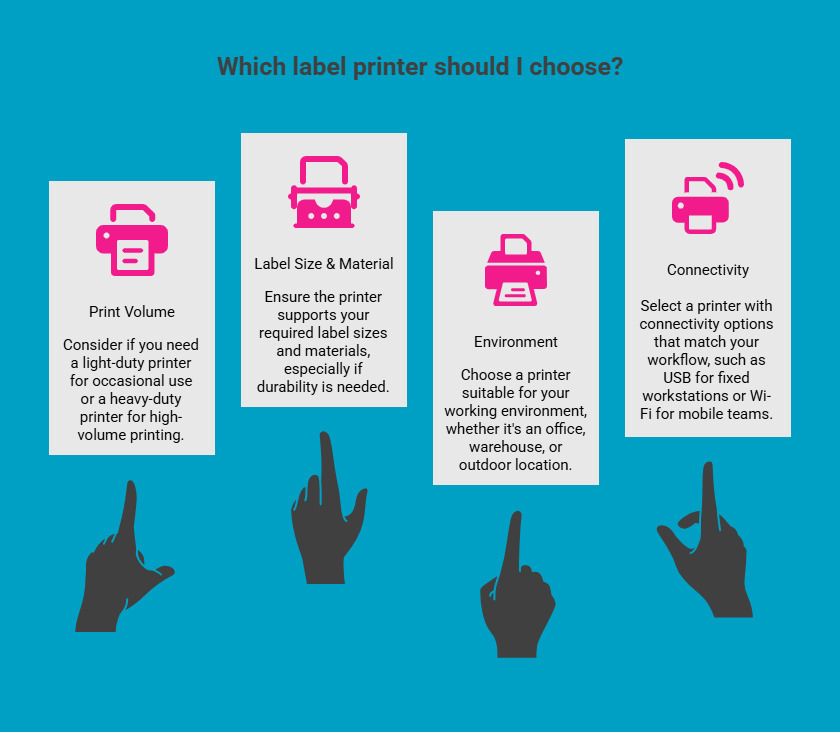
Selecting the right label printer is a critical step in creating a reliable label printing workflow. When the printer matches your operational needs, printing becomes consistent and efficient. When it does not, businesses often face misprints, wasted labels, and unnecessary downtime. Understanding a few key factors upfront helps avoid these issues and supports long-term efficiency.
1. Consider Print Volume and Frequency
Start by evaluating how often labels are printed and in what quantities. Occasional label printing can be handled by lighter-duty printers, while daily or high-volume printing requires equipment designed for continuous use to maintain speed and reliability.
2. Check Label Size and Material Compatibility
Not all printers support the same label widths, materials, or adhesives. Confirm that the printer can handle the exact label sizes and materials you plan to use, especially if labels need to be durable, waterproof, or resistant to wear.
3. Evaluate the Environment Where Labels Will Be Used
The working environment directly affects printer choice. Office settings have different requirements than warehouses, manufacturing floors, or outdoor locations. Printers built for harsher conditions produce labels that remain readable and intact over time.
4. Match Connectivity to Your Workflow
Connectivity should align with how teams work. USB connections suit fixed workstations, while Wi-Fi or Bluetooth supports shared spaces, mobile teams, and on-demand label printing without physical connections.
Choosing a label printer based on these factors creates a balanced setup that reduces errors, improves output consistency, and supports scalable label printing as business needs grow.
How Do You Set Up Your Printer for Label Printing?
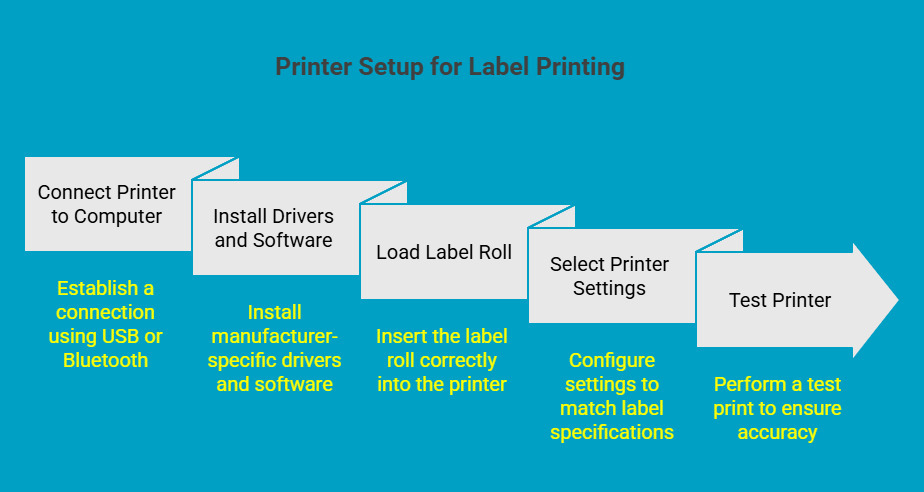
Proper printer setup is one of the most important steps in successful label printing. Many common issues, such as misalignment or wasted labels, are caused by skipping setup steps rather than faulty equipment. A structured approach ensures consistent, accurate results from the start.
1. Connect the Printer to Your Computer or Device
Begin by connecting the printer using the method best suited to your workspace. USB connections provide stability for desktop setups, while Bluetooth offers flexibility for handheld or mobile printing environments.
2. Install the Necessary Drivers and Software
Install the manufacturer’s drivers and label software to unlock label-specific settings. These tools allow you to control media type, label size, cutting behaviour, and print density more precisely than generic drivers.
3. Load the Label Roll into the Printer
Insert the label roll or cartridge carefully, ensuring it feeds straight and evenly. Incorrect loading often leads to skewed prints, uneven cuts, and unnecessary label waste.
4. Select Printer Settings for Label Type
Confirm that label dimensions, material type, and resolution in the printer settings match the physical labels being used. Even minor mismatches can affect alignment and print quality.
5. Test the Printer Before Printing Labels
Always run a test print before full production. This final check confirms alignment, clarity, and cutting accuracy, helping avoid errors during larger print runs.
With the printer correctly set up, label printing becomes more predictable and far less prone to errors.
How Do You Choose the Right Label Template?
Label templates play a key role in ensuring consistency and accuracy. They remove guesswork by defining layout, spacing, and sizing, which helps labels print cleanly and align correctly every time.
1. Explore Template Options
Most label printing software includes a library of pre-sized templates designed for common label formats. These templates are a reliable starting point, especially for standard applications.
2. Customize for Your Needs
Templates can be adjusted to suit the label’s purpose. Add text, barcodes, symbols, or icons as required, keeping the layout clear and easy to read.
3. Consider Label Size and Shape
Using a template that does not match the actual label dimensions often causes cut-offs or misalignment. Always confirm that the template matches the label size and shape precisely.
4. Use Pre-Designed Templates
Pre-designed templates reduce setup time and minimize errors, particularly for recurring label printing tasks. They also help maintain consistency across multiple print runs.
5. Match Template with Printer Settings
Ensure the template dimensions match the printer driver settings exactly. This alignment is essential for anyone learning how to print a label accurately.
Once the right template is in place, the design and printing process becomes faster and more consistent.
How Do You Print Labels Using a P-Touch Printer?
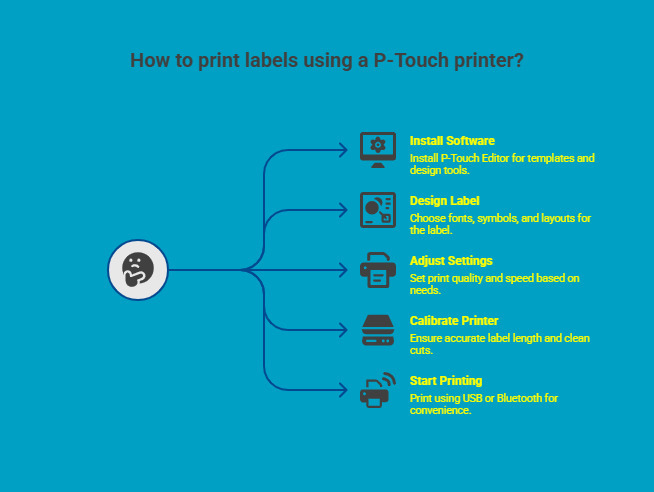
Brother P-Touch printers are built to simplify label printing for offices, technicians, and industrial teams. Their intuitive software and flexible connectivity reduce setup time and streamline everyday labelling tasks.
1. Install and Set Up P-Touch Software
Start by installing the P-Touch Editor software, which provides built-in templates, design tools, and access to industry-specific symbols and formats.
2. Select Label Design Features
Choose fonts, spacing, barcodes, and symbols based on the label’s application. The software makes it easy to adjust layouts without advanced design skills.
3. Adjust Print Quality and Speed Settings
Set print quality and speed according to your needs. Higher quality settings are useful for detailed text, while faster speeds suit basic identification labels.
4. Confirm Printer Calibration and Alignment
P-Touch printers handle calibration automatically, ensuring accurate label length and clean cuts. This helps reduce label waste and improves consistency.
5. Start the Printing Process
Print labels using USB or Bluetooth, depending on your setup. Wireless printing is especially useful for mobile or on-site labelling tasks.
This streamlined workflow shows how to print labels on a printer efficiently, without unnecessary adjustments or trial and error.
What Are Some Tips for Successful Label Printing?
Consistent label printing results come from following a few practical habits rather than relying on trial and error. When the printer, label material, and settings are aligned, labels print clearly and remain readable throughout their intended use.
To improve accuracy and reduce waste, focus on these proven practices:
-
Use label materials that match the environment, such as heat, moisture, or frequent handling
-
Clean printheads, rollers, and cutters regularly to prevent buildup and streaking
-
Store label rolls flat in a dry, temperature-controlled area to avoid curling or adhesive issues
-
Always run a test print before large batches to confirm alignment and clarity
-
Keep printer drivers and firmware updated to maintain compatibility and performance
By following these steps consistently, label printing becomes more predictable, efficient, and easier to manage over time.
What Are Common Label Printing Problems and How Can You Fix Them?
Even with proper setup, occasional issues can arise during label printing. Most problems are caused by small configuration errors rather than equipment failure, and they can be resolved quickly once identified.
Below are common label printing issues and practical ways to fix them:
-
Misalignment of labels: Check template dimensions, confirm printer settings, and recalibrate the printer
-
Ink or toner smearing: Use label stock designed for your printer type or switch to thermal printing for durability
-
Paper jams and label roll issues: Reload labels carefully and inspect rollers for debris or adhesive buildup
-
Poor print quality or fading: Increase print resolution or replace worn printheads and consumables
-
Connectivity problems: Verify USB, Bluetooth, or network connections and update printer drivers
Addressing these issues systematically improves reliability and builds confidence in how to print out labels without repeated reprints or wasted materials.
Why Choose DuraFast Label Canada for Label Printing?
Knowing how to print labels is easier when you have the right equipment and support behind it. DuraFast Label.ca helps businesses move from basic printing setups to reliable, professional label printing without unnecessary trial and error.
DuraFast Label Canada supports clean, accurate label printing with:
-
A wide range of inkjet, laser, and thermal label printers
-
Handheld, desktop, industrial, and mobile printer options
-
Support for Brother P-Touch printers and industrial systems
-
Expert guidance on printer, label, and software compatibility
-
Scalable solutions for growing label printing needs
For businesses that want consistent results without overcomplicating the process, DuraFast Label Canada provides the tools and expertise to print labels with confidence.
Explore professional label printing solutions at https://www.durafastlabel.ca/
Final Thoughts
Label printing delivers the best results when the process is intentional rather than rushed. By choosing the right printer technology, matching labels to their environment, and setting up templates and settings correctly, you avoid waste and rework.
Tools like Brother P-Touch printers further simplify everyday tasks, making labelling faster and more consistent. Once these fundamentals are in place, printing labels becomes a reliable part of your workflow, not a recurring problem that slows teams down.
Frequently Asked Questions
How Do I Print Labels Without a Template?
You can print labels without a template by manually setting label dimensions in your design or printer software. However, this increases the risk of misalignment. Templates ensure consistent sizing, spacing, and placement, especially for repeat label printing tasks.
Can I Use a Regular Printer to Print Labels?
Yes, a regular inkjet or laser printer can print labels, but results may vary. Consumer printers often struggle with alignment, durability, and higher volumes, making dedicated label printers a more reliable option for consistent label printing.
What Type of Printer Is Best for Label Printing?
The best printer depends on your use case. Thermal printers suit shipping and industrial labels, inkjet printers work well for colour product labels, and laser printers are ideal for professional labels requiring durability and sharp text.
Why Is My Label Print Quality Poor, and How Can I Fix It?
Poor label print quality is usually caused by incorrect printer settings, incompatible label materials, or worn components. Checking resolution settings, using proper labels, and running printer maintenance often resolve these issues quickly.
How Do I Prevent Label Misalignment During Printing?
Label misalignment can be prevented by matching template dimensions with printer settings, loading labels correctly, and running calibration before full print runs. Test prints are essential to catch alignment issues early and reduce label waste.
How Can I Print Address Labels Using Microsoft Word?
You can print address labels in Microsoft Word by selecting a built-in label template, entering addresses manually or using mail merge, and ensuring the label size matches your printer settings before running a test print.
How Do I Create and Print a Shipping Label for FedEx or UPS?
You can create shipping labels by logging into your FedEx or UPS account, entering shipment details, choosing the correct label format, and printing the label on adhesive or thermal label stock using a compatible printer.
Is It Possible to Print and Ship Labels for Canada Post Online?
Yes, Canada Post allows users to create, pay for, and print shipping labels online through its website or business tools, then drop off parcels or arrange pickups using the printed labels.
Are There Online Services Where I Can Design and Print Custom Labels?
Yes, several online platforms allow you to design custom labels using templates and design tools, then download print-ready files or order professionally printed labels based on your volume and material needs.
Can I Print Labels Directly From Canva, or Do I Need to Download Them First?
You can design labels in Canva, but it is best to download the file in PDF or image format and print it through your printer software to ensure accurate sizing and proper label alignment.
What Kind of Label Paper Should I Use for My Inkjet or Laser Printer?
You should use label paper specifically designed for your printer type. Inkjet printers require inkjet-compatible labels to prevent smudging, while laser printers need heat-resistant labels that can withstand high temperatures during printing.