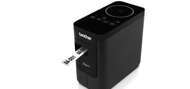
How to Connect Label Printer to Computer?
14th Jul 2026
Key Highlights
-
Computer-based label printing centralizes design, data, and print control, making computer label printing more accurate and consistent across business workflows.
-
Choosing the right connection method, USB, Bluetooth, or Wi-Fi, directly impacts reliability, speed, and team access.
-
Proper driver and software setup prevents common issues such as printer detection errors and misaligned labels.
-
Design software like P-Touch Editor enables advanced features including templates, barcodes, logos, and batch printing.
-
Businesses can streamline shipping, inventory, compliance, and asset tracking with repeatable label workflows.
-
Structured troubleshooting helps resolve printing failures quickly, reducing downtime and wasted supplies.
Printing labels is a routine task for many businesses, but doing it efficiently is often a challenge. Teams need labels that are accurate, professional, and consistent, yet manual or printer-based entry can slow workflows and increase errors.
The complexity usually lies in setup and execution. Printer connectivity, driver installation, software selection, and design control all influence how smoothly labels are produced. Without a clear process, businesses may face misprints, connection issues, or systems that do not scale as labelling demands grow.
This blog explains how to print labels from computer systems for business use. It covers setup requirements, connection methods, design software, and best practices to help businesses build a reliable, scalable label printing workflow without unnecessary complexity.
How Can I Print Labels From My Computer for Business Use?
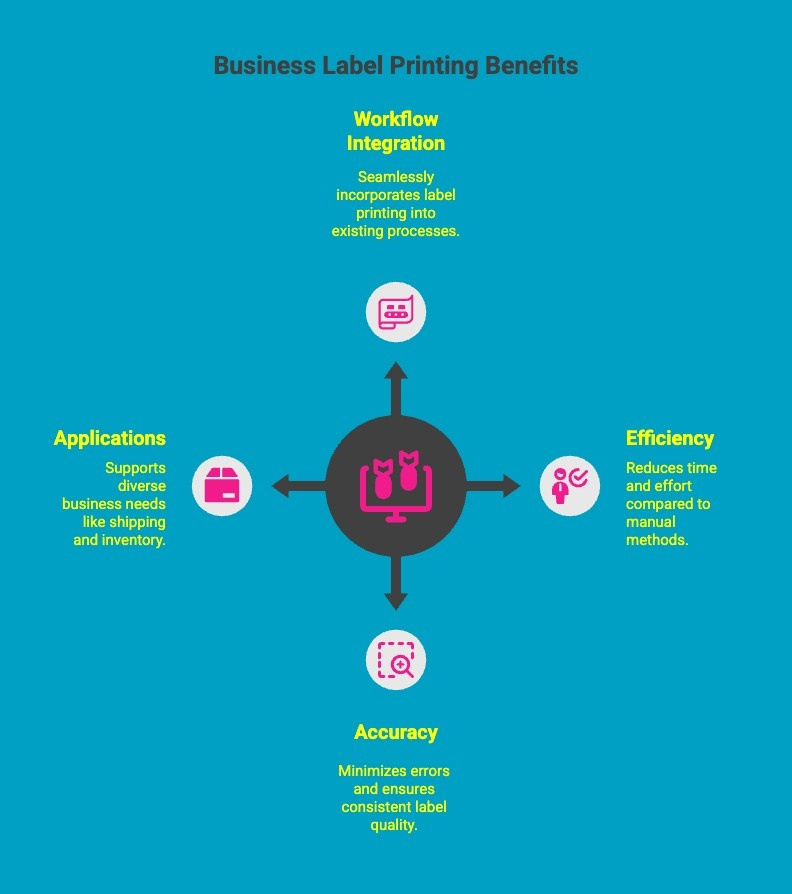
Printing labels from a computer allows businesses to control label creation directly from software rather than relying on manual entry at the printer. This approach improves consistency, accuracy, and efficiency across daily operations, especially when using computer-connected label printers such as the Brother P-touch PT-P750WVP.
The points below explain how computer-based label printing fits into modern business workflows and why it is widely used:
-
Computer-Based Label Printing in Business Workflows: Labels are designed, managed, and printed directly from a computer using compatible software and a connected label printer.
-
Advantages Over Standalone or Manual Labelling: Computer-based printing provides better formatting control, reusable templates, and fewer manual errors.
-
Accuracy and Consistency Across Operations: Data can be pulled from approved sources to ensure labels align with records and compliance requirements.
-
Common Business Applications: Frequently used for shipping, inventory management, compliance labelling, and asset tracking.
Computer-based label printing gives businesses a reliable way to standardize labels and support growth. With centralized control and repeatable workflows, teams can produce accurate, professional labels while saving time and reducing mistakes.
How Do I Print Labels From My Computer After Initial Setup?
Once your label printer is installed and connected, printing from your computer should feel straightforward and repeatable. The goal is to turn label printing into a reliable workflow where every print job comes out correctly sized, aligned, and ready for use, especially when working with computer-connected models like the Brother P-touch PT-P900WC, which supports 36 mm tapes, 360 dpi output, and USB plus Wi-Fi connectivity.
Understanding what happens between clicking print and the label coming out helps prevent errors and wasted supplies. Knowing how label software, drivers, and printer settings work together makes daily label printing faster and more consistent.
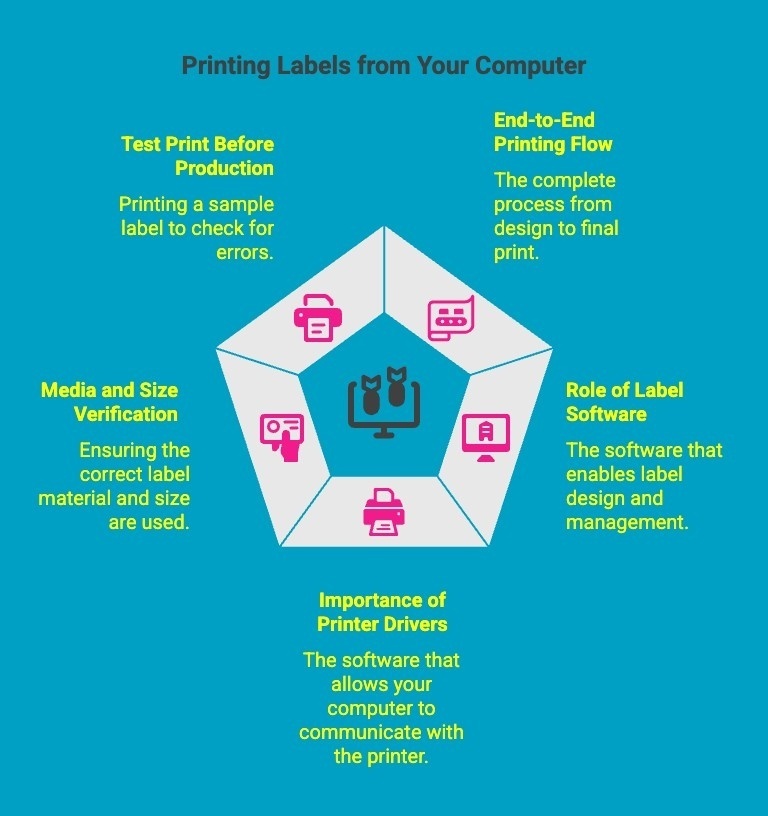
With the basics in place, it helps to look at the full printing process and the key checks that ensure smooth, error-free output:
-
End-to-End Printing Flow: Label information is created in software, processed by the printer driver, and then printed onto the selected label media.
-
Role of Label Software: The software controls layout, text, barcodes, and variable data, ensuring labels are formatted correctly before printing.
-
Importance of Printer Drivers: Drivers translate software settings into printer-specific instructions, making accurate sizing and alignment possible.
-
Media and Size Verification: Confirm the correct label size and type are selected in both the software and printer settings.
-
Test Print Before Production: Running a test label helps catch alignment or spacing issues before printing in volume.
Printing labels from your computer becomes simple when each step is properly configured. By checking software settings, keeping drivers updated, and verifying media selection, businesses can produce consistent, professional labels while minimizing errors and material waste.
How to Connect a Label Printer to Computer for the First Time?
Connecting a label printer to a computer for the first time sets the foundation for reliable, error-free printing. A proper initial setup ensures the printer communicates correctly with your system and helps prevent common issues such as misaligned labels, connection drops, or stalled print jobs, especially when working with professional desktop models like the Brother P-touch PT-P900C, which is designed specifically for computer-based labelling workflows.
Before plugging in the printer, it helps to follow a clear setup checklist. Preparing the correct cables, drivers, label software, and tape sizes upfront saves time and reduces troubleshooting later, when labelling becomes time-sensitive and accuracy matters most.
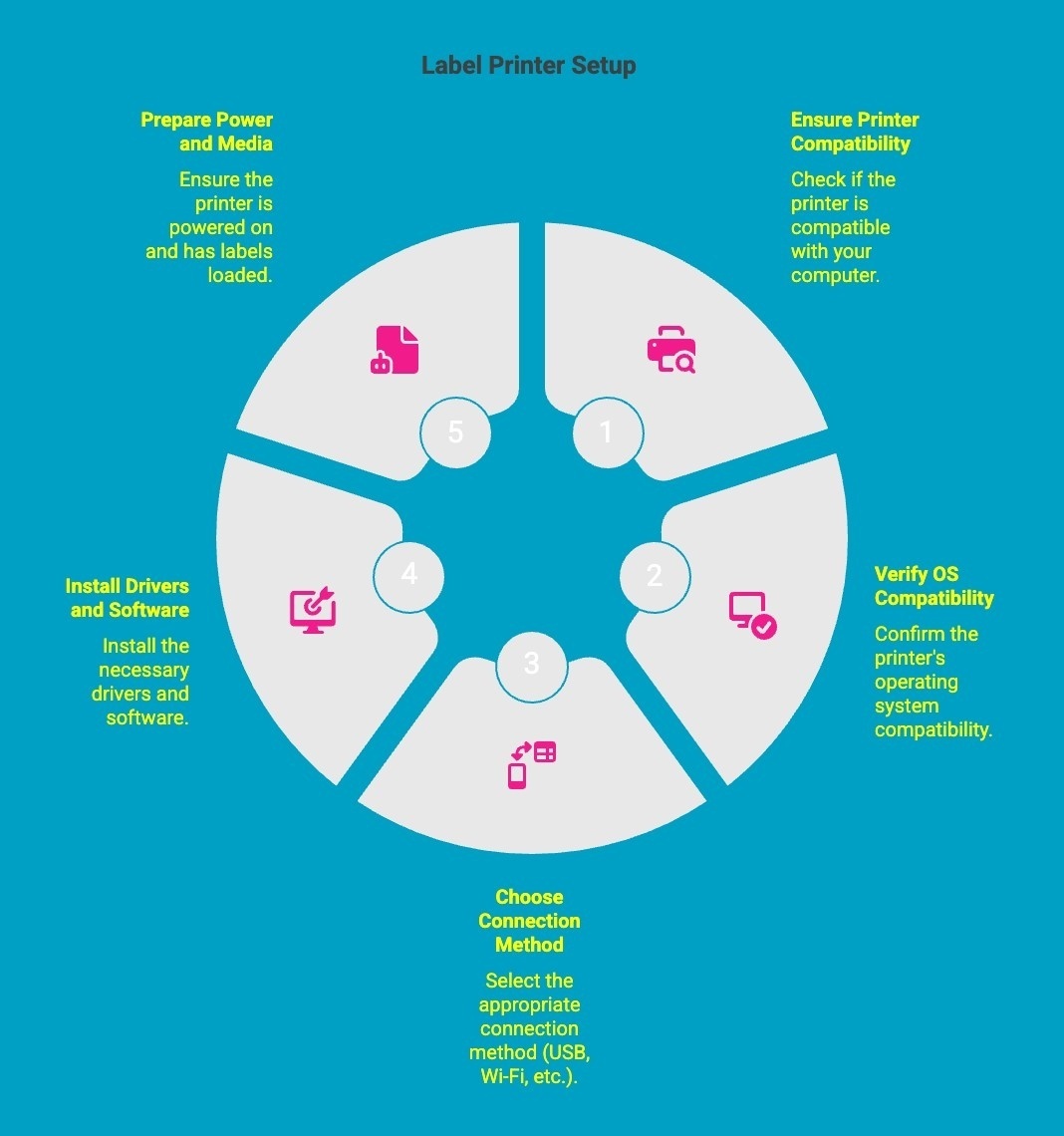
Pre-Setup Checklist for Businesses:
-
Compatible Label Printer: Confirm the label printer supports computer-based printing and matches your intended workload, whether light office use or higher-volume operations.
-
Computer Operating System Compatibility: Check that your computer’s operating system supports the printer drivers and label software required for your specific model.
-
Connection Method Selection: Decide whether USB, Bluetooth, or WiFi best fits your workspace and workflow before installation.
-
Driver and Software Installation: Download and install the correct printer drivers and label software prior to connecting the printer.
-
Power and Media Readiness: Ensure the printer is fully charged or powered and loaded with the correct label media before setup begins.
A proper first-time setup ensures smooth, reliable label printing. When everything is configured correctly, businesses avoid delays, reduce errors, and maintain efficient workflows as printing needs grow.
Why Proper Setup Prevents Printing Delays Later?
A well-executed first-time setup reduces the risk of communication errors, driver conflicts, and formatting issues. When the printer, software, and computer are aligned from the start, label printing becomes faster, more predictable, and easier to scale, particularly with network-ready models like the Brother P-touch PT-P950NW, which supports USB, Wi-Fi, and LAN connections for multi-device environments.
Starting with a structured setup ensures consistent results across users and systems, helping teams avoid rework, reduce downtime, and maintain reliable label output as workflows expand.
How to Add Label Printer to Computer Using Different Connection Methods?
Label printers can connect to computers in several ways, and the right method depends on how your business operates. USB, Bluetooth, and Wi-Fi connections each offer different advantages in terms of reliability, mobility, and team access.
Understanding these options helps you choose a setup that supports your daily workflow without unnecessary complications.
1) How to Connect a Label Printer to a Computer Using USB?
USB is often the simplest and most reliable connection method for first-time setup:
-
Physical Connection Setup: Connect the printer directly to the computer using a USB cable before powering it on.
-
Driver Installation Process: Install the correct printer driver from the manufacturer to enable communication.
-
Device Recognition and Testing: Confirm the printer appears in system settings and run a test print.
-
Best Use Case for USB Connections: USB is ideal for fixed workstations where stability and uninterrupted printing matter most.
USB works best for single workstation use where stability is more important than mobility. It minimizes connection drops and is ideal for fixed desks, offices, or environments with consistent printing needs.
2) How to Connect a Label Printer to a Computer Using Bluetooth?
Bluetooth offers flexibility for mobile or space-limited work areas:
-
Bluetooth Pairing Process: Enable Bluetooth on both devices and pair them through system settings.
-
Permissions and Access Control: Allow the printer to receive print jobs by approving required permissions.
-
Range and Interference Considerations: Bluetooth performance can be affected by distance and nearby wireless devices.
-
When Bluetooth Makes Sense: Bluetooth works best for mobile users and low to moderate print volumes.
While Bluetooth is convenient, it can be affected by distance, interference, and operating system limitations. In busy office environments, this may result in occasional connection issues or slower response times.
3) How to Connect a Label Printer to a Computer Using Wi-Fi?
Wi-Fi connections allow printers to be shared across multiple users and devices.
-
Network Connection Setup: Connect the printer to the same wireless network as the computer.
-
Driver and Network Configuration: Assign the printer through network settings and install supporting software.
-
Multi-User Access Capability: Wi-Fi allows multiple users to send print jobs to the same printer.
-
Ideal Scenarios for Wi-Fi Printing: Wi-Fi is best for teams that share printers across departments or shifts.
Wi-Fi is ideal for teams that need shared access to a label printer across departments. It supports centralized printing, reduces cable clutter, and scales well as teams grow, provided the network is stable and properly configured.
Choosing the right connection method ensures reliable printing and fewer disruptions. When businesses match USB, Bluetooth, or Wi-Fi connectivity to their workflow and environment, label printing becomes faster, more consistent, and easier to manage as operations scale.
How to Connect Brother Label Printer to Computer Using the P-Touch Editor?
Connecting a Brother label printer to a computer using P-Touch Editor creates a reliable foundation for consistent, high-quality label printing. Here are the key setup steps and considerations when working with Brother P-Touch label makers:
1) Installing Brother Drivers and P-Touch Editor
Start by making sure your computer can communicate with the printer. Open Word or close any active apps, then download and install the correct printer drivers for your printer type and product number. Install the P-Touch Editor software from Brother, connect the printer, and confirm it appears via the printer icon in system settings. This ensures the printer recognizes the correct paper type, printer capabilities, and available label products before printing.
Using compatible labels and tapes ensures proper alignment, consistent print quality, and reliable adhesion during daily operations.
2) Advanced Label Design Features Enabled by PC Connectivity
PC connectivity unlocks advanced label creation tools not available on handheld devices. You can start a new document, select a word template, and design labels with precise alignment for file folder labels, sheet labels, or blank labels.
Full-screen previews help avoid common printing issues, especially when working with different paper types, plain paper, or quality sheets such as Avery US letter formats. Selecting the right P-Touch tape helps maintain clarity and durability, especially for labels exposed to handling or environmental stress.
3) Using Templates, Barcodes, Logos, and Batch Printing
P-Touch Editor supports built-in templates for label sheet layouts and sheets of paper in various formats. You can import data, create a group workflow, and print from a partially used sheet without wasting labels. Batch tools make it easy to reuse designs, manage initial tests, and scale production while maintaining accuracy and clean output. For higher-volume jobs, TZe tapes are commonly used to support long-lasting, professional-grade labels across batch printing workflows. Keeping print heads clean and using adequate ink or thermal supplies further improves consistency.
Why Is P-touch Editor Preferred for Professional Label Printing?
P-touch Editor is preferred because it is built for standardization, accuracy, and long-term label management, not just basic label creation. It allows businesses to design labels once and reproduce them consistently across teams, locations, and repeat jobs.
The software supports professional requirements such as fixed layout control, reusable templates, database-driven printing, and batch output. These features reduce human error, prevent formatting drift, and make large or recurring label runs predictable, which is essential for compliance, inventory, and industrial environments.
When paired with Brother P-touch desktop label printers, P-touch Editor supports a wide range of professional media, including cable flag labels, laminated and non-laminated tapes, heat shrink tubing, self-laminating labels, stencil tapes, and iron-on fabric labels. This allows multiple labelling needs to be handled within one controlled system.
For businesses that require repeatable results, clear standards, and the ability to scale labelling without chaos, P-touch Editor is preferred because it turns label printing into a managed process rather than a manual task.
How Can I Print Labels on My Computer Using Design Software?
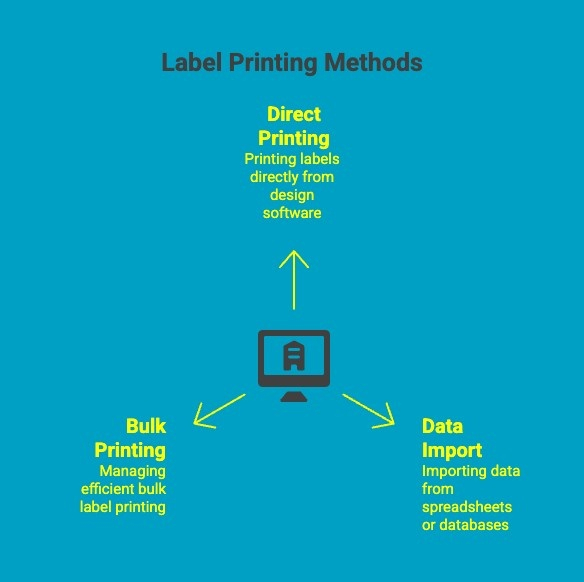
Design software allows businesses to create, manage, and print labels directly from a computer with greater accuracy and consistency.
When paired with a compatible label printer, software-driven printing supports everything from single labels to high-volume batch jobs without manual reentry.
1) Printing Directly From P-Touch Editor
Using P-Touch Editor from Brother lets you design and print labels in one workflow. You can select label sizes, adjust layouts, preview output, and send print jobs directly to the connected printer. This reduces alignment errors and ensures each label prints exactly as designed.
2) Importing Data From Spreadsheets or Databases
Design software supports data import from spreadsheets or databases, making it easy to populate labels with variable information. This is useful for asset tags, inventory labels, shipping labels, and compliance markings. Imported fields automatically map to label templates, saving time and reducing input mistakes.
3) Managing Bulk Label Printing Efficiently
For larger jobs, bulk printing tools streamline production. You can queue multiple labels, apply serial numbering, and print entire batches in one session. Preview options and batch controls help catch errors before printing, minimizing wasted labels and improving overall efficiency.
Printing labels through design software transforms labelling into a controlled, scalable process. With direct printing, data imports, and batch management tools, businesses can maintain consistency, reduce errors, and handle growing label volumes with confidence.
What Label Printer Connection Methods Work Best for Business Use?
Choosing the right label printer connection method depends on your workspace layout, printing volume, and how many people need access to the printer. Some setups prioritize stability, while others focus on flexibility or shared access.
The table below compares the most common connection options used for professional label printing:
|
Connection Method |
How It Connects the Label Printer to the Computer |
Setup Difficulty |
Speed and Stability |
Best For |
Business Recommendation |
|---|---|---|---|---|---|
|
USB Connection |
Direct cable connection between the label printer and the computer |
Easy |
Very high speed and highly stable |
Single workstation setups |
Best for offices that need reliable, uninterrupted label printing |
|
Bluetooth Connection |
Wireless pairing between the label printer and the computer |
Moderate |
Moderate speed, occasional connection drops |
Small offices or mobile workstations |
Suitable for flexible setups with short-range printing needs |
|
Wi-Fi Connection |
The printer connects to the same network as the computer. |
Moderate to advanced |
High speed when the network is stable |
Teams sharing one printer |
Ideal for multi-user business environments |
|
Network Shared Printer |
Printer connected to one computer and shared across others |
Advanced |
Depends on the host computer |
Budget-conscious teams |
Works best when dedicated IT support is available |
|
Plug and Play Drivers |
Automatic driver detection by the computer |
Very easy |
Depends on connection type. |
New printer installations |
Best for quick setup with minimal configuration |
Selecting the right connection method ensures smoother workflows, fewer interruptions, and better long term reliability for computer labels printing. When businesses align connectivity with actual usage needs, they reduce downtime, improve consistency, and scale label printing more efficiently as operations grow.
How Do You Troubleshoot When You Cannot Print Labels From a Computer?
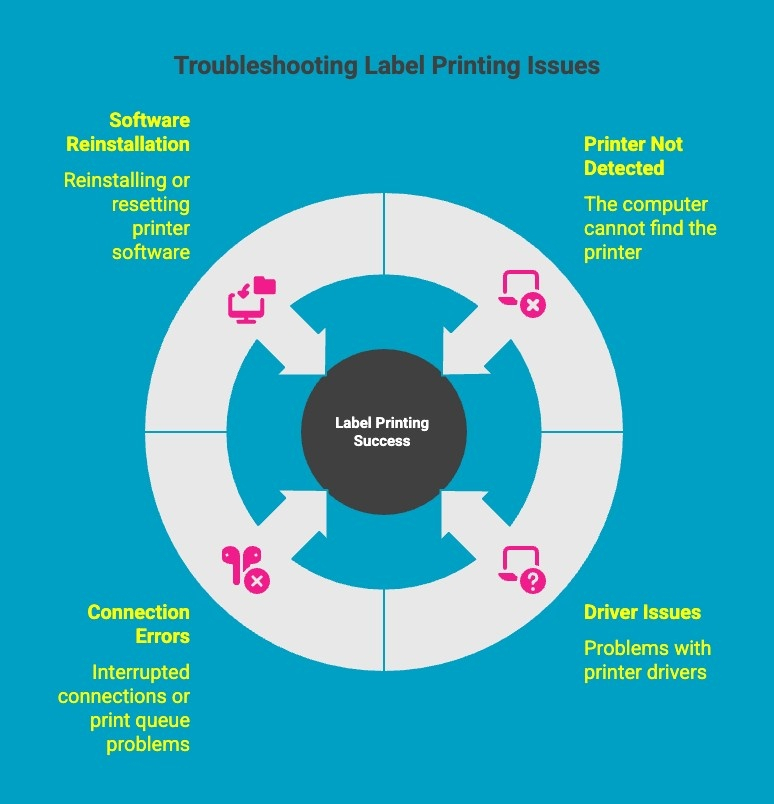
When a label printer stops responding, the issue is often related to detection, drivers, or connection stability rather than the printer itself. A clear troubleshooting process helps businesses identify problems quickly and restore printing without unnecessary downtime.
Here are the most common issues businesses encounter when label printing fails, along with practical steps to resolve them:
1) Printer Not Detected by the Computer
If the computer does not recognize the label printer, start with basic connection checks. Confirm the printer is powered on, properly connected, and selected as the active device. For wireless setups, verify both devices are on the same network or correctly paired.
2) Driver Installation or Update Issues
Outdated or incorrect drivers can prevent proper communication between the printer and the computer. Make sure the installed driver matches both the printer model and operating system. Updating or reinstalling the driver often resolves stalled or incomplete print jobs.
3) Connection Drops or Print Queue Errors
Unstable connections can cause print jobs to freeze or disappear from the queue. USB issues may involve damaged cables, while Bluetooth and Wi-Fi connections can be affected by interference or weak signals. Clearing the print queue and restarting the connection usually restores normal printing.
4) Software Reinstallation or Printer Reset
If problems persist, reinstalling the label software or resetting the printer to factory settings may be required. This helps eliminate configuration conflicts, especially after system updates or network changes.
Most label printing issues can be resolved with a methodical approach. By addressing detection issues, keeping drivers current, and maintaining stable connections, businesses can minimize interruptions and keep computer-based label printing running reliably.
Why Should Businesses Choose Durafast for Computer Label Printing Solutions?
Businesses need more than a label printer to run reliable computer-based labelling operations. They need dependable guidance, compatible supplies, and solutions that continue to perform as labelling demands increase. Durafast Label Company is built to support businesses at every stage, from selecting the right equipment to maintaining consistent output over time.
By offering a wide range of Brother label makers, labels, and accessories, Durafast helps businesses match printer capabilities with workload, environment, and long-term operational needs. This reduces setup issues, prevents compatibility problems, and improves day-to-day printing reliability. Durafast solutions are designed to work smoothly with modern label printers and common design software, supporting batch printing, repeat jobs, and compliance-focused labelling.
As businesses grow, labelling requirements often become more complex across teams and locations. Durafast provides the expertise and product depth needed to scale without frequent system changes, helping businesses stay efficient, consistent, and prepared for long-term growth.
For tailored guidance and dependable labelling support, reach out to the Durafast team today.
Conclusion
Computer-based label printing works best when businesses take a structured approach to setup, connectivity, and design. Choosing the right printer, software, and workflow reduces errors, improves consistency, and ensures labels are produced accurately and efficiently.
As labelling needs grow, understanding how drivers, design tools, and print settings work together becomes essential. With a solid foundation in place, computer-based label printing can scale smoothly to support higher volumes, repeat jobs, and long-term operational efficiency.
Frequently Asked Questions
How do I print labels from my computer if the printer is not detected?
Check power, cables, and network connections first. Confirm the correct driver is installed and the printer is set as default. Restart both devices to refresh communication and resolve temporary detection issues during routine label printing.
How to connect a label printer to a computer when drivers are missing?
Download the correct driver from the manufacturer’s website based on your printer model and operating system. Install the driver before reconnecting the printer so the computer can detect and configure it properly without compatibility issues.
How to connect a Brother label printer to a computer on Windows or Mac?
Install the correct Brother drivers and P-Touch Editor for your operating system. Connect the printer via USB, Bluetooth, or Wi-Fi, then confirm it appears in system settings and label software before starting production printing.
Is computer label printing suitable for small businesses?
Yes. Computer-based label printing improves accuracy, supports batch jobs, and enables professional designs. It remains affordable, scalable, and easy to manage, making it well suited for small businesses with growing labeling needs over time consistently.
How do I print address labels from my computer using Microsoft Word?
Open Word and go to Mailings, then Labels. Select your label vendor and size, enter addresses, preview alignment, and print. This supports single labels or full sheets consistently for business address labeling tasks and mailings.
What steps do I need to follow to print labels on Windows?
Install the printer driver, connect the printer, open your label software or Word, choose the correct label size, preview the layout, and run a test print before printing final labels to avoid costly alignment errors later.
Can I print a full sheet of labels in Word, and how?
Yes. In Word, open Mailings, select Labels, and choose Full Page of the Same Label or Mail Merge. Select the correct label template to maintain alignment across the entire sheet during standard office printing tasks.
How can I print labels from my computer using Google Docs?
Google Docs requires label add-ons or formatted tables. Choose a compatible add-on, select label size, format content, import data if needed, and print using your connected label printer for simple computer-based labelling needs projects.
How do I set up a thermal label printer with my computer?
Install the correct printer drivers, connect the printer to your computer, load compatible labels, select the correct paper size in the software, and run a test print to confirm alignment and print quality before production.
What steps do I need to follow to print labels with an Avery template?
Open your label software or Word, select the correct Avery template number, confirm label size and margins, enter content, preview alignment, and run a test print before printing final labels to avoid misalignment.