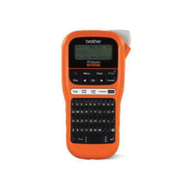
Brother P Touch Label Maker How to Refill: A Simple Guide
13th Feb 2026
Key Highlights
-
Knowing Brother P Touch label maker how to refill helps prevent downtime during electrical, IT, and industrial labelling tasks where interruptions slow progress.
-
Using the correct Brother P Touch label maker refill cartridges supports clean cuts, accurate feeding, and consistent print quality.
-
TZe laminated tape, flexible ID tape, and HSe heat shrink tubing address different professional labelling needs, from panels to cables and wiring.
-
Following proper Brother P Touch label maker refill instructions reduces common issues such as misfeeds, jamming, and unnecessary tape waste.
-
Small habits like previewing labels, using half-cut functions, and correct storage conditions extend tape life and improve efficiency.
-
Standardizing tape sizes and refill types helps teams maintain consistency and avoid errors during high-volume labelling work.
In busy electrical rooms, active job sites, and fast-moving IT environments, labelling is rarely a task you can pause and return to later. When a label printer runs out of tape halfway through an installation or inspection, the disruption is immediate. Work slows, focus breaks, and small delays start stacking up, especially when accurate labels are critical for safety and compliance.
That is why knowing Brother P Touch label maker how to refill is more than a basic operating step. For many teams, the Brother P Touch label maker is a daily work tool, relied on to create clear, durable labels for cables, panels, equipment, and assets in demanding conditions. Keeping it running smoothly helps maintain momentum on the job.
This guide walks you through how to refill Brother P Touch label maker units correctly, which tape refills to use, and how to avoid common feed and cutting issues. With the right approach, you can keep labeling moving without unnecessary interruptions.
Why Do You Need to Know How to Refill a Brother P Touch Label Maker Efficiently?
In professional labeling environments, tape replacement is not a minor task. It directly affects how smoothly installations, audits, and maintenance work can move forward. When a label maker runs out of tape unexpectedly, the interruption often leads to delays, rework, and inconsistent labelling.
Knowing how to refill Brother P Touch label maker devices efficiently helps teams stay focused on the job rather than troubleshooting equipment.
1. Prevent Downtime During Active Work
Labelling tasks are often completed alongside electrical work, network setup, or asset tagging. Pausing mid-task to figure out a refill process can disrupt workflow and slow progress.
Efficient refills allow you to:
-
Continue labelling without interrupting installations or inspections
-
Avoid gaps in identification that can confuse later
-
Maintain momentum during time-sensitive projects
2. Protect Print Quality and Cutter Performance
A smooth Brother P Touch label maker refill process does more than restore printing. Correct tape placement supports clean cuts, accurate spacing, and consistent label alignment.
When the tape is inserted properly:
-
Labels feed evenly without skewing or jamming
-
The cutter operates cleanly without unnecessary strain
-
Print clarity remains consistent across repeated labels
This is especially important when labelling cable IDs, control panels, racks, and equipment where precision matters.
Once you understand why efficient refilling matters, the next step is ensuring you have the correct supplies ready before opening the printer.
Brother P Touch Label Maker Refill: What Supplies Do You Need?
Preparing the right supplies in advance makes the refill process quick and predictable. A proper Brother P Touch label maker refill depends on using compatible tape cartridges designed for your printer model and application.
Most professional Brother label makers are built to work with TZe laminated tape, which is known for durability and long-term readability.
Essential Tape Refill Options
Different labelling tasks require different tape types. Having the correct refill on hand prevents last-minute substitutions that may not perform as expected.
Common Brother P Touch Label Maker Tape Refill options include:
-
TZe laminated tape (6 mm to 24 mm): Suitable for general-purpose industrial and office labelling
-
Brother P Touch Label Maker Tape Refill 12 mm 0.47 inch: A widely used size for clear, legible labels
-
Flexible ID tape: Designed to wrap cleanly around cables and curved surfaces
-
HSe heat shrink tubing: Used for electrical and wire labelling where permanent identification is required
Why Using Genuine Tape Matters?
Using genuine Brother P Touch TZ tape refills helps ensure consistent adhesion, sharp print output, and reliable cutter operation. Third-party tapes may fit, but they can affect feed accuracy and long-term printer performance.
For professional environments where labels must remain readable and secure, selecting the correct refill supplies is as important as installing them correctly.
With the right tape cartridges prepared, refilling the printer becomes a simple, repeatable process that keeps labelling uninterrupted and reliable.
How to Refill Brother P Touch Label Maker Tape Step by Step
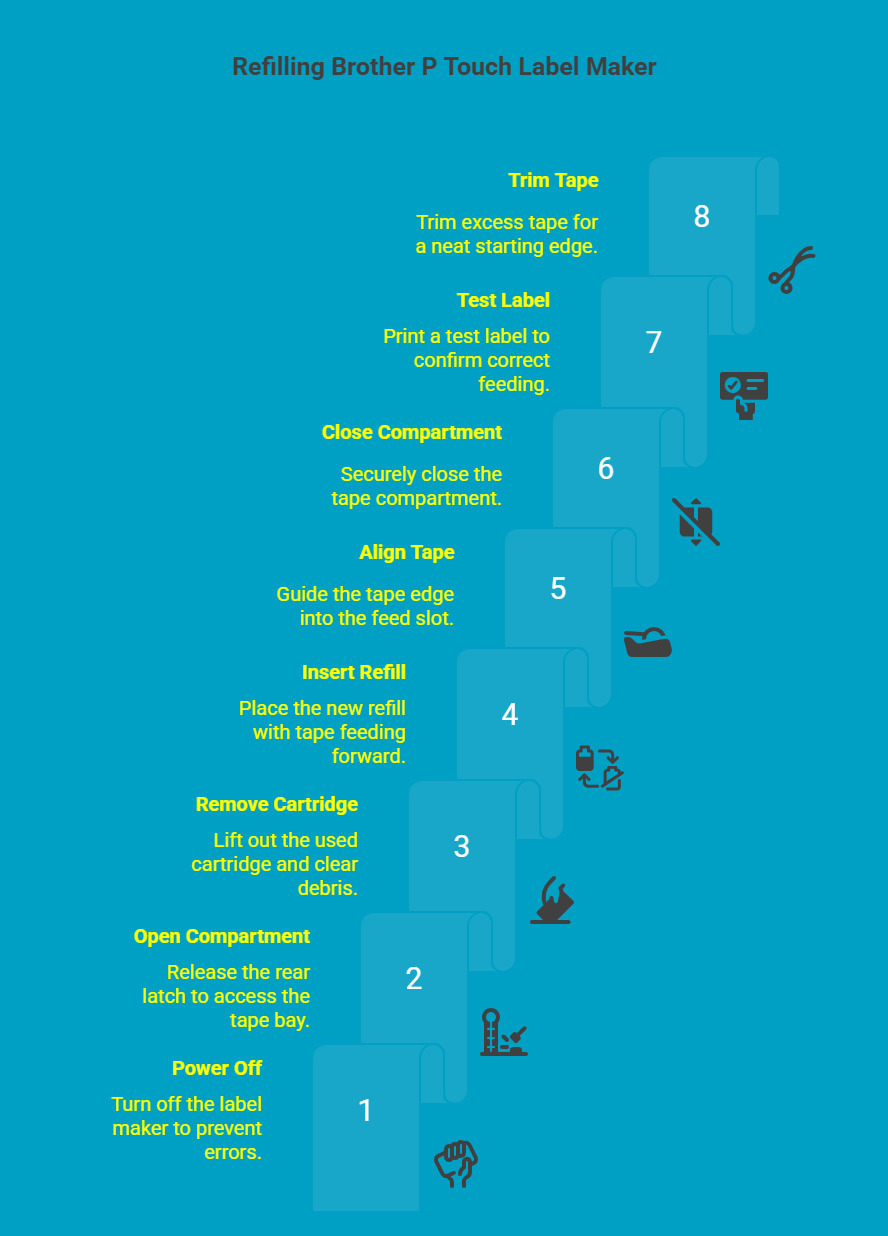
Refilling a Brother P Touch label maker is designed to be fast and intuitive, even in busy work environments. These Brother P Touch Label Maker refill instructions apply to most professional models and help ensure the tape feeds correctly from the first print, reducing errors and wasted material.
Step 1: Power Off the Label Maker
Before replacing the tape, switch off the label maker. Powering down the unit prevents partial cuts, misfeeds, and alignment issues when the new cartridge is installed.
Step 2: Open the Rear Tape Compartment
Release the rear compartment latch fully to access the tape bay. Opening the compartment completely allows the cartridge to sit flat and align properly during installation.
Step 3: Remove the Empty Tape Cartridge
Lift out the used cartridge and check the compartment for loose tape or debris. Clearing the area helps ensure the new tape feeds smoothly without obstruction.
Step 4: Insert the New Tape Refill Correctly
Place the new Brother P Touch Label Maker Tape Refill into the compartment with the tape feeding forward, following the directional guides inside the printer. Proper orientation is essential for accurate printing and cutting.
Step 5: Align the Tape With the Feed Slot
Gently guide the tape edge into the feed slot so it enters straight. Avoid bending or forcing the tape, as misalignment can cause feeding issues.
Step 6: Close the Compartment Securely
Close the tape compartment until it clicks into place. A fully closed compartment ensures consistent pressure on the cartridge and stable tape movement during printing.
Step 7: Power On and Print a Test Label
Turn the label maker back on and print a short test label. This confirms the tape is feeding correctly and that the cutter is functioning as expected.
Step 8: Trim Excess Tape Leader if Needed
If a short length of blank tape feeds out, trim it cleanly. This creates a neat starting edge and prevents unnecessary waste on the next print.
Refilling the tape in the correct sequence allows the printer to recognize the cartridge automatically and deliver clean, consistent labels. Following these steps helps maintain print quality and keeps your Brother P Touch label maker ready for uninterrupted professional use.
Brother P Touch Label Maker Refill Instructions for the PT E560BTVP and Similar EDGE Models
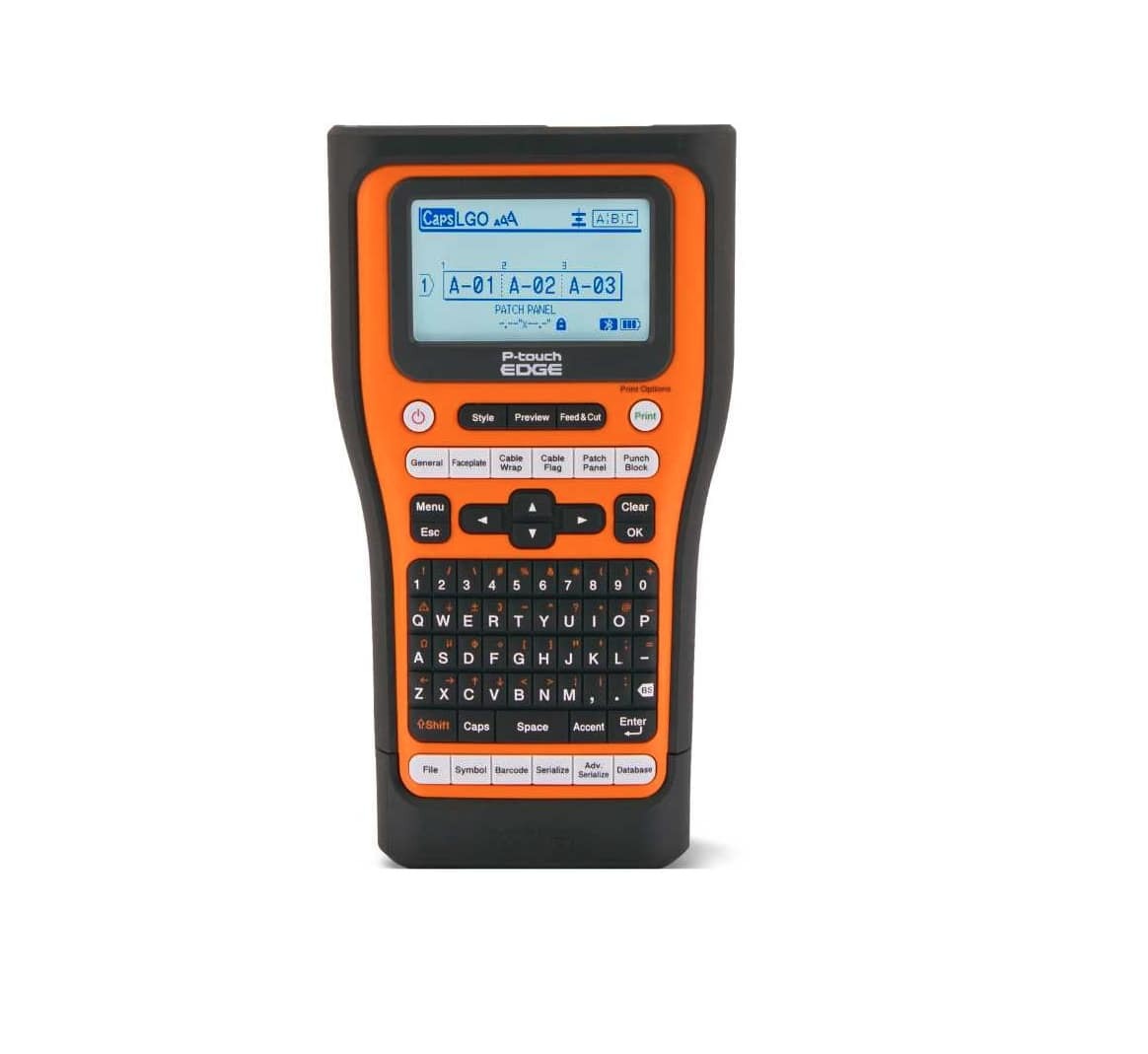
When moving from general label maker refills to professional-grade equipment, the process becomes faster and more reliable. EDGE series models like the PT E560BTVP are designed for technicians who need to replace tape quickly while working in electrical rooms, industrial sites, or active installations.
These printers simplify how to refill Brother P Touch label maker units by reducing manual steps and minimizing setup errors. Once a new cartridge is inserted, the printer automatically adjusts to the tape type and width, allowing users to resume printing almost immediately without additional configuration.
Key refill focused features include:
-
Automatic tape width detection, removing the need for manual selection after every refill
-
Half-cut and auto-cut functions that support efficient, high-volume label printing
-
Durable, job site-ready construction, built to handle frequent cartridge changes
-
Improved internal alignment, helping maintain smooth feeding and clean cuts after refills
For electrical contractors, IT technicians, and industrial maintenance teams, these features help maintain momentum during demanding tasks. Keeping spare Brother P Touch label maker refill cartridges readily available ensures labelling continues smoothly, even during long or high-volume jobs, without unnecessary interruptions.
What Are the Most Common Brother P Touch Tape Sizes and Types?
Choosing the right tape size and type directly affects label durability, adhesion, and long-term readability. Brother P Touch label makers support multiple tape options, each designed for specific labeling conditions and surfaces.
|
Tape Type |
Description |
Best Use |
Example |
|---|---|---|---|
|
TZe Laminated Tape |
Laminated construction that protects text from moisture, fading, and abrasion |
General-purpose indoor and outdoor labelling for panels, equipment, and assets |
12 mm 0.47 inch |
|
Flexible ID Tape |
Bendable material that conforms tightly to curved surfaces without lifting |
Cable wraps, wire identification, and flag labels in IT and electrical setups |
TZe Flexible ID |
|
Extra Strong Adhesive Tape |
High-strength adhesive designed to bond to rough or uneven surfaces |
Construction sites, warehouses, and textured materials |
TZe Strong |
|
HSe Heat Shrink Tubing |
Heat-activated tubing that shrinks securely around wires and cables |
Electrical panels, control cabinets, and industrial wiring |
HSe tubing |
Selecting the appropriate Brother P Touch Label Maker Tape Refill ensures labels stay secure, legible, and compliant across demanding professional environments.
What Should You Do if Your Brother P Touch Tape Is Not Feeding Correctly?
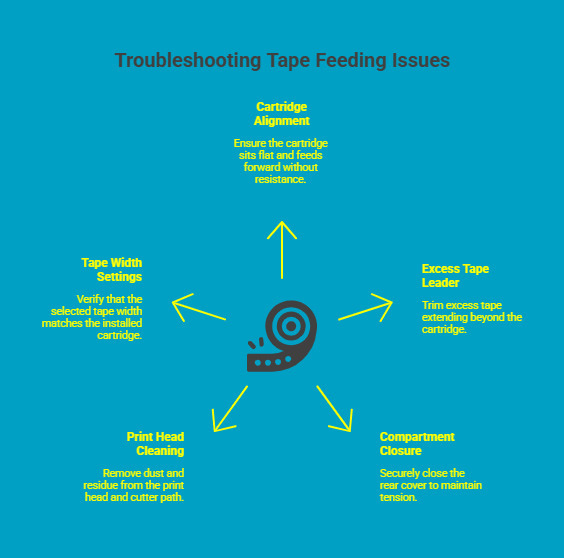
Tape feeding problems can interrupt labelling tasks and slow down productivity. In most cases, these issues are linked to minor refill or setup errors rather than faults with the label maker itself. Addressing a few key areas usually restores normal operation quickly.
Key checks to perform include:
-
Confirm cartridge alignment: Make sure the tape cartridge sits flat in the compartment and feeds forward into the slot without twisting or resistance. Misalignment is one of the most common causes of feeding issues.
-
Trim excess tape leader: If too much tape extends beyond the cartridge, trim it before printing. Excess leader can interfere with the feed path and affect cutting accuracy.
-
Ensure the compartment is fully closed: The rear cover must click securely into place. An improperly closed compartment can prevent the printer from applying consistent tension to the tape.
-
Clean the print head and cutter path: Dust, adhesive residue, or small tape fragments can disrupt smooth feeding. Light cleaning helps maintain consistent movement and clean cuts.
-
Verify tape width settings: Check that the selected tape width in the printer settings matches the installed cartridge. Incorrect width settings can cause feeding and formatting errors.
Running through these checks in order resolves most Brother P Touch tape feeding issues and helps keep labelling uninterrupted during day-to-day operations.
How to Extend the Life of Tape Refills and Reduce Waste?
For teams that label frequently, tape waste usually comes from small inefficiencies rather than heavy usage. Improving how labels are prepared, printed, and stored helps reduce unnecessary consumption while keeping labelling work consistent and interruption-free.
Practical ways to extend tape life include:
-
Use the half cut function for short labels: This reduces excess tape between prints while still allowing labels to separate cleanly, making it ideal for cable IDs, ports, and asset tags.
-
Avoid long blank lead sections: Preview labels before printing to catch spacing issues early and prevent tape from being wasted on empty margins.
-
Check layouts before printing: Reviewing label alignment and length reduces reprints caused by formatting errors, especially during batch jobs.
-
Store tape cartridges in controlled conditions: Keeping refills away from heat, cold, and moisture helps maintain adhesive strength and print quality over time.
-
Standardize tape sizes across teams: Using the same widths and tape types simplifies loading, reduces mistakes, and improves overall consistency.
By applying these habits consistently, teams can reduce reprints, minimize downtime, and ensure every Brother P Touch label maker refill is used efficiently.
Where Can You Buy Brother P Touch Label Maker Tape Refill Cartridges?
Using genuine tape refills is essential for maintaining print clarity, adhesion strength, and long-term durability. Low-quality or incompatible tapes often lead to peeling labels, faded text, feeding issues, or premature cutter wear, especially in industrial and electrical environments.
For professional Brother P Touch label makers, commonly used tape refills include:
-
TZe laminated tapes for durable indoor and outdoor labels that resist moisture, abrasion, and fading
-
TZe Flexible ID tapes for secure wrap and flag labels on cables and wires
-
HSe heat shrink tubing for permanent electrical and wire identification
DuraFastLabel.ca supplies genuine Brother P Touch labelling materials and accessories for Canadian businesses. Their product range is selected for compatibility with professional P Touch models, helping teams maintain consistent results across installations, maintenance work, and large-scale labelling projects.
For help selecting the right tape widths, formats, or bulk options, their team can assist with product recommendations and compatibility guidance.
Get the right tape refill setup the first time.
Contact us for product selection support, pricing, and reliable Canadian supply.
Final Thoughts
Accurate labelling depends on more than just the printer. Knowing how to refill a Brother P Touch label maker correctly, choosing the right tape refills, and following simple handling practices all help keep work moving without disruption.
With proper refilling steps and genuine supplies on hand, teams can maintain consistent print quality and avoid unnecessary downtime. Reviewing your tape usage and sourcing reliable refills ensures your labelling process stays efficient, dependable, and ready for demanding environments.
FAQs
Do all Brother P Touch printers use the same tape refill type?
No. Brother P Touch printers support different tape types depending on the model. Many professional units use TZe laminated tape, while some also accept heat shrink or specialty cartridges. Always check your printer specifications before purchasing refills.
How Do I Know Which Width of Tape to Purchase?
Tape width should match the size of your label and its intended application. Common options range from 6 mm to 24 mm, with 12 mm, 0.47 inch widely used for clear, legible industrial and general-purpose labelling.
Do I Need Ink or Toner for Brother P Touch Printing?
No. Brother P Touch label makers use thermal printing technology, which creates text by heating the tape surface. This design eliminates the need for ink or toner and simplifies maintenance in professional environments.
Why Is My Tape Jamming or Not Cutting Properly?
Tape jamming or cutting issues are usually caused by misaligned cartridges, excess tape leader, or debris in the cutter path. Removing and reseating the cartridge, trimming excess tape, and cleaning the cutter often resolve the problem.
Can I Use Third-Party Refill Tapes in a Brother P Touch Label Maker?
Third-party refill tapes may fit physically, but they can affect adhesion, print clarity, and cutter performance over time. For consistent results and long-term reliability, genuine Brother P Touch label maker refill cartridges are recommended.
How Do I Know When My Brother P Touch Label Maker Needs a Tape Refill?
Most Brother P Touch label makers display a low tape warning or stop feeding when the cartridge is empty. You may also notice faded printing, incomplete labels, or excess blank tape feeding, indicating it is time to replace the refill.