Choosing an On Demand Roll Label Printer for Small Business
7th Nov 2026
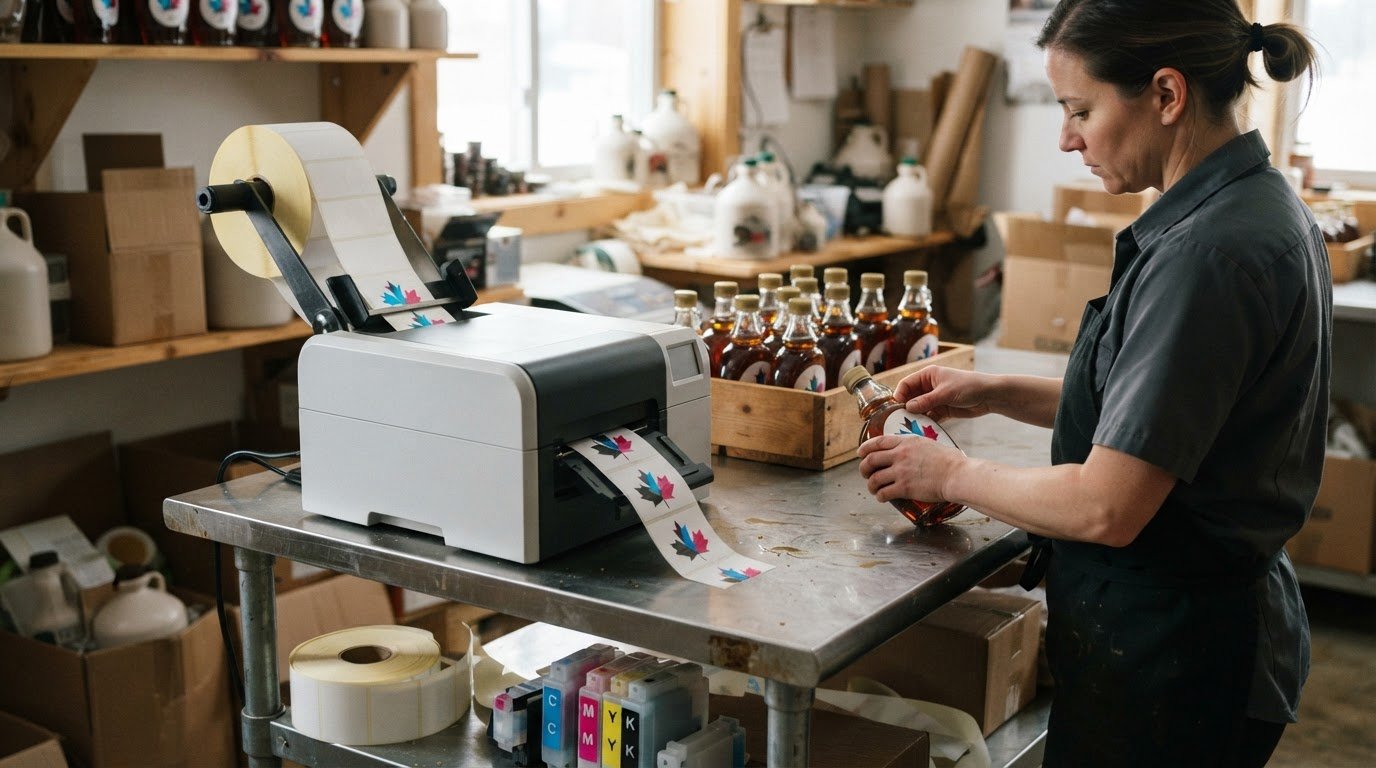
A compact desktop printer can be the right on demand roll label printer for a small business, provided its output, speed, print width, technology and finishing options fit the work. Choose a model that can handle your busiest label runs without taking up more space or offering more capacity than you need. Matching the printer to your workflow matters more than choosing the largest model.
It’s easy to focus on print speed or image quality, especially when balancing production needs with limited workspace. But the right choice also depends on peak label volume, what the labels must withstand and whether they need to be cut or presented ready for application.
This guide explains how to compare compact, production and wider-format options. You’ll see how print volume, speed, inkjet or thermal technology, printer size and finishing features affect daily use, helping you find a practical fit for your small business in Canada.
Key Takeaways
- Size printer capacity around your busiest production days, not just your average workload.
- Match print width and machine footprint to the labels you produce and the workspace available.
- Choose colour inkjet for product artwork or thermal printing for straightforward monochrome labels.
- Consider cutting or peel-and-present features when finishing and applying labels slows down your workflow.
- Explore desktop options, including Dymo LabelWriter label printers, for label tasks that suit a compact setup.
Assessing peak daily volume and print speed
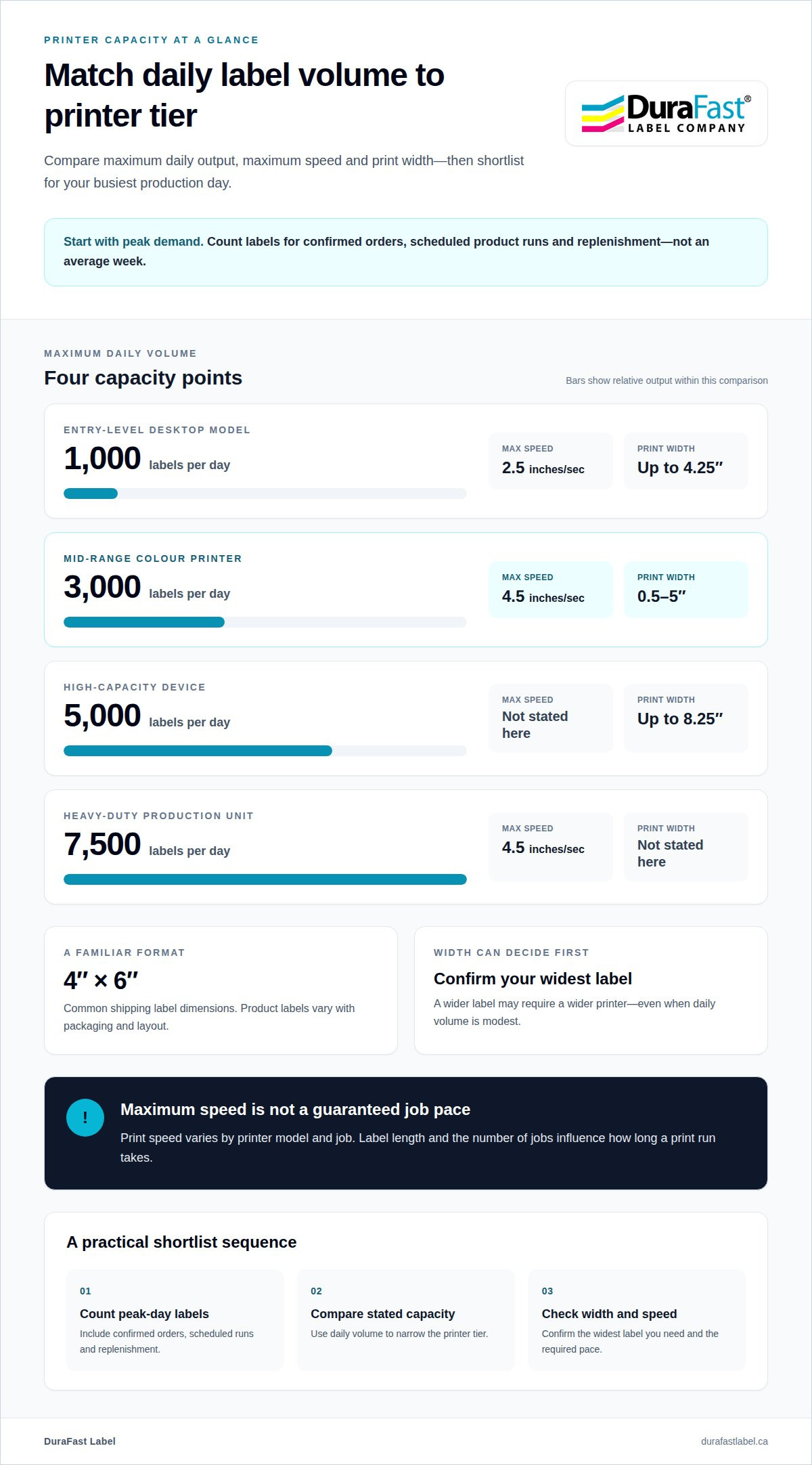
Start with your busiest production day, not an average week. Count the labels needed for confirmed orders, scheduled product runs and replenishment. Then compare that peak with the printer’s stated daily capacity. Entry-level desktop models typically handle up to 1,000 labels per day, while mid-range devices can print up to 3,000. Higher-capacity units support up to 5,000 labels per day, and heavy-duty production models support up to 7,500.
How many labels can the printer produce per second? Print speed can vary with the printer and job. Print speed varies by printer model, and stated maximums may not reflect every job’s actual pace. These are maximum speeds, not a guarantee that every job finishes at that pace. Label length and the number of jobs influence how long a print run takes.
What label sizes, materials and adhesive types do small businesses need? Common shipping labels measure 4 inches by 6 inches, while product labels vary with packaging and layout. Choose label material and adhesive to suit the package surface and conditions, such as moisture or handling, and make sure the printer supports that label stock.
Width can narrow the choice before speed does. Compact desktop units typically support a maximum print width of 4.25 inches. Versatile mid-range models print labels from 0.5 inches to 5 inches wide, while larger units support widths up to 8.25 inches. A wider label may need a wider printer, even when daily volume is modest. For a specific narrow-label example, card-grading labels show why the intended format matters.
| Printer tier | Maximum daily volume | Maximum speed | Width detail |
|---|---|---|---|
| Entry-level desktop model | 1,000 labels | 2.5 inches per second | Up to 4.25 inches |
| Mid-range color printer | 3,000 labels | 4.5 inches per second | 0.5 to 5 inches |
| High-capacity device | 5,000 labels | Not stated here | Up to 8.25 inches |
| Heavy-duty production unit | 7,500 labels | 4.5 inches per second | Not stated here |
Use daily volume to shortlist capacity, then confirm the widest label you need to print and the required speed. For an on demand roll label printer for small business, choose a model that covers peak orders and label dimensions without paying for capacity your workflow won’t use.
Peak volume is only part of the decision. When choosing a colour label printer, consider print width, ink type, speed and total costs alongside daily capacity. This helps ensure your shortlist suits both the labels you need and how you plan to produce them. A printer may handle a busy day’s output yet still be a poor fit if its width or ink type doesn’t suit your labels. Check these requirements before choosing a model.
The content on your labels can help narrow the options. Laser printers can produce high-quality labels when the design is primarily text. If that describes your needs, include laser models in your comparison. For colour work, compare suitable print width, ink type, speed and total costs. Weigh these factors against peak daily volume instead of relying on a single capacity figure.
Choosing between compact, production, and wide-format printers
An on-demand roll printer feeds labels from a continuous roll, prints a design and advances each label for separation or application. For in-house product runs, you can print selected designs as orders arrive instead of holding large quantities of pre-printed stock. Sheet labels are used with printers designed for individual sheets, while roll printers use wound stock. Outsourcing may suit low or steady demand; in-house printing gives you more control over timing and artwork changes.
Compact, production and wide-format printers serve different workflow needs, rather than ranking from best to worst. A compact desktop model fits a limited workspace and can handle smaller product runs. Production equipment suits repeated jobs or heavier demand. Wide-format models accommodate larger label layouts, but the extra width is useful only when your packaging or design requires it.
Ongoing cost per label depends on label-roll material, label dimensions, coverage, and the printing method. Inkjet printing uses ink; thermal transfer uses a ribbon, while direct thermal uses heat-sensitive labels without a ribbon. Toner applies to laser printing, rather than these inkjet and thermal methods. In Canada, compare the full consumables used by your applications instead of relying on printer purchase price alone.
For branded product labels, colour inkjet can print designs with colour, logos and product information. Match the printer’s supported width and media path to the label material and adhesive. A jar, pouch and box may each require a different label format or adhesive. Choose software that fits your order and inventory workflow; incompatible software can add manual steps.
Wireless printing can help you place equipment where it suits the workflow, but wireless capability alone doesn’t guarantee software compatibility. Confirm that the printer supports the connection and label-design process your team uses. Also consider maintenance: inkjet and thermal systems use different consumables, which affects replenishment and routine tasks.
- Compact: prioritizes a smaller footprint and shorter, varied label runs.
- Production: supports recurring work where output consistency and throughput matter.
- Wide-format: suits larger layouts or packaging that needs more label width.
Canadian product pricing is best assessed against your planned applications, consumables, and expected print pattern. Compare the equipment and ongoing supplies together, including compatible rolls, ink or ribbons, and maintenance needs. A compact printer may be a poor fit if frequent reprints slow order fulfilment; a larger machine may add capacity your workflow rarely uses.
Choose the printer category that fits your label dimensions, branding, order pattern, available workspace, and software. If you’re weighing these trade-offs for an in-house setup, discuss your label printing requirements.
Deciding between colour inkjet and direct thermal printing
Choose colour inkjet when product labels need colour artwork, gradients or detailed images. Inkjet printers apply ink directly to compatible label material, making them useful for short runs with changing designs. Ink cartridges are an ongoing consumable to factor into your selection, and moving parts require regular replacement.
Direct thermal suits simple black labels with monochrome variable data, such as changing shipping details. It prints by applying heat to heat-sensitive labels, so it needs neither ink nor a ribbon. Thermal printers can produce up to 72 labels per minute. Direct thermal is quick and low-maintenance, but its images can fade over months or years, especially with sunlight or heat exposure.
Thermal transfer uses heat to transfer ink or resin from a ribbon onto label material. It suits longer-term identification because thermal transfer prints can resist fading, moisture and chemicals. This method requires ribbon supplies, so plan for both labels and ribbons. Choose a ribbon and label combination suited to the conditions the finished label will face.
Label stock matters as much as printer type. Direct thermal printing uses heat-sensitive labels, while thermal transfer requires labels designed to receive ribbon ink or resin. Inkjet printing needs material compatible with its ink and print process. Match the adhesive and material to the surface and use, such as a shipping carton or a product container exposed to condensation.
Continuous roll stock lets each printer type feed a sequence of labels through the machine. The printer’s sensing and media settings determine how it detects each label’s position. Die-cut labels with gaps, black marks and continuous stock may require different settings, so choose a roll format the printer supports.
What software and design tools work with roll label printers? Label-design and barcode software can create layouts, add text or graphics, and populate variable data. Printer drivers connect the design output to the device. Compatibility depends on the printer model and software combination.
- Colour inkjet: choose it for colourful branding, product imagery, and flexible design changes.
- Direct thermal: use it for quick, short-term monochrome labels without ink or ribbon.
- Thermal transfer: consider it for labels that need to resist fading, moisture, or chemicals.
For an on-demand roll label printer for a small business, start with the label’s required appearance and service life. Then match the material, print method, consumables and software workflow. A black shipping label has different needs from a colour product label, so let the application guide your choice.
Automatic cutting and peel-and-present options
Finishing determines what happens after a label prints. A cutter separates labels from the roll, while a peeler presents each label with its backing liner ready for hand application. These options address different workflow needs. Cutting is useful when labels are collected or applied later; peel-and-present is useful when staff apply labels immediately, one at a time.
Follow a label through your process before choosing a finishing option. Does someone tear it from the roll, remove its liner and apply it? A peeler configuration can reduce those handling steps by presenting labels ready for application. If you print labels in batches for later use, a cutter can separate them into individual pieces. Choose based on the next task, not just printer speed.
Automatic cutting can be useful for varied label lengths or repeat jobs. A digital die-cutting system cuts label shapes from compatible stock, allowing different designs without a fixed die for each shape. The Primera LX610 supports automatic die-cutting up to 4.1 inches wide. That maximum width matters when the label design includes a wide border, unusual outline, or larger product information area.
Before selecting a cutter, match its supported width and media path to the label roll. Confirm where it cuts, such as between labels or around the intended shape. Print resolution affects fine text and small barcodes, while the cut line determines the label’s final edge. A clear setup helps keep barcodes legible and avoids trimming important text or graphics.
Consider the label material and adhesive along with the finishing method. A cutter must handle the selected stock, and a peeler must present the label without disrupting its liner. For thermal transfer jobs, a ribbon transfers ink or resin onto the label. Since finishing happens after printing, the cutter or peeler must suit the completed label construction.
- Choose a cutter when separated labels make packing, sorting, or later application easier.
- Choose peel-and-present when staff apply each label immediately by hand.
- Choose digital die-cutting when designs need shaped edges or changing outlines.
Estimate how much time staff spend separating and peeling labels during a typical job. If hand-finishing repeatedly interrupts packing, automation may save handling time. If labels are applied in batches, a cutter may be sufficient. Choose the option that addresses the actual bottleneck, then match its supported label width and material to your print jobs.
Desktop label printers for small businesses
Which roll label printers work best for small businesses in Canada? Choose by label size, artwork, production needs, and available workspace. The Primera LX500 suits compact colour-label jobs, while wider or higher-throughput applications may call for another model, such as the LX600, LX910, or LX4000.
A desktop printer can bring product-label printing closer to packing and fulfilment. That’s useful when you produce several designs and want to print only the quantity needed for current orders. For example, a small food producer could print a short run for one flavour, then update the artwork for another product without storing large batches of pre-printed labels.
Check the smallest and largest designs before selecting a printer. The Primera LX500 supports labels from 0.75 inches by 0.25 inches up to 4.25 inches by 24 inches. Its resolution reaches 1200 × 4800 dpi, which supports detailed colour artwork and small text. A quality label still depends on legible design, suitable material, and a layout that fits the package.
Desktop machines differ in the work they accommodate. The LX500 is one option for smaller label formats. The LX600 offers a different width range; the LX910 and LX4000 are options to consider when the job calls for broader production capabilities. The LX610 adds digital cutting for businesses that need shaped labels. Treat each specification as a filter: remove models that cannot handle your design, then weigh footprint and workflow.
Before choosing, confirm that the printer works with your label-design or inventory software. A mismatch can add manual steps between an order and a printed label. Test a sample layout using the actual text, barcode, colours and label size. A barcode that looks clear on screen still needs to print sharply at its intended dimensions.
Desktop printing isn’t automatically the fastest or most economical approach. If demand is infrequent and stable, equipment may sit idle. In-house printing is more useful when design changes, short runs or timing make control over each batch valuable. Consider the printer, compatible rolls, ink or other consumables, and maintenance as one operating setup.
- Choose compact colour printing for short product runs and changing branded designs.
- Prioritize width when packaging needs larger labels or more room for information.
- Consider cutting when shaped labels are part of the required finished format.
- Assess software fit to avoid extra steps between order data and printing.
Compare the available printer options against your designs, workspace, software, and expected workflow. For help narrowing down a desktop setup, discuss your label printer requirements.
DuraFast Label Company Canada: Dymo LabelWriter label printers
DuraFast Label Company Canada offers Dymo LabelWriter label printers for small-business labelling needs. They may suit routine tasks where a compact label printer fits the workflow, while VIPColor and Afinia Label Printers are options to consider for colour product-label applications.
Match the printer type to the label’s purpose. Consider Dymo LabelWriter label printers for everyday labelling, or explore colour-label printing when product branding and artwork are priorities. Thermal receipt paper rolls serve a separate purpose: receipt printing, not product labels.
Contact DuraFast Label Company Canada to discuss which printer category fits your label applications and workflow.
Choose a printer that can grow with your workflow
Turn your label requirements into a practical printer shortlist. Consider how your labels support packaging and fulfilment, and whether product changes may affect your needs. The right on demand roll label printer for a small business should fit your current workflow and your plans for the business.
DuraFast Label Company Canada offers VIPColor, Afinia, and Primera label printers, giving you options to consider for colour product-label printing. Share the label applications you’re planning, and explore which printer category aligns with your production needs.
Contact DuraFast Label Company Canada to discuss your label printer requirements and take the next step with confidence.
Frequently Asked Questions
How much do roll label printers and supplies cost in Canada?
Costs depend on the printer technology, expected usage, and compatible supplies. Build a complete budget around the printer, label rolls, ink cartridges or thermal transfer ribbons, and any required finishing equipment. Direct thermal printing avoids ink and ribbons, but uses heat-sensitive labels. For a useful comparison, estimate how often you’ll print and which consumables each option requires, then review prices in Canadian dollars for the specific products you’re considering.
Which label printers support inkjet, laser, or thermal printing?
Inkjet, laser and thermal are distinct printing technologies, so choose a printer designed for the method your labels require. Colour inkjet suits product artwork; laser can produce clear, text-focused labels. Thermal printers use heat: direct thermal printing suits short-term labels, while thermal transfer uses a ribbon. For example, a shipping workflow may suit monochrome thermal printing, while colourful packaging calls for an inkjet approach.
What should you check before buying a roll label printer for a small business?
Confirm that the printer supports your label dimensions, roll format, material and adhesive, then match its capacity to your busiest workflow. Check the print technology, finishing needs and compatibility with the software you use to create labels or manage inventory. Prepare a sample with your actual barcode, product text and artwork. This can reveal layout or software issues before the printer becomes part of daily operations.
What software and design tools work with roll label printers?
Label-design and barcode software can create layouts, add text or graphics, and populate variable data. Printer drivers connect the design output to the device, so check compatibility between the printer model and software.
How do you set up and maintain an on-demand roll label printer?
Use a roll format the printer supports and set its media settings for the stock, such as die-cut labels with gaps, black marks or continuous stock. Plan for the right consumables and routine maintenance: inkjet systems need ink and regular replacement of moving parts, while thermal systems use heat-sensitive labels or ribbons, depending on the method.