Brother Industrial Barcode Printer Prices and Options in Canada
24th Nov 2026
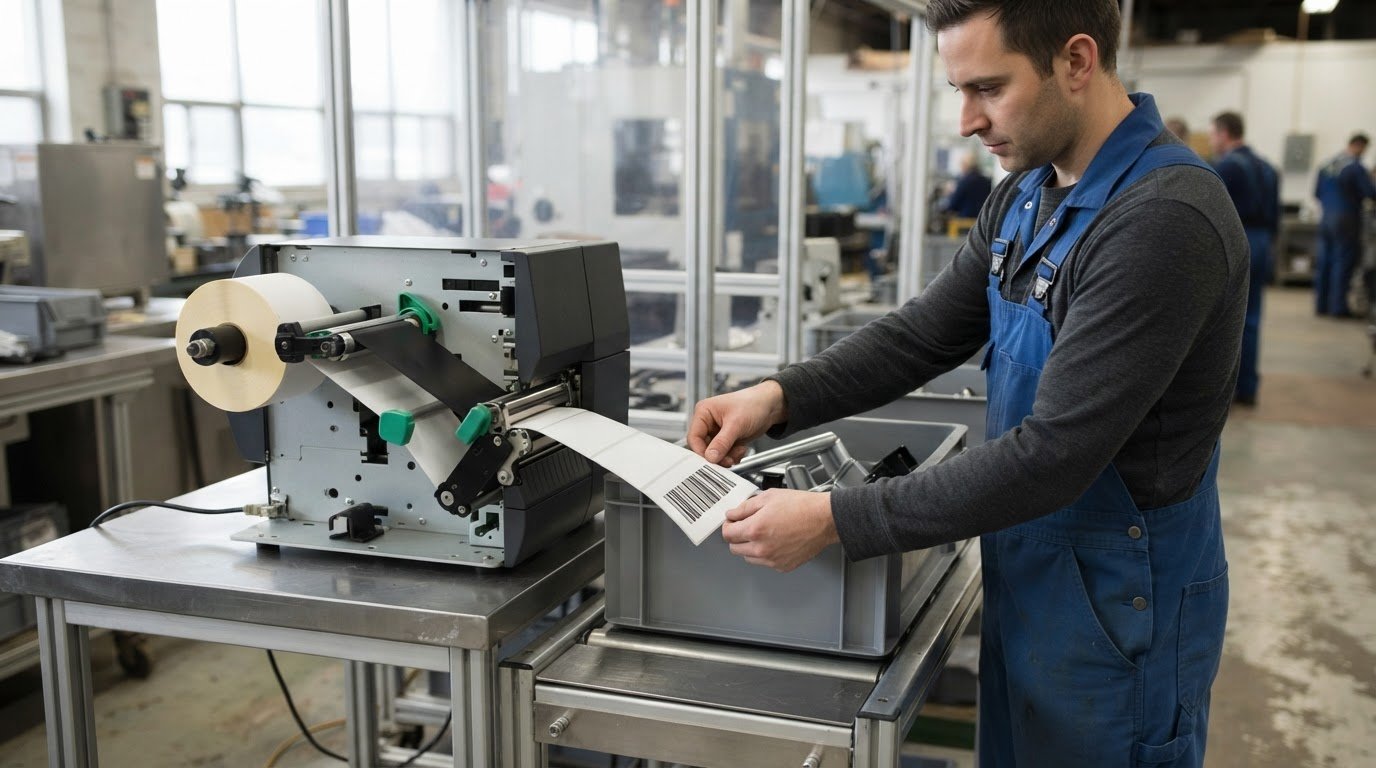
What if the best Brother printer for your operation isn’t the one with the lowest upfront price? A brother industrial barcode printer in Canada should match the labels you produce, the conditions where you print and the way the printer connects to your workflow.
It’s reasonable to compare prices first, but the right option also depends on the type of printing you need and the features that support daily use. A model suited to your operation makes for a more informed equipment decision.
This guide explains the Brother printer options available through DuraFast Label Company Canada and the factors that shape a purchasing decision. You’ll learn what to consider when comparing printer types, connectivity and label requirements, so you can narrow down the option that fits your business.
Key Takeaways
- Choose connectivity that fits your setup: Brother label printers can connect through USB, Bluetooth or Wi-Fi.
- Compare Canadian listings by printer model and included options instead of assuming one price applies to every configuration.
- Consider print speed and resolution in relation to your label volume and the readability your workflow requires.
- Match barcode formats and label dimensions to your application before selecting a printer.
- For colour product labelling, explore whether VIPColor, Afinia, Toshiba or Honeywell label printers better fit your needs.
Wireless, Ethernet, USB and Bluetooth connectivity
Brother label printers can connect through USB, Bluetooth or Wi-Fi. The right option depends on where print jobs begin and how labels move through your operation. A fixed packing station may suit a direct USB connection, while a printer shared across a work area may benefit from network access. For mobile printing, Bluetooth can connect a compatible device without a cable.
USB connects a printer directly to a computer, making it suitable for a dedicated workstation where print jobs come from one PC or Mac. Wi-Fi provides a wireless network connection, allowing compatible computers to access the printer without a cable to each workstation. Bluetooth is another wireless option for compatible devices, especially when the printer and the device sending a job are close together.
Ethernet is a wired network connection, but it isn’t available on every Brother model. Confirm the exact printer’s interface before planning a network installation. Ethernet can suit a fixed printer location, while Wi-Fi avoids a physical network cable. Choose based on the printer’s supported connections, your network setup and the devices that send print jobs.
For PC and Mac workflows, identify the computer that will create the label and the connection it can use. Match that connection to the printer’s supported interfaces, then install the appropriate software or driver for the exact model. USB links one computer directly; Wi-Fi requires the printer and computer to use a compatible network. Bluetooth requires compatible devices and a supported printer connection.
Before rollout, test a real label using the software and computer involved in daily work. Confirm that the intended device can find the printer, send a job and print the correct layout. If several workstations need access, test each workflow rather than assuming one successful connection will work for everyone. This can expose a mismatch between the computer, network and printer before production depends on it.
Brother Canada's warranty and repair support follow the warranty terms for the specific printer model. Those terms define applicable coverage and the repair process, so use the documentation supplied for the exact model rather than assuming every Brother printer has identical support.
Memory can also affect job handling: Brother printer listings include a 16 MB flash-memory option and a 32 MB DRAM option. Treat these as listing options, not universal specifications. When comparing a brother industrial barcode printer in Canada, consider connectivity alongside memory, the computer that creates labels and the printer’s intended location. That combination helps determine whether a direct cable, wireless network or Bluetooth connection best fits the workflow.
Canadian product prices and availability
A Brother printer’s price in Canada depends on the model and configuration, so one figure won’t describe every option. For a useful comparison, identify the exact model, then review its listed features and included items. A desktop label printer and a printer intended for industrial workflows may serve different needs, so comparing prices without comparing their roles can lead to the wrong conclusion.
Availability varies by model. Demand, configuration and current stock can affect which Brother printers are available to purchase. A listing for one model doesn’t establish the availability of another. Match the model name in the product listing to the one your workplace requires before planning a rollout or replacement.
Compare the complete purchase, not just the printer. Record the model, included items, connection options and label supplies needed for your application. For example, a team replacing a desktop printer should compare options suited to its label volume and work area, rather than choosing solely by the lowest displayed price. This makes differences between listings easier to assess.
Consumables affect ongoing costs. Brother label printers require labels or tape suited to the job, and the right choice depends on conditions such as moisture, heat or frequent handling. A label used on a frequently touched product may need different characteristics from one used in a dry office. Include the label type in your comparison so the printer and supplies suit the same task.
Before finalizing a purchase plan, use these steps:
- Write down the Brother model that meets the workflow requirement.
- Compare Canadian listings for that exact model and configuration.
- Confirm which items are included with the printer.
- Identify the compatible labels or tape for the operating conditions.
- Consider demand and stock timing when scheduling installation or replacement.
This approach keeps price comparisons focused on equivalent options. If Brother listings differ, check whether the model, included components or configuration differ too. A lower displayed price may not represent the same purchase if the listed items aren’t alike. For a replacement, record the model and label requirements before setting a budget. For a new desktop station, consider how its labels will be used. A clear specification makes Canadian product listings easier to assess and helps align the purchase with actual demand.
Treat that figure as a reference for the listed product, not as a price for every Brother printer or configuration. Before relying on it in a purchasing plan, verify that the listing matches the model and included items your workplace needs.
Include the label or tape required for the intended conditions, since supplies are part of the overall purchase. If the listed printer fits the task, its price can help frame a budget; if not, compare a suitable model on equivalent terms. Confirm current availability for the exact listing before scheduling a purchase or installation.
Print speeds
Print speed matters when labels need to keep pace with packing, receiving or production. Compare the speed listed for the exact Brother model with the work it must handle. A model’s maximum speed is a useful starting point, but it doesn’t describe every print job. Label length, layout and job preparation time also affect finished output.
Consider the complete workflow, not just how quickly a printer advances media. A short shipping label takes less time to print than a longer product label. A batch of identical labels may run differently from a queue of changing labels that draws new information from a computer system. This distinction helps translate a speed specification into a realistic production expectation.
For example, a desktop label printer at a dispatch desk may print intermittently throughout the day, while a printer supporting a steady production line faces a different workload. In the first case, quick job preparation and easy access may matter as much as maximum speed. In the second, pay closer attention to rated speed and the ability to sustain the required workload.
Before comparing Brother models, note the labels used in a typical work cycle. Record whether each job has one design or several, and whether the printed label is short or long. Then estimate how often jobs arrive and whether multiple users send work to the same printer. These details help show whether a lower maximum speed can support the workflow or faster output is a priority.
- Match speed to demand: Consider how frequently print jobs arrive and whether delays interrupt another task.
- Consider label length: Longer labels take more time to feed than short labels.
- Account for changing data: Variable label content can make a job different from a repeated batch.
- Compare the exact model: Don’t treat one Brother printer’s speed as representative of every model.
Separate printer speed from total task time. A job may involve selecting a template, entering information, confirming the layout and applying each printed label. If printing is only one step, a faster printer may not remove the main bottleneck. Reviewing the whole sequence shows where increased output speed could make a practical difference.
Assess a Brother printer for industrial barcode work in Canada using a representative label and workflow. Include the label format, job pattern and pace required by the surrounding process. This turns a general speed comparison into a decision based on actual tasks, helping you weigh throughput against other model requirements without relying on an isolated maximum-speed figure.
Print resolution
Print resolution affects how clearly a Brother printer renders text, fine lines and barcode elements. It is commonly expressed in dots per inch, or DPI. Higher DPI can reproduce small details more precisely, but the right resolution depends on the label design and how it will be scanned or read. Choose for the required output, not simply the largest specification.
Start with the smallest information on the label. Compact text, narrow lines or closely spaced barcode bars demand more print clarity than a large, simple identifier. Review the actual label layout at its intended size. Enlarging a design for comparison can hide problems that appear when it prints at working dimensions.
Barcode performance depends on more than printer DPI. The barcode format, dimensions, spacing, label material and print settings all influence the result. A barcode that looks crisp on a monitor may print with crowded bars if the layout is scaled down. Keep the encoded area in its intended proportions and assess a printed sample with the scanner used in the workflow.
Use a practical evaluation sequence before choosing a model:
- Identify the smallest text and barcode elements in the label design.
- Review the Brother model’s resolution specification and supported label format.
- Print the intended design at actual size using the planned label material.
- Inspect small text, fine lines and barcode edges on the physical label.
- Scan the sample with the equipment and software used at work.
This test applies to both fixed workstations and handheld workflows. For example, a warehouse operator scanning a small inventory label may need clear bars and legible text in a compact space. A larger carton label may allow more room for the same information. In either case, assess the printed label at the distance and angle used during normal scanning, not from a screen preview.
Resolution also interacts with label design. If a barcode appears crowded, first check its size, quiet space, print scaling and placement. Increasing DPI alone won’t correct a barcode that has been compressed or placed too close to surrounding text. A clean template and appropriate label dimensions help the printer reproduce the intended design consistently.
When comparing Brother options, consider resolution alongside print speed, supported media and workflow connection requirements. A brother industrial barcode printer in Canada should render the smallest required elements clearly on the labels used in daily operations. Match the model’s stated DPI to a real sample, then check visual detail and scanner results. This makes resolution a practical selection criterion rather than an isolated number.
What barcode types and label sizes do Brother industrial printers support?
Barcode and label compatibility depends on the exact Brother model and the software creating the label. Don’t assume every printer supports every barcode format or media width. Start with the model’s specification, then compare it with the barcode formats and label dimensions your operation actually uses.
Make a list of required formats, such as Code 128, UPC/EAN or QR Code. These are examples to check, not a claim that every Brother printer supports them. The label-design software may generate a barcode, while the printer reproduces the completed layout. Confirm that the software, printer model and intended barcode type work together.
Review label size for the exact model. Record the label’s width, height and orientation, and whether it uses a continuous roll or die-cut labels. A narrow identification label and a wide carton label, for example, require different media handling and layout space. Compare those dimensions with the printer’s supported media specifications before planning a print run.
Consider the information around the barcode too. A shipping label may combine a barcode with an address and handling details, while an inventory label may prioritize a compact identifier and readable text. The finished design must fit without shrinking bars, crowding text or placing important details near an edge. Test the actual layout at its intended size.
Use this compatibility check before selecting a Brother printer:
- Record each barcode format required by your workflow.
- Measure the label dimensions and note its media type.
- Match both details to the exact printer model’s specifications.
- Confirm that the label software can create the required format.
- Print a sample and scan it using the equipment used in the workflow.
A printed sample can reveal issues a screen preview misses. Check that the barcode fits, surrounding text is legible and the scanner reads the result. If the chosen model doesn’t support a format or label dimension, changing the template alone won’t resolve the mismatch. Select a compatible printer, software workflow or label layout before production begins.
For a brother industrial barcode printer in Canada, assess compatibility across barcode format, label dimensions, media and software. Keep these requirements together when comparing options. This gives your purchase a clear technical basis and helps prevent choosing a printer that can’t handle the required format or label size.
Discuss your barcode and label requirements to identify a suitable printing setup.
DuraFast Label Company Canada
DuraFast Label Company Canada offers printer options for businesses weighing barcode and label production needs. If your workflow calls for alternatives alongside a Brother printer, the range includes VIPColor, Afinia, Toshiba and Honeywell label printers. Compare the label type, operating conditions and printing workflow to narrow down the right category. Colour product labels, for example, may call for a different approach from routine barcode identification. Choose based on the output your operation needs, not just the printer name.
Share your application and label requirements to explore suitable options. Contact DuraFast Label Company Canada to discuss your needs.
Make your next printer decision with confidence
Turn your requirements into a clear purchasing brief. Note the barcode formats, label materials, workplace conditions and software workflow your operation depends on. Then decide whether your priorities point to a Brother industrial barcode printer in Canada or another type of equipment. A well-defined application keeps the decision focused on operational fit rather than a single specification.
DuraFast Label Company Canada offers various colour label printers and specialized systems for businesses evaluating diverse printing options. These alternatives may suit needs that extend beyond standard barcode printing to full-colour product labels or specialized media. The right choice depends on the job the labels must perform and the workflow they support.
Share your requirements to discuss suitable options and identify a practical next step. Contact DuraFast Label Company Canada to continue the conversation and move forward with a clearer equipment decision.
Frequently Asked Questions
Where can businesses buy Brother industrial barcode printers in Canada?
Canadian businesses can purchase Brother barcode printers from DuraFast Label Company Canada. Before choosing a model, outline the barcode formats, label dimensions and production needs it must support. This provides a practical basis for finding a printer that fits your operation. DuraFast Label Company Canada also offers other printer brands, including VIPColor, Afinia and Primera, if your requirements extend beyond Brother equipment.
What label supplies and replacement parts are available for Brother industrial barcode printers in Canada?
Brother label printers require labels or tape suited to the job, including conditions such as heat, moisture or frequent handling.
Which Brother industrial barcode printer is best for warehouse and manufacturing use?
Choose a printer to suit your warehouse or manufacturing workflow. Consider label volume and dimensions, required barcode readability, operating conditions and connectivity. Compare the exact model’s speed and supported interfaces with those requirements.