How to Print Return Address Labels Professionally for Your Business?
11th Feb 2026
Key Highlights
-
Professional, consistent return address labels improve brand image, accuracy, and mailing efficiency compared to handwritten addresses.
-
Seiko SLP-600 series printers (SLP-620, SLP-650, SLP-650SE) enable fast, ink-free label printing using direct thermal technology.
-
Smart Label Creator software simplifies layout design with precise sizing, reusable templates, and printer-optimized formatting.
-
Popular 1.125 × 3.5-inch label rolls fit standard envelopes perfectly and support high-volume business mailing workflows.
-
Batch and one-click reprints allow teams to print hundreds of labels quickly from saved templates or spreadsheets.
-
macOS and Windows compatibility ensures seamless setup and reliable printing without third-party tools or complex configuration.
-
Wide range of Seiko-compatible label options (white, blue, clear) ensures smooth feeding, strong adhesion, and professional results.
Return address labels play a critical role in how a business presents itself. Whether used on outgoing mail, product shipments, invoices, or promotional materials, they reinforce professionalism, brand consistency, and operational efficiency. Handwritten addresses can look inconsistent and slow down daily workflows, especially for growing businesses.
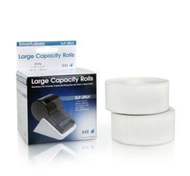
Modern direct thermal printers such as the Seiko SLP-600 series, including SLP-620, SLP-650, and SLP-650SE, offer a fast and reliable way to print clean, uniform return address labels. When paired with compatible label rolls like SLP-RTNC and standard address formats, these printers help businesses streamline mailing tasks without ink, toner, or complex setup.
Why Is It Important to Know How to Print Return Address Labels Correctly?
Knowing how to print return address labels correctly improves speed, accuracy, and consistency across all outgoing mail. Printed labels eliminate spelling errors, uneven spacing, and smudging that often occur with handwritten addresses.
Professionally printed return address labels also strengthen brand perception. Consistent fonts, alignment, and optional logos create a polished image that reflects attention to detail. This is especially important for invoices, customer correspondence, and retail shipping.
Seiko Smart Label Printers are designed specifically for this purpose. Their direct thermal technology supports fast label workflows while maintaining clean output and consistent positioning, making them ideal for offices and small businesses with recurring mailing needs.
How to Print Return Address Labels Using a Seiko Smart Label Printer?
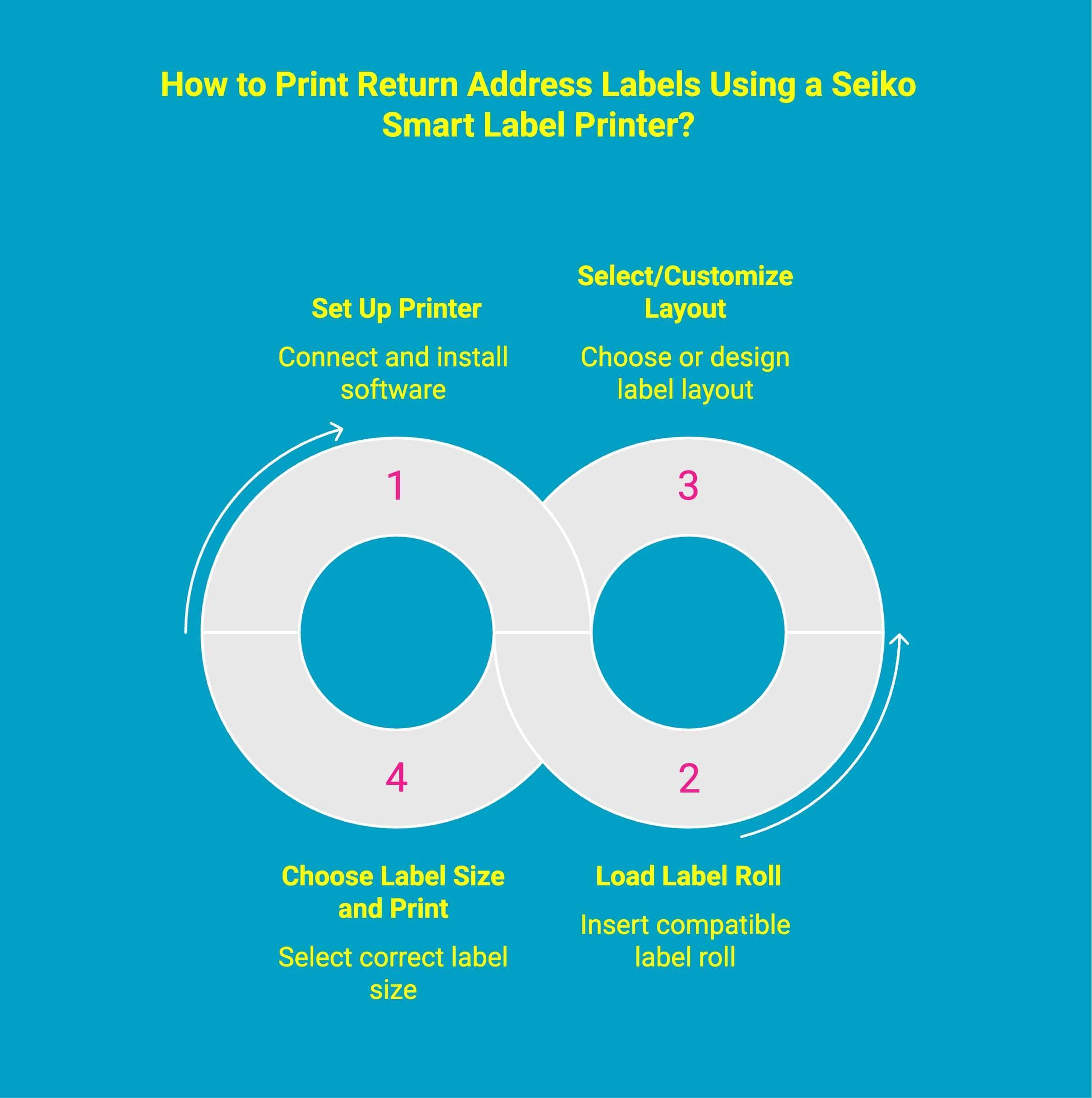
Printing return address labels with a Seiko Smart Label Printer is quick, reliable, and built for daily business workflows. With the right setup and label size, you can produce clean, professional address labels in seconds without complex configuration or manual adjustments.
Follow a simple, repeatable process for consistent results.
1. Set Up Your Seiko Smart Label Printer
Start by connecting your Seiko Instruments Smart Label Printer to your computer via USB. Install the Smart Label Creator software to access built-in templates, layout tools, and printer settings optimized for address label printing.
2. Load the Return Address Label Roll
Insert the compatible return address label roll into the printer, ensuring it sits flat and feeds smoothly. Proper alignment prevents skewing and ensures each label prints evenly without cutting or spacing errors during batch jobs.
3. Select or Customize Your Label Layout
Choose a return address template or design a custom layout using Smart Label Creator. Adjust font size, spacing, and alignment to match your brand and mailing needs, then save the template for fast reuse in future print runs.
4. Choose the Correct Label Size and Print
Select the correct label size for your envelopes or packages. Popular 1.125 × 3.5-inch formats work well for standard mailing. Once finalized, print instantly or queue multiple labels for efficient batch printing.
Using a Seiko Smart Label Printer streamlines return address labeling, delivering professional results with minimal effort and maximum consistency.
The SLP-RTNC return address label rolls and standard Seiko address labels are fully compatible with these printers, ensuring smooth feeding and consistent output every time.
How to Print Your Own Return Address Labels With Smart Label Creator Software?
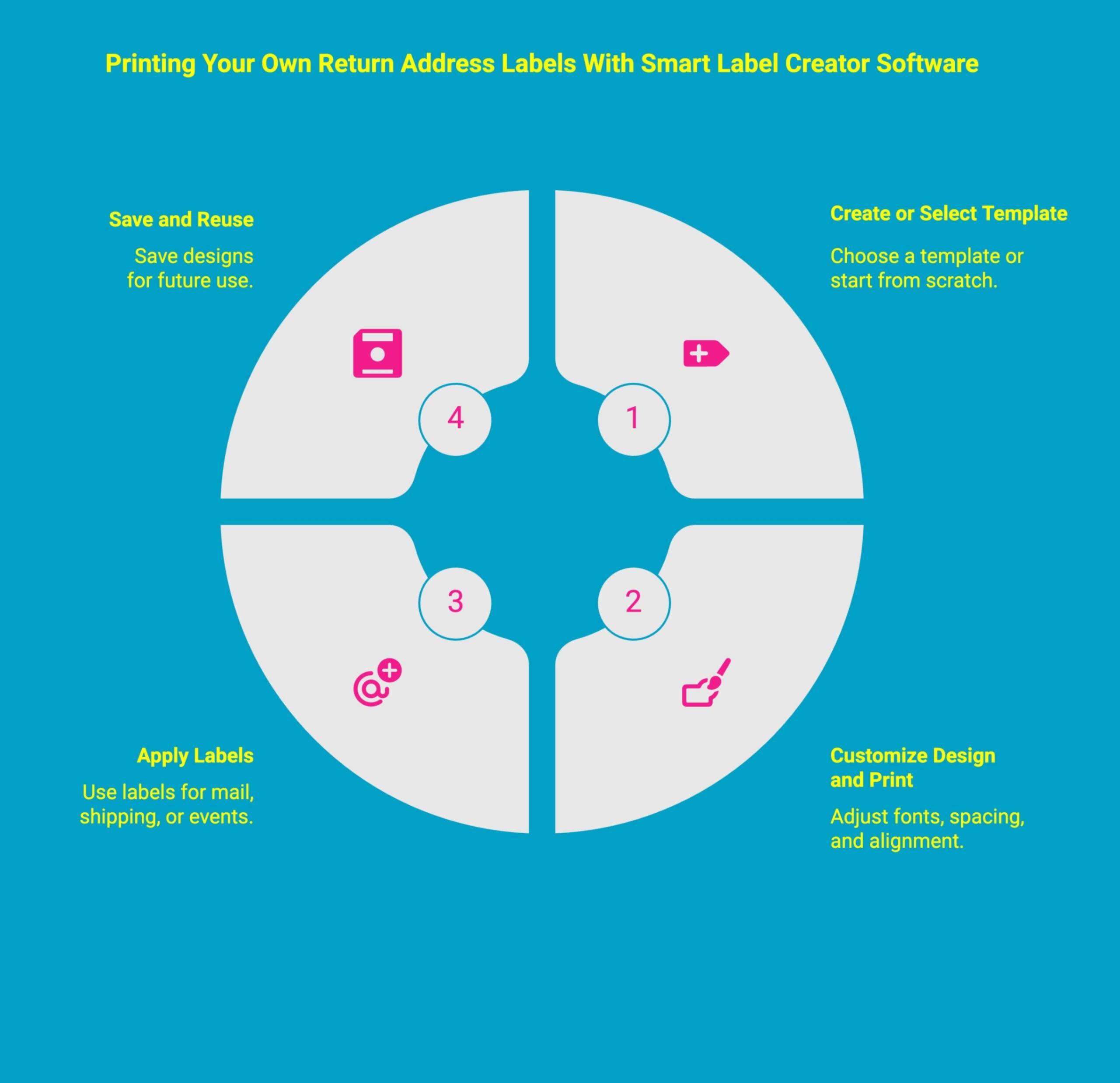
Smart Label Creator makes designing and printing return address labels fast and accurate. Instead of wrestling with generic tools, you get printer-optimized layouts, precise sizing, and reusable designs. This approach minimizes waste, speeds up workflows, and delivers consistently professional results for everyday and seasonal mailing needs.
Here’s how the process works in practice. Smart Label Creator makes designing and printing return address labels fast and accurate. Instead of wrestling with generic tools, you get printer-optimized layouts, precise sizing, and reusable designs. This reduces waste, speeds up workflows, and delivers consistently professional results.
Step 1: Create a New Label or Choose a Template
Start by selecting a built-in label template or creating a new label from scratch. Set the correct label size, add your return address, and position key details correctly. You can also reference a product number to match the exact label roll.
Step 2: Customize the Design and Print Accurately
Adjust fonts, spacing, and alignment with precision. Smart Label Creator is optimized for direct thermal printing, not sheet labels, ensuring reliable alignment and repeatable results without trial and error.
Step 3: Use Labels for Mail, Shipping, and Events
Apply your labels to everyday mail, shipping packages, or batch printing workflows. They also work well for seasonal projects like holiday cards or event invitations where clean presentation matters.
Step 4: Save, Reuse, and Export for Future Needs
Save your completed layout for instant reprinting or export it as a PDF if needed. This allows fast reprints without redesigning, making future label runs simple and consistent.
With native macOS support and an easy setup process, Seiko printers make return address labeling fast, accurate, and hassle-free on a Mac.
What Are the Best Ways to Quick Print Return Address Labels for Daily Business Needs?
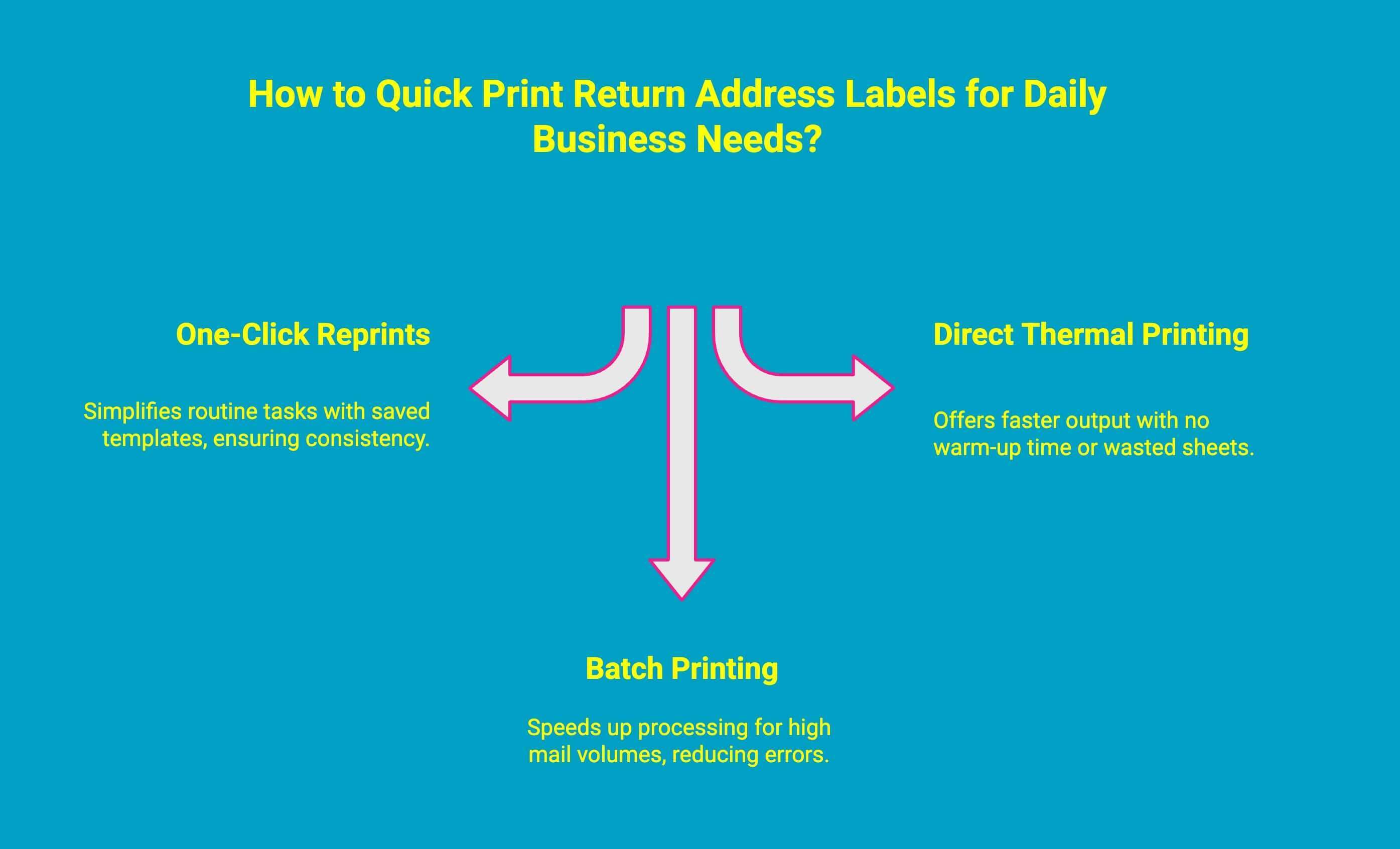
For high-volume daily operations, speed and consistency matter. Quick-print workflows reduce manual steps, eliminate reformatting, and keep mail moving without delays. Using the right printer features and templates allows businesses to print accurate return address labels on demand with minimal interruption.
Efficiency comes from simplifying repeat tasks.
1. One-Click Reprints With Saved Templates
Seiko Smart Label Printers allow users to save return address templates and reprint them instantly. One-click reprints remove the need to redesign layouts, helping teams handle routine mailing tasks quickly while maintaining consistent formatting and professional appearance.
2. Batch Printing From Contact Lists and Databases
For invoicing, shipping, or campaigns, labels can be printed directly from spreadsheets, contact lists, or databases. This batch-printing capability speeds up processing for high mail volumes and reduces manual entry errors during repetitive labeling tasks.
3. Faster Output With Direct Thermal Printing
Direct thermal printing offers a clear speed advantage over inkjet sheet labels. There’s no warm-up time, drying delay, or wasted sheets. Labels print immediately, making it ideal for fast-paced environments that rely on uninterrupted, on-demand label production.
Using quick-print features and direct thermal technology ensures return address labels are produced efficiently, accurately, and at the pace daily business operations demand.
How Do Different Printer Types Support Return Address Label Printing?
Different printer types handle return address label printing in very different ways. Print method, label format, and volume all affect speed, consistency, and overall cost. The table below compares common printer types based on efficiency, print quality, limitations, and ideal use cases, making it easier to select the right option for professional return address label printing.
|
Printer Type |
Pros |
Cons |
Best Use Case |
|---|---|---|---|
|
Direct Thermal (Seiko SLP-620 / 650 / 650SE) |
Fast, clean, no ink or toner |
Monochrome |
Offices, small business |
|
Laser Sheet Labels |
Color capability |
Jam risk, wasted sheets |
Occasional printing |
|
Inkjet Sheet Labels |
Full color |
Smearing, slower |
Craft, low-volume |
|
Outsourcing |
Professional finish |
Higher cost, slower turnaround |
Bulk corporate |
Direct thermal printers like the Seiko SLP-620 and SLP-650 are best suited for businesses that prioritize speed, consistency, and operational efficiency in return address label printing.
What Address Labels Are Available for Seiko SLP620 and SLP650 Printers?
Seiko SLP620 and SLP650 printers support a wide range of 1.125 × 3.5 address labels designed for clean printing, strong adhesion, and smooth feeding. These options make it easy to match label color, finish, and use case for everyday business mailing needs.
Below are the available address label options.
1. Seiko SLP620/650 1.125 x 3.5 Blue Address Labels SLP-1BLB
Blue address labels help visually separate internal or branded mail while maintaining sharp text clarity. They are ideal for routing, departmental correspondence, or standout mail pieces that require consistent adhesion and dependable performance during daily printing.
2. Seiko SLP620/650 1.125 x 3.5 White Address Labels SLP-2RLH
These white address labels provide a clean, professional appearance suited for standard business mailing. High contrast ensures readability, while reliable adhesion supports smooth batch printing on envelopes and parcels without lifting or alignment issues.
3. Seiko SLP620/650 1.125 x 3.5 Clear Address Labels SLP-2RLC
Clear address labels offer a subtle, no-label look that blends into envelopes or packaging. They work well for premium materials where design visibility matters, while still delivering accurate printing and consistent adhesion.
4. Seiko SLP620/650 1.125 x 3.5 White Address Labels SLP-TRL
Designed for return addresses and outbound mail, these white address labels deliver dependable alignment and smooth feeding. They are well suited for offices handling recurring mail tasks that demand speed, consistency, and professional results.
5. Seiko SLP620/650 1.125 x 3.5 White Address Labels SLP-4AST
These versatile white labels support high-volume mailing and shipping workflows. Strong adhesion and uniform formatting help maintain barcode scannability and address clarity throughout handling, sorting, and transit.
6. Seiko SLP620/650 1.125 x 3.5 White Address Labels SLP-1RLB
A reliable everyday option, these white labels are optimized for Seiko printers to ensure clean feeding and accurate placement. They are ideal for routine business mail requiring repeatable, error-free printing.
Choosing the right address label ensures consistent output, professional presentation, and efficient printing with Seiko SLP620 and SLP650 printers.
Where to Buy Supplies for Return Address Label Printing?
For consistent, professional return address label printing, choose DuraFast Label Company, a trusted source for Seiko-compatible address labels. DuraFast offers label rolls specifically designed to work smoothly with Seiko SLP-620 and SLP-650 printers, helping prevent skewing, misfeeds, and uneven cuts.
Using approved address label rolls from DuraFast ensures clean alignment, strong yet reliable adhesion, and crisp print quality on every label. Whether you’re printing daily office mail or large batches, properly matched supplies keep your workflow efficient and your results professional.
Print with confidence. Shop Seiko-compatible return address labels from DuraFast Label Company for dependable performance and expert support. Contact us today for more information!
Conclusion
Printing return address labels does not need to be time-consuming or complicated. With the right printer, software, and label supplies, businesses can produce professional, consistent labels in seconds. Seiko SLP-620 and SLP-650 printers offer a reliable, ink-free solution that supports daily office workflows, improves presentation, and reduces operational friction. Investing in the right setup leads to faster mailing, fewer errors, and a more polished business image.
FAQs
Do I need ink or toner for Seiko return address label printing?
No. Seiko printers use direct thermal printing technology, which creates text and graphics by heating the label surface, eliminating ink or toner costs, reducing maintenance, and ensuring consistent print quality for everyday return address labeling tasks in offices.
Can I print large batches at once?
Yes. Seiko SLP printers support batch printing from saved templates, contact lists, or spreadsheets, allowing users to print hundreds of return address labels in one run efficiently, accurately, and without repeatedly reloading label rolls during busy mailing workflows.
Can I create custom templates and reuse them?
Yes. Smart Label Creator lets users design custom return address templates, save them securely, and reuse them anytime, helping maintain consistent formatting, branding, and spacing while speeding up future printing tasks across multiple projects and business mailing needs.
Can I print return address labels directly from Google Docs?
Yes, but Google Docs lacks precise label sizing and printer calibration. While basic labels are possible, alignment issues are common. Dedicated label software like Smart Label Creator provides better accuracy, spacing control, and reliable results for professional return address printing.
Can I use Canva to design and print return address labels easily?
Canva works well for visual design, but printing labels can be inconsistent. It’s not optimized for label rolls or direct thermal printers, often requiring manual resizing and testing. Printer-specific software ensures correct alignment, sizing, and repeatable results for businesses.
Are there free online templates for designing my own return address labels?
Yes, free templates are available online, but many are designed for sheet labels and inkjet printers. They often lack precise sizing for label rolls. Using built-in templates from printer software reduces waste and ensures accurate, professional printing every time.
How do I adjust my printer settings to align return address labels correctly?
Select the correct label size, disable page scaling, and confirm margins match the label roll. Run a test print before batch jobs. Using printer-specific software automatically applies proper alignment, spacing, and cut settings for consistent results.
How do I order custom return address labels from printing services like Staples or FedEx?
Upload your design through their online portals, choose label size and quantity, and approve a proof before printing. Outsourcing offers professional finishes but costs more and requires a longer turnaround compared to printing labels in-house on demand.
How can I create and print return address labels using Microsoft Word?
You can create return address labels in Microsoft Word using label templates, place details at the top of the label, then print labels for mailing labels or shipping labels, for Christmas cards and wedding invitations, for future use.
What is the easiest way to print return address labels at home?
The easiest way to print return address labels at home is using a direct thermal label printer with pre-sized rolls and label software, allowing you to design once, save templates, and print clean, consistent labels instantly without ink, toner, or sheet alignment issues.