How to Print File Folder Labels: A Simple Guide for Offices and Home Workspaces
21st Jan 2026
Key Highlights
-
Printing your own labels gives your filing system a clean, professional look that handwritten notes can't match.
-
You can easily print labels using a standard desktop printer and label sheets or a dedicated desktop label printer for even better results.
-
Using a template makes the process simple, allowing you to create consistent and easy-to-read labels every time.
-
Customization options are endless, with various fonts, colors, and sizes to help you color-code and organize your files effectively.
-
Printed labels, especially those from a label maker, are often more durable and can withstand more handling than handwritten ones.
-
Specialized printers, like a linerless printer, can reduce waste and streamline your labeling process for maximum efficiency.
A well-labeled filing system can instantly transform the way you work. Whether you’re managing client files in a busy office or keeping personal documents organized at home, clear and consistent labels save time, reduce clutter, and bring structure to your space.
Yet in most workplaces, files get buried under paperwork due to inconsistent, handwritten, or fading labels. This slows retrieval, causing errors and breaking the flow of daily work.
In this guide, you’ll learn how to design, print, and maintain file folder labels that look clean, professional, and perfectly organized. From choosing the right printer and label materials to simple layout tips that boost readability, we’ll walk you through everything you need to create a system that works effortlessly.
Why Should You Print File Folder Labels Instead of Handwriting Them?
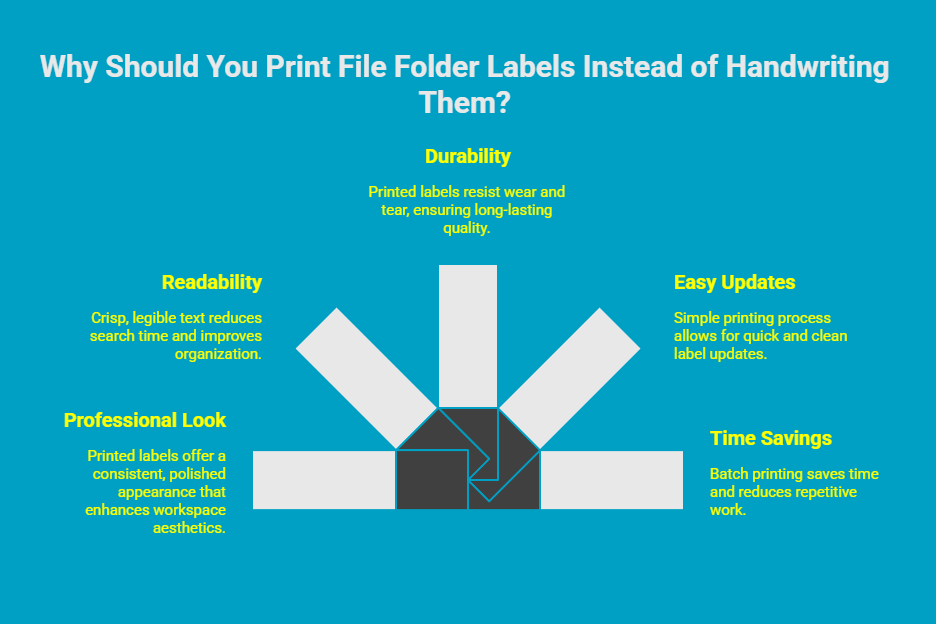
Switching from handwritten to printed file folder labels may seem like a small change, but it makes a big difference in organization, efficiency, and appearance. Printed labels give your filing system a consistent, professional look while making it easier to find and update files quickly. Here’s why printing is the smarter choice for any home or office setup.
1. They Look More Professional and Consistent
Printed labels create a uniform, polished appearance that handwritten ones can’t match. Clear, consistent label text helps you locate files instantly and makes your workspace look tidy and organized. This level of consistency also reinforces a sense of order that’s easier to maintain over time.
2. They’re Easier to Read and Identify
Handwritten labels can be messy or hard to decipher, especially when files are tightly packed. With printed labels, every word (folder name) is crisp and legible, reducing time spent searching for the right folder and helping you stay organized even when things get busy.
3. They’re More Durable and Long-Lasting
Printed labels resist smudging, fading, and peeling, even with frequent handling. Whether you use a desktop printer or a label maker, the quality stays intact, ensuring your files continue to look neat and professional for months or even years.
4. They Make Updating Simple
When file contents change, you don’t need to cross out old text or stick on new paper scraps. Just print a fresh single label that matches your existing format. This keeps your filing system adaptable and maintains a clean, cohesive appearance.
5. They Save Time and Reduce Clutter
A quick print job replaces the time and effort spent on handwriting multiple labels. You can even use templates to print entire batches at once, saving hours of repetitive work and ensuring every label looks exactly the same.
What Tools Do You Need to Print File Folder Labels Efficiently?
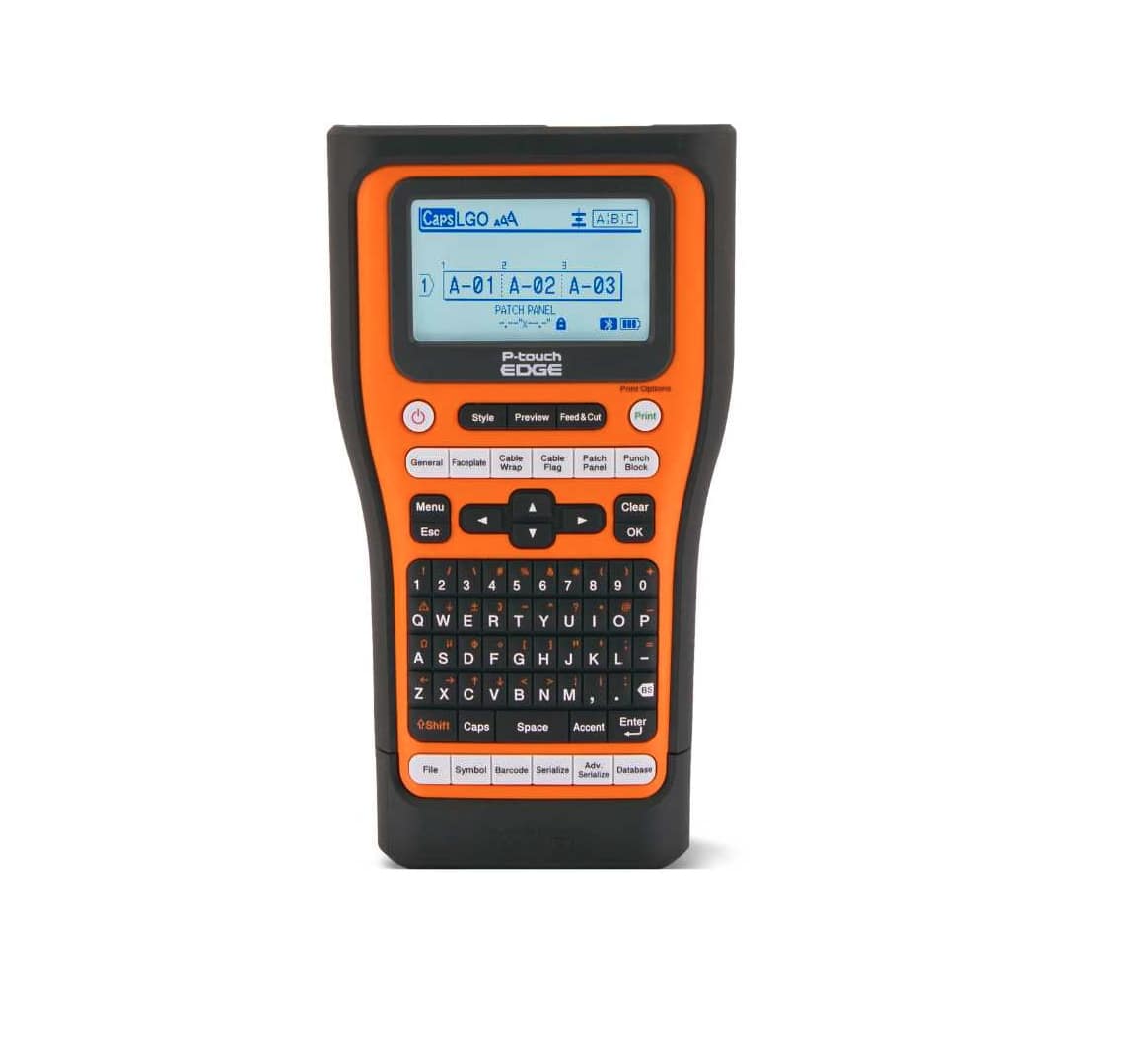
Printing file folder labels efficiently requires the right combination of hardware, software, and supplies. With a few simple tools, you can create clean, professional labels in minutes, without wasting time on formatting or reprints. Here’s what you’ll need to get started.
1. Reliable Label Printer or Standard Printer
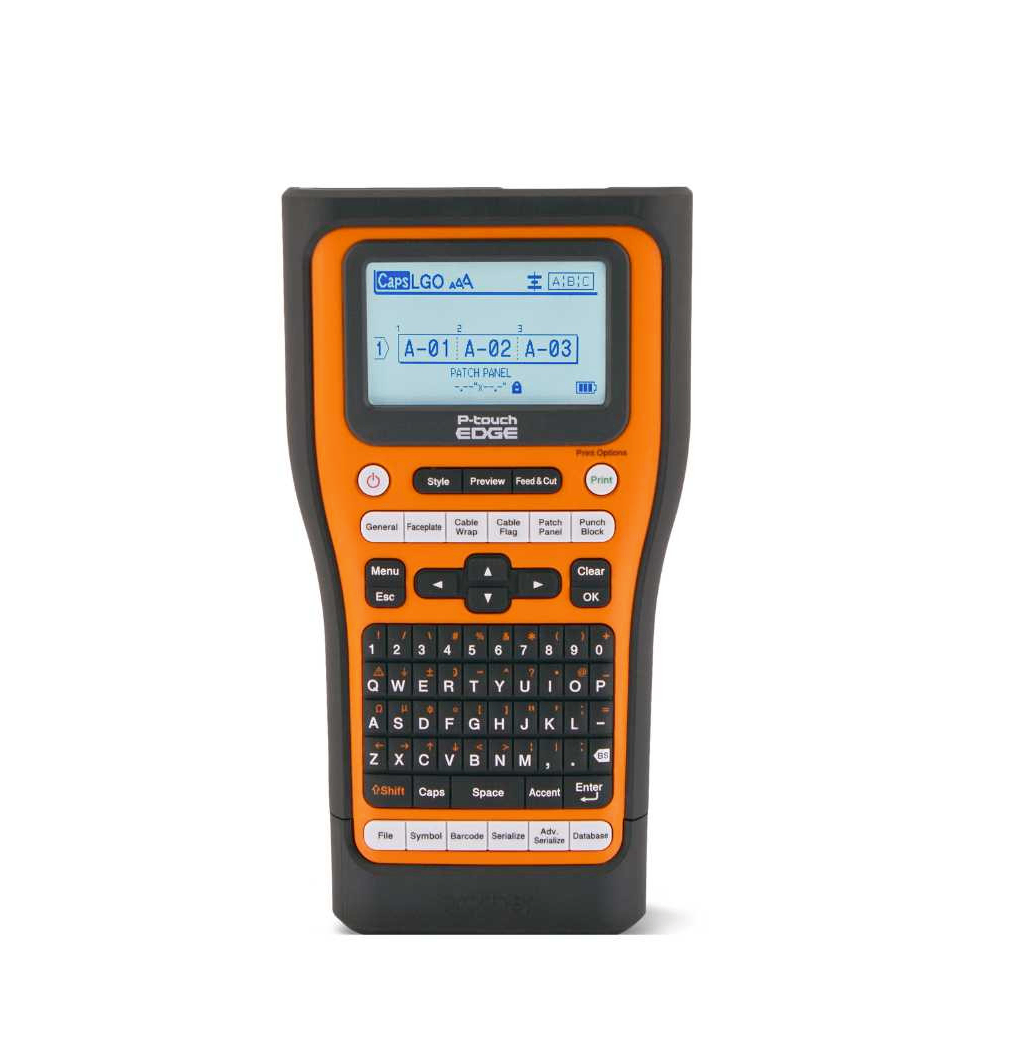
A label printer or a handheld label maker is the easiest and most efficient option for producing file folder labels. It’s designed for high precision and consistent output, regardless of the number of labels you need to print. However, a good-quality inkjet or laser printer can work just as well if you’re printing on label sheets designed for standard printers.
2. Label Sheets or Label Rolls
Choose sheets of labels or rolls that match your printer type and folder size. Popular label product options include pre-cut file folder label sheets or continuous label rolls for label makers. Look for durable, smudge-resistant materials that can handle frequent handling and still look neat over time.
3. Label Design Software or Templates
Using design software or built-in templates makes it easy to format and customize your labels. Many label brands offer free templates compatible with programs like Microsoft Word, Google Docs, or specialized apps such as Avery Design & Print. These tools help you align text perfectly and maintain a consistent look across all your folders.
4. Computer or Device for Setup
You’ll need a computer, laptop, or tablet to design and send your label prints. Make sure it’s connected to your printer via USB or Wi-Fi, or Bluetooth, and install any required drivers or label design applications before you begin printing.
5. Optional Accessories for Better Organization
For larger offices, accessories like file label protectors or color-coded tabs can make a big difference. They help extend label life, improve categorization, and keep your filing system looking sharp and easy to navigate.
Which Printers Are Best for Creating Professional File Folder Labels?
When it comes to creating professional, durable, and consistent file folder labels, Seiko Smart Label Printers are among the most reliable choices for offices and administrative teams. Known for their precision, simplicity, and integration-friendly design, the SLP-620, SLP-650, and SLP-650SE models make it easy to print crisp, high-quality labels that elevate everyday organization.
1. Seiko SLP-620: Reliable and Compact
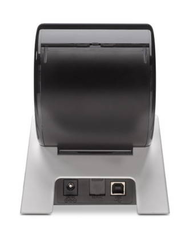
The Seiko Smart Label Printer 620 is a dependable entry-level file folder label maker built for small to mid-sized offices that need fast, professional labeling with lots of features. It produces clean 300 dpi text, handles frequent use with ease, and fits neatly on any desk without clutter.
Why businesses love this:
-
Compact and lightweight design ideal for limited office space
-
Prints sharp, smudge-free text for professional-looking file folders
-
Compatible with Seiko label rolls available from Durafast Label Company
2. Seiko SLP-650: Fast and Precise for Busy Offices
Designed for higher-volume printing, the SLP-650 offers improved speed, better connectivity, and consistent print clarity. It’s perfect for administrative teams that need quick, reliable label output throughout the day.
Why businesses love this:
-
High-speed printing to handle large batches efficiently
-
Plug-and-play setup with simple USB connection
-
Supports a wide range of label sizes for flexible office use
3. Seiko SLP-650SE: Network-Ready for Shared Workspaces
The SLP-650SE takes everything great about the SLP-650 and adds Ethernet connectivity, allowing multiple users to print labels from different computers on the same network. It’s a smart choice for larger teams managing shared filing systems.
Why businesses love this:
-
Network connectivity for easy team access across departments
-
Crisp, professional print quality ideal for long-term file labeling
-
Seamless integration with Seiko Smart Label rolls from Durafast Label Company
Together, these Seiko models provide a dependable labeling system that scales from individual desks to fully networked offices, ensuring every file folder is printed with clarity, consistency, and long-term durability.
How to Design and Print File Folder Labels That Look Clean and Organized?

Producing clean, professional file folder labels depends on disciplined formatting and repeatable processes. The goal is to create labels that are immediately scannable, visually uniform, and structurally reliable over long-term use. The following practices reflect what consistently works in organized, high-volume filing environments.
1. Maintain a Uniform Visual Structure
Use a single sans-serif typeface and fixed font size across all labels to eliminate visual noise. Keep line spacing tight and restrict formatting to one alignment style. A rigid layout standard improves the speed at which users can scan and identify folders.
2. Apply Precise Naming Logic
Use category-first labels followed by specifics. For example, “Invoices – Q1 2025” instead of broad titles. This hierarchy reduces retrieval time and supports better chronological or thematic sorting. Avoid ambiguous labels that provide no immediate context.
3. Rely on Templates for Repeatability
Templates enforce alignment and prevent formatting drift over time. Once optimized, a template becomes the control file for all future labels, ensuring consistent spacing, margins, and text placement—especially useful in large filing systems managed by multiple users.
4. Validate Print Settings With a Single Test Sheet
Conduct a dry run on a regular sheet of paper to verify text placement before committing to new label stock. This step detects margin creep, scaling issues, or printer deviations that become costly when printing in bulk.
5. Use Durable, Smudge-Resistant Label Stock
High-quality labels maintain legibility even after frequent handling. Pair the label material with the correct printer setting, usually “Labels” or “Heavy Paper”, to ensure proper adhesion, crisp text, and accurate feeding.
Where Can You Find Editable or Free Printable File Folder Labels?
Finding editable or free printable file folder labels is easier than ever, thanks to a wide range of online resources and design tools. Whether you need simple templates for everyday filing or custom designs for a more professional look, there are plenty of reliable options available. Most templates come pre-formatted to fit standard label sheets or Seiko-compatible rolls, so you can download, personalize, and print them in minutes.
Here are some of the best places to find them:
-
Seiko Smart Label Software: Comes with built-in templates specifically designed for Seiko label printers, making it easy to create and print professional file folder labels that align perfectly with Seiko label rolls.
-
Avery Design & Print: Offers a wide collection of free, customizable templates for file folders. You can edit them online or in Microsoft Word and export them for printing on any compatible label sheet or roll.
-
Microsoft Office & Google Docs Templates: Provide ready-to-use word label templates that can be customized with your preferred fonts, background colors, and layout. Ideal for quick in-house printing using standard office printers and inexpensive label makers.
-
Canva or Template.net: Great for teams that want a more branded or creative approach to labeling. These tools let you design labels with logos, colors, or icons before printing on your preferred media.
With editable templates and free resources, you can create labels that are not only functional but also visually consistent with your organization’s branding at an affordable price. Pairing these templates with Seiko Smart Label Printers and label rolls ensures every label looks sharp, aligned, and professional from the first print to the last.
How to Print Hanging File Folder Labels for Long-Term Organization?
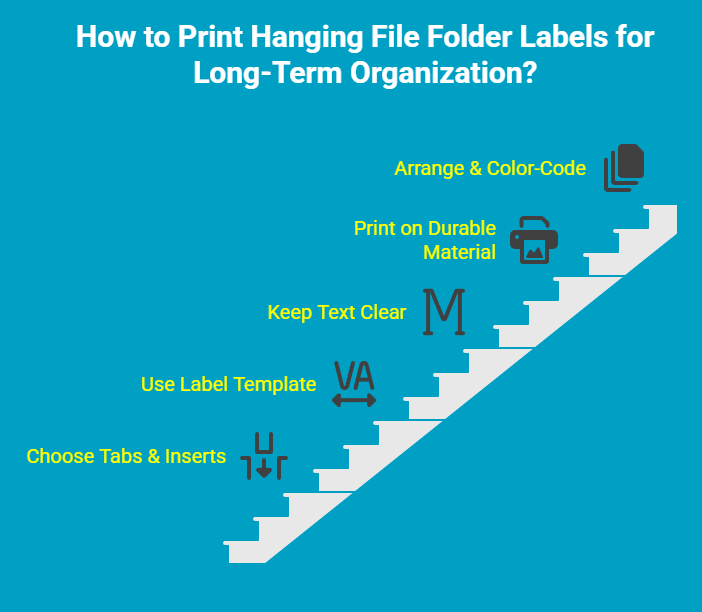
Hanging file folders are ideal for keeping large volumes of documents neatly categorized and easily accessible. Printing durable labels for them not only improves readability but also helps maintain a consistent, professional filing system over time. The key is to design and print labels that fit perfectly into tab inserts, resist wear, and stay legible for years of use.
1. Choose the Right Hanging File Tabs and Inserts
Start by selecting sturdy hanging file tabs and compatible label inserts. Most hanging folders come with clear plastic tabs that hold small rectangular label strips. Use inserts made of durable, tear-resistant material or heavy paper stock to prevent curling or damage with repeated handling.
2. Use a Compatible Label Template
Before printing, open an editable free printable file folder labels template that matches your tab size. Many office supply brands offer downloadable templates for standard hanging file tabs. These templates help you align text accurately, ensuring each label fits neatly inside the plastic holder without cutting or trimming.
3. Keep Text Large, Clear, and Focused
Since hanging file labels are often read from a distance, prioritize clarity over detail. Use bold, easy-to-read fonts in 12–14 pt size and keep text short, ideally one or two words that summarize the contents. Avoid clutter or long titles that make scanning through files difficult.
4. Print on Heavy or Smudge-Resistant Material
For long-term organization, use thicker label paper or smudge-proof material designed for repeated handling. If you’re printing in color, use high-quality settings to ensure crisp, long-lasting text. This is especially important in busy offices where files are frequently moved and re-sorted.
5. Arrange and Color-Code for Easy Navigation
Once printed, insert your labels into the plastic tabs and arrange folders alphabetically, by category, or by date. Consider using color-coded labels for quick visual sorting. For instance, blue for finance, green for HR, or red for active projects. This extra layer of organization makes retrieval faster and minimizes misfiling.
How Can Seiko Smart Label Printers Make File Folder Labelling Easier?
Seiko Smart Label Printers make file folder labeling fast, precise, and effortless. They remove the hassle of formatting or handwriting by automatically detecting label sizes, printing quickly, and integrating smoothly with your software. Whether for a small office or a large department, they deliver consistent, professional labels every time.
Here’s how they make labeling effortless:
-
No setup complexity: Seiko printers are plug-and-play, meaning you can start printing straight out of the box without complicated installation or driver setup.
-
Automatic label detection: The printer instantly recognizes the label roll type and size, ensuring perfect alignment and reducing wasted materials.
-
Crisp, high-resolution output: With up to 300 dpi print quality, your labels come out sharp, smudge-free, and easy to read, ideal for busy filing systems.
-
Fast and efficient printing: Print dozens of file folder labels in seconds, saving time during large filing projects or reorganizations.
-
Seamless software compatibility: Easily design, preview, and print labels through Seiko Smart Label Software or other compatible programs for a smooth workflow.
By integrating Seiko Smart Label Printers into your office setup, you create a more efficient and accurate labeling system. The result is faster organization, improved visibility, and a filing process that looks as professional as it performs.
Where Can You Buy Seiko Smart Label Printers and Label Rolls in Canada?
You can buy Seiko Smart Label Printers and label rolls in Canada directly from Durafast Label Company, the country’s authorized Seiko reseller. Durafast offers the complete lineup of Seiko printers, including the SLP-620, SLP-650, and SLP-650SE, along with a wide range of compatible Seiko Smart Label rolls.
All products are stocked in Canada for fast delivery and backed by expert support, ensuring seamless setup, reliable performance, and professional-quality labels for every office or administrative need. Want customized label printing solutions? Contact us now.
Conclusion
Printing file folder labels can significantly enhance the organization and professionalism of your workspace. By investing in the right tools and printers, you can create clean and attractive labels that make it easy to locate important documents. The benefits of using printed labels over handwritten ones are clear: improved readability, consistency, and a polished appearance. Whether you're working from home or managing an office, implementing a labelling system with resources like Seiko Smart Label Printers can streamline your workflow. If you're ready to elevate your organizational game, get a free consultation to explore how these printers can best suit your needs!
Frequently Asked Questions
How do I print file folder labels using Seiko Smart Label Printers?
Printing with a Seiko file folder label printer is very easy. First, connect the printer to your computer and install the included software. The software comes with a built-in template for various label sizes. Simply open a template and customize.
Can I create custom label templates for hanging file folders?
Creating custom label templates for hanging file folders is a great way to personalize your organization system. You can use software like Microsoft Word, Google Docs, or Canva to design the hanging file folder labels printable version.
What is the best label paper for file folder labelling?
The best label stock depends on your printer. If you're using a standard inkjet or laser printer, look for high-quality label sheets from a brand like Avery. These are designed to feed through your printer smoothly and provide good print quality.