How Do I Print Address Labels: A Complete Guide for Home and Office Users
23rd Jan 2026
Key Highlights
Here are the key takeaways from our guide on printing address labels:
-
Always choose the right label type to match your printer type, whether it's inkjet or laser.
-
Use the correct label template, such as Avery labels templates, to ensure perfect alignment.
-
Import your addresses into an address box from a spreadsheet to create mailing labels efficiently.
-
Customize your product labels or shipping labels with logos and fonts for a professional look.
-
Always print a test page on plain paper before you print labels in a large batch.
Tired of dealing with misaligned labels or smudges while mailing out dozens (or hundreds) of items?
Instead of handwriting each address, you can create professional-looking mailing labels right from your computer. This guide will walk you through the entire process, from choosing the right materials to printing perfectly aligned labels every time.
Let’s get your mailings streamlined and looking sharp!
Why Do You Need To Print Address Labels Instead of Handwriting Them?
Handwriting address labels might seem like a simple solution, but it quickly becomes a frustration when you're faced with a mountain of envelopes to send. Imagine the stress of addressing hundreds of packages or cards – the hand cramps, the inconsistencies in handwriting, and the constant worry that a label might be illegible, causing delays or errors.
Printing your labels is more than just a time-saver; it’s a game-changer. It frees you from the mental and physical strain of repetitive tasks, allowing you to focus on what truly matters. Here’s why printing is the smarter choice:
-
Saves Time: No more wasting hours handwriting every label. Printing is quick, allowing you to process more mail in less time.
-
Improves Accuracy: With printing, you eliminate the risk of illegible handwriting or address errors that could delay deliveries.
-
Gives a Professional Look: Whether for business or personal use, printed labels provide a polished, consistent appearance that leaves a lasting impression.
-
Reduces Physical Strain: Avoid hand cramps and repetitive strain from addressing large volumes of mail manually.
-
Increases Efficiency: Spend less time on the tedious task of labeling and more time on what matters most.
Instead of spending hours stressing over handwriting, you can now create clear, precise labels in a fraction of the time. It's an easy win that improves both your workflow and the impression you make on your recipients.
Step-by-Step: How Do I Print Address Labels?
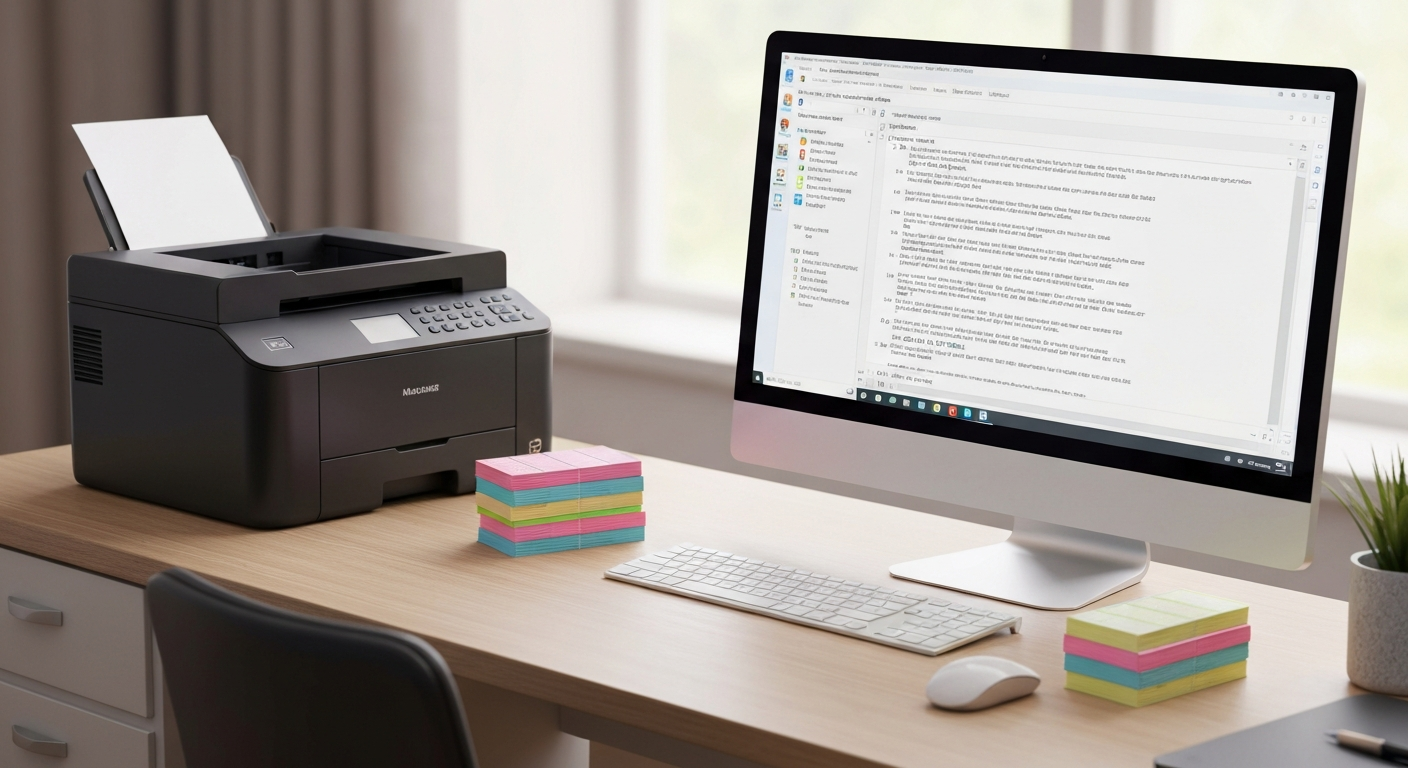
Printing address labels is surprisingly simple. You can pull in your address list, apply a label template, and print everything in one smooth flow. Here’s the cleanest, quickest way to get it done.
Step 1: Choose the Right Printer and Labels
Pick a printer that handles labels well; laser printers give the cleanest results, but inkjets work fine for smaller jobs or color designs. Make sure your label sheets match your printer type and choose the correct size (Avery templates make this easy).
Step 2: Install the Needed Software
Connect your printer and install any required drivers or label-printing software. Most brands also offer templates or apps that match their label sheets perfectly, saving you alignment headaches. Always update to the latest version for the best performance.
Step 3: Input or Import Your Addresses
Type your addresses manually or use Word’s mail merge to pull them from Excel or a CSV file. This keeps everything accurate and saves time, especially for large mailing lists. Make sure each address line up with your label template.
Step 4: Customize Your Label Design
Choose clear fonts, readable sizes, and simple layouts. Add a logo or brand name if needed. Keep designs clean so the address stands out and the label prints sharply. Good design improves both readability and presentation.
Step 5: Print a Test Label
Print your layout on regular paper first. Hold it up against a blank label sheet to check alignment and spacing. Adjust margins or template settings if anything looks off. This step saves wasted sheets and prevents misprints.
Step 6: Print in Batches
Load your label sheets carefully and print one sheet at a time for best results. Check the first few prints to ensure alignment stays consistent. If you’re printing dozens or hundreds, monitor quality as you go to avoid jams or shifting.
By following these simple steps, you’ll save time, reduce mistakes, and give your mail a polished, professional look, making the process effortless and efficient.
What Types of Address Labels Can You Print?
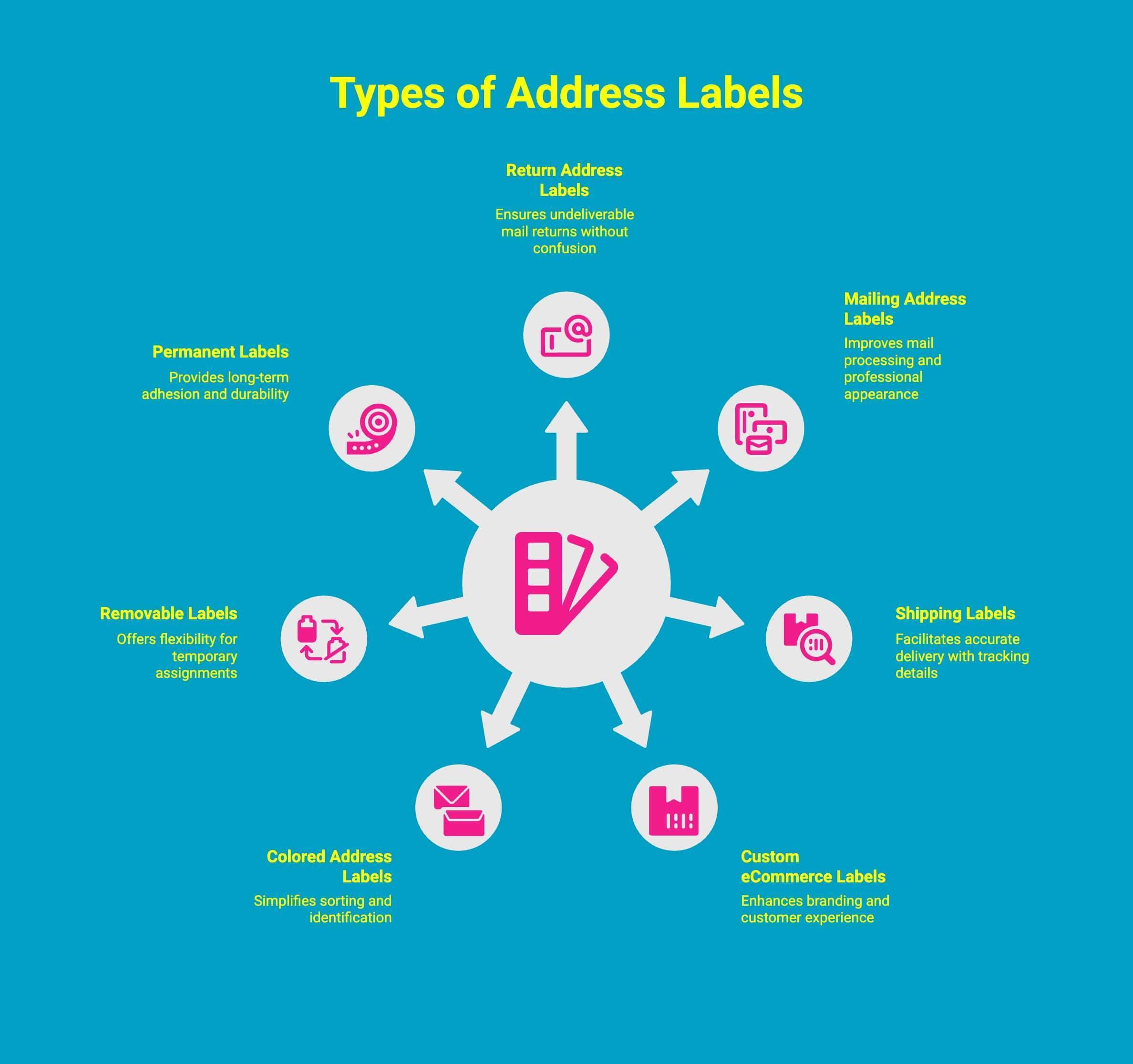
Address labels come in many forms, and each type serves a different purpose depending on whether you're mailing letters, shipping packages, organizing supplies, or running an online business. Choosing the right label ensures your mail looks professional and is handled correctly.
1. Return Address Labels
Return address labels save time and give every envelope a polished, consistent appearance. They prevent repeated handwriting, allow room for your name or logo, and ensure undeliverable mail is returned to you without confusion or delay.
Common uses:
-
Adding return details quickly and neatly
-
Including company branding or logos
-
Ensuring undeliverable mail comes back accurately
-
Creating a consistent look across all outgoing mail
2. Mailing Address Labels
Mailing address labels clearly show the recipient’s information, making your mail easier to process and more professional in appearance. They help avoid handwriting mistakes, improve readability, and give every envelope or package a tidy, uniform look.
Common uses:
-
Printing recipient addresses for letters and packages
-
Preparing invitations or event announcements
-
Enhancing envelope presentation and clarity
-
Matching fonts or styles for brand consistency
3. Shipping Labels
Shipping labels carry essential delivery details, helping carriers scan, sort, and deliver your packages accurately. They provide space for tracking numbers, barcodes, and branding, making them ideal for both personal shipments and small business operations.
Common uses:
-
Printing shipping addresses and tracking codes
-
Adding scannable barcodes for carrier accuracy
-
Branding packages with company details
-
Supporting smooth eCommerce fulfillment
4. Custom eCommerce or Insert Labels
Custom labels help online sellers personalize packaging, reinforce branding, and enhance the unboxing experience. They can include product information, thank-you messages, care instructions, or promotional elements that create a memorable customer interaction.
Common uses:
-
Adding SKU or product identifiers for inventory
-
Printing branded thank-you or care inserts
-
Decorating boxes or poly mailers with logos
-
Including coupon or promotional stickers inside orders
5. Colored Address Labels
Colored labels improve sorting and identification by creating a visual system that’s easy to follow. They’re especially useful for offices, events, or warehouses where quick recognition saves time and keeps workflows organized and efficient.
Common uses:
-
Color-coding mail by category or urgency
-
Highlighting promotional or priority shipments
-
Organizing paperwork or storage areas
-
Matching brand colors for cohesive presentation
6. Removable Labels
Removable labels are ideal when you need flexibility. They peel away cleanly without leaving residue, making them perfect for temporary assignments, reusable containers, rotating projects, or anything that requires frequent updates or changes.
When removable labels work best:
-
Temporary address labels on reusable packaging
-
Seasonal or project-based organization
-
Reorganizing bins, drawers, or files
-
Event or pop-up labeling that changes often
7. Permanent Labels
Permanent labels provide long-term adhesion and durability, making them ideal for products, inventory, storage, and anything exposed to handling or movement. They resist peeling, ensuring important information stays intact and easy to read over time.
When permanent labels work best:
-
Product packaging that needs strong adhesion
-
Shipping labels that endure rough transit
-
Long-term inventory or asset tracking
-
Storage or archival labeling that must last
Choosing the right label for your needs not only keeps your mailings organized but also ensures your branding shines through, leaving a lasting, professional impression with every shipment or communication.
What Are the Best Practices for Professional Address Label Printing?
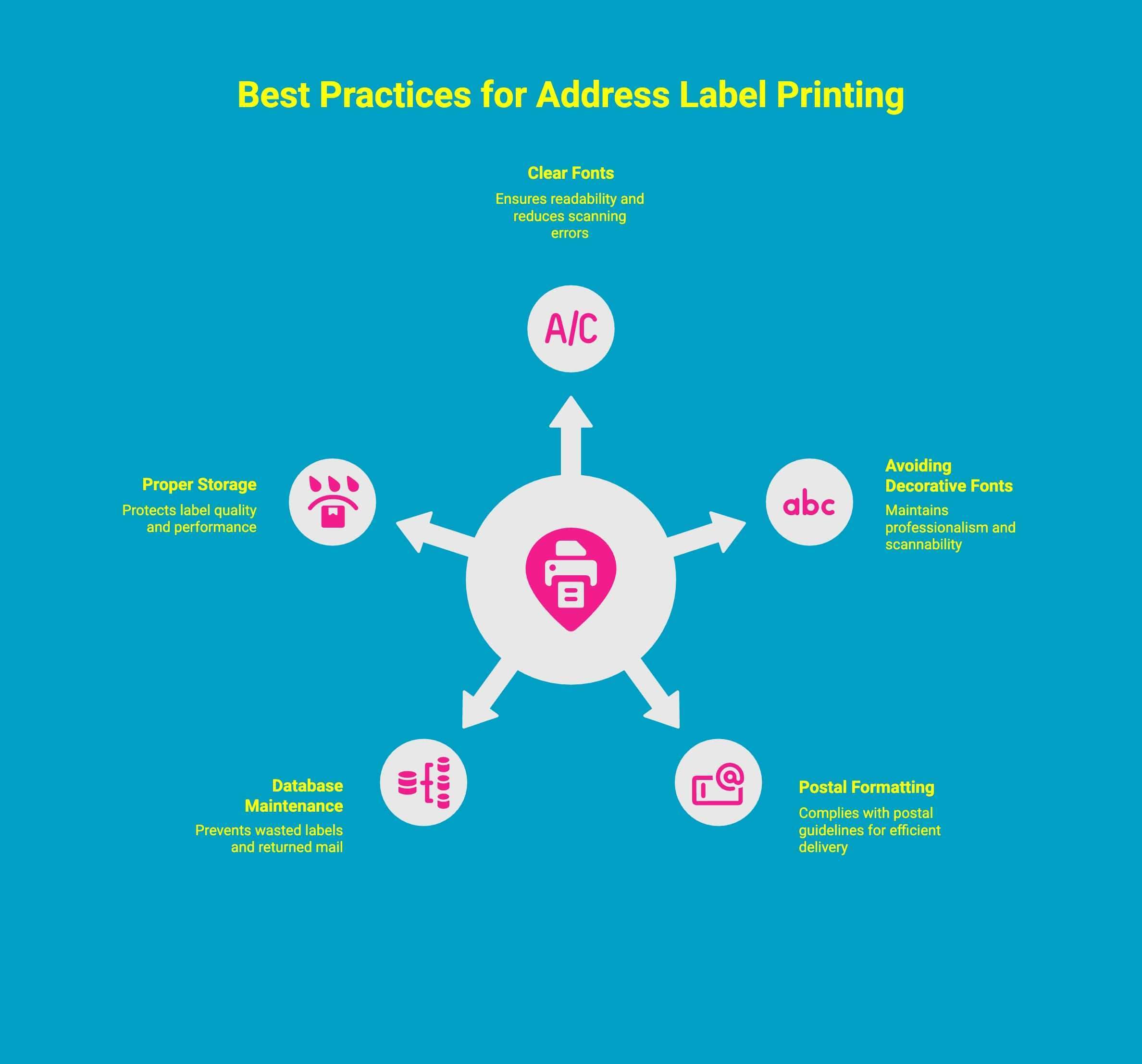
Professional-looking address labels come down to clarity, accuracy, and consistency. A few simple habits can dramatically improve how well your labels print and how smoothly they move through postal systems. These best practices help your labels look clean, scan correctly, and reach the right destination every time.
1. Clear Fonts and Proper Spacing
Using clean, easy-to-read fonts and thoughtful spacing ensures your address labels are readable at a glance. Clear type, balanced line spacing, and simple formatting not only improve visual appeal but also reduce scanning errors and postal delays.
Best uses:
-
Ensuring small text stays legible on compact labels
-
Helping postal machines process addresses accurately
-
Giving envelopes a tidy, professional layout
-
Reducing label waste caused by unreadable prints
2. Avoiding Decorative Fonts
Decorative or script fonts often reduce readability, especially for automated sorting machines. Sticking to simple, standard fonts keeps your labels clear, professional, and reliably scannable, ensuring faster and more accurate delivery.
Best uses:
-
Preventing misreads during automated postal scanning
-
Keeping address blocks clean and easy to understand
-
Avoiding delivery delays or returned mail
-
Maintaining a consistent look for business correspondence
3. Following Postal Formatting Requirements
Postal services like USPS and Canada Post use strict formatting rules to keep mail moving efficiently. Using proper capitalization, spacing, and layout ensures machines read your labels correctly and prevents avoidable delivery issues.
Best uses:
-
Ensuring labels meet official postal guidelines
-
Avoiding printing misalignment with the correct templates
-
Speeding up automated sorting and routing
-
Keeping bulk mailings consistent and accurate
4. Maintaining a Clean, Updated Database
A well-maintained address list prevents wasted labels, returned mail, and unnecessary postage costs. Regularly updating your database ensures every printed label corresponds to a current, valid, and error-free address.
Best uses:
-
Removing duplicates to reduce printing waste
-
Updating customer or contact addresses quickly
-
Improving accuracy during batch printing
-
Preventing returned or undeliverable mail
5. Proper Label Storage
Storing labels correctly protects adhesive quality, print clarity, and overall performance. Labels kept away from heat, moisture, and dust remain crisp, sticky, and ready for trouble-free printing whenever you need them.
Best uses:
-
Preserving adhesive strength during long storage.
-
Preventing discoloration of thermal labels.
-
Avoiding debris buildup that harms print quality.
-
Extending the lifespan of label sheets and rolls.
Why Should You Use Seiko Address Label Printers?
A dedicated label printer can make address labeling faster, cleaner, and far more efficient than a regular desktop printer. Seiko’s thermal label printers stand out because they’re reliable, cost-efficient, and purpose-built for producing crisp, professional labels at high speed.
They require no ink or toner, integrate smoothly with label-design software, and deliver consistent results, making them a smart upgrade for homes, offices, and growing businesses.
Seiko SLP-620: Efficient and Reliable for Daily Labeling Tasks
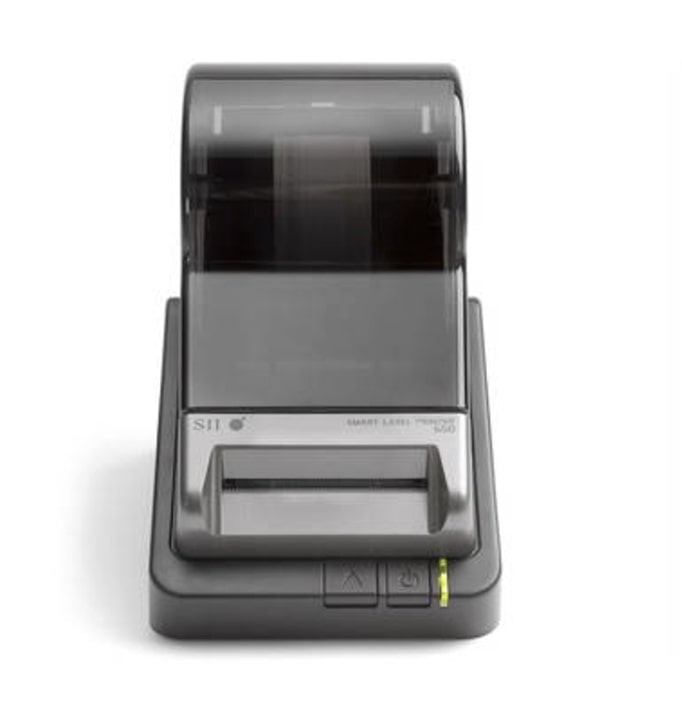
The SLP-620 is a compact, budget-friendly thermal label printer designed for everyday tasks. It prints sharp labels without ink or toner, fits neatly on any desk, and makes simple labeling jobs incredibly fast and hassle-free.
Key features:
-
Direct thermal printing with no ink or toner costs.
-
Compact, lightweight design for small workspaces.
-
Fast, clear output ideal for daily label tasks.
-
Easy integration with Seiko Smart Label Creator software.
Best used for:
-
Printing everyday address labels quickly.
-
Creating file folder labels for office organization.
-
Producing name badges for meetings or visitors.
-
Printing small batches of labels from spreadsheets or contact lists.
Seiko SLP-650: Versatile and High-Quality Labeling Solution
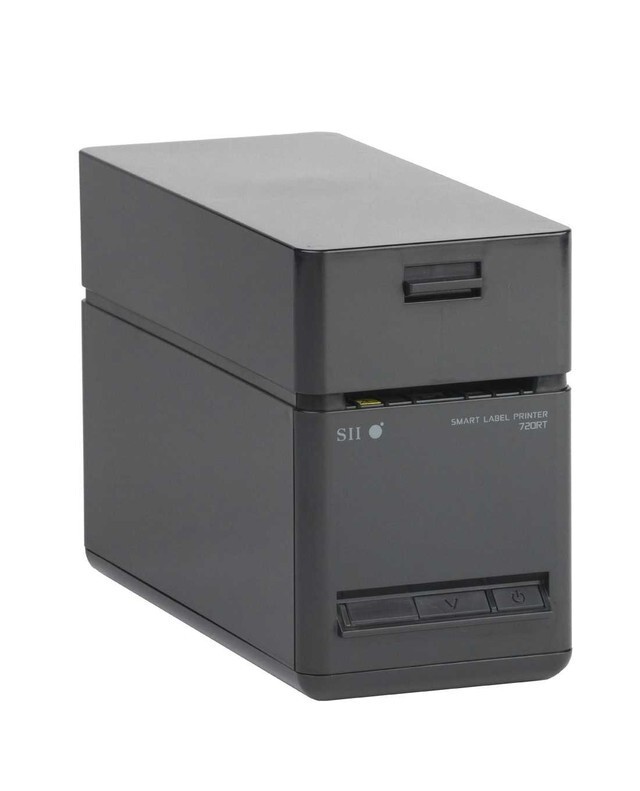
The SLP-650 is a more powerful, versatile model built for users who need higher print quality and more label options. It handles shipping labels, barcodes, and custom stickers with excellent clarity, making it ideal for small businesses and busy home offices.
Key features:
-
High-resolution 300 DPI printing for sharp text and barcodes.
-
Faster print speed for frequent or bulk label runs.
-
Wide compatibility with various label sizes and formats.
-
Smooth connectivity with Windows and Mac.
Best used for:
-
Printing, shipping and mailing labels with crisp detail
-
Producing barcode labels for inventory or retail
-
Creating custom stickers or branded labels
-
Managing small-business fulfillment workflows
Seiko SLP-650SE: Advanced Labeling for Small Business and Event Professionals
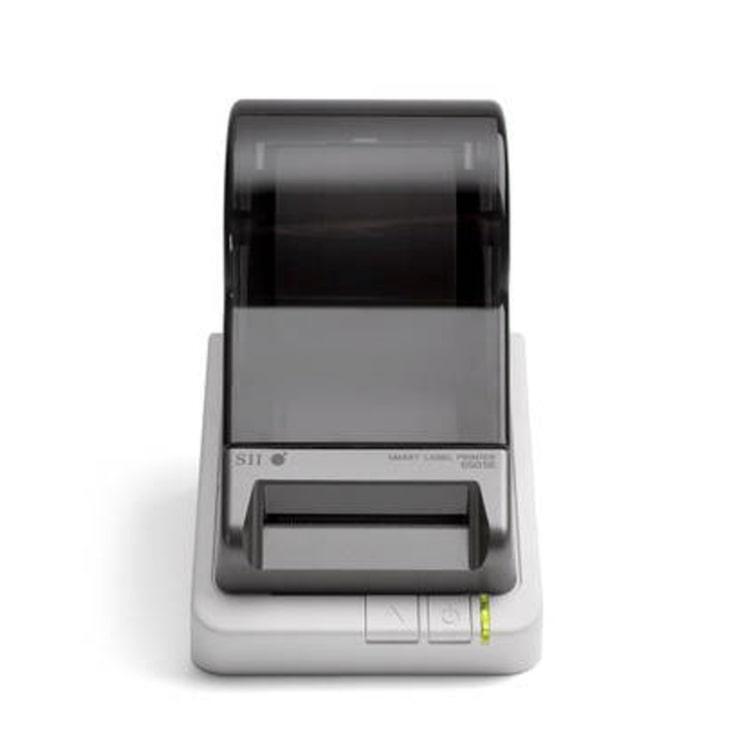
The SLP-650SE builds on the SLP-650 with added security and connectivity, making it ideal for environments that demand secure, reliable label output. Its performance, clarity, and compatibility, including support for certain mobile workflows, make it a strong choice for professional settings.
Key features:
-
Same fast 300 DPI thermal printing as the SLP-650.
-
Enhanced security features for sensitive data.
-
Support for advanced networking and system integration.
-
Compatibility with mobile platforms, including print-from-iOS setups.
Best used for:
-
Printing medical labels or secure documents.
-
Creating shipping labels in high-volume workflows.
-
Supporting mobile-first workplaces using iPhones or iPads.
-
Integrating label printing into enterprise-level systems.
How Can You Troubleshoot Common Address Label Printing Issues?
Even reliable printers can run into problems, from misaligned labels to faded text or connectivity issues. Most of these frustrations have simple, practical fixes. Understanding the cause helps you correct errors quickly, keep your workflow moving, and get crisp, professional labels every time.
1. Labels Not Aligned Correctly
Misalignment happens when your printer settings don’t match your label sheet or when labels aren’t loaded properly. With a few small adjustments, you can easily bring everything back into perfect alignment.
Best fixes:
-
Ensure your template matches your exact label size and layout
-
Adjust document margins for precise placement
-
Set print scaling to 100% instead of “Fit to Page”
-
Reload label sheets or rolls to ensure straight feeding
2. Faded or Missing Text
Faded or uneven text usually means low print quality settings, depleted ink, or improper thermal settings. A quick check of your printer settings and template often brings back the crisp clarity you need.
Best fixes:
-
Increase print quality in your printer settings
-
Replace or refresh ink cartridges on inkjet printers
-
Confirm the correct label template is selected
-
Recalibrate or clean print heads when needed
3. Printer Not Recognized by the Computer
Connection issues are common and usually simple to resolve. Whether it's a loose cable or a driver problem, restoring communication between your computer and printer typically takes just a few quick steps.
Best fixes:
-
Check that USB cables are securely connected
-
Try a different USB port or cable
-
Reinstall or update the printer driver
-
Restart your computer to refresh the connection
4. Labels Won’t Stick
Poor adhesion often comes from label quality, surface type, or storage issues. Ensuring clean surfaces and properly stored labels prevents peeling and keeps your labels firmly in place.
Best fixes:
-
Clean and dry the surface before applying labels
-
Avoid applying to textured, dusty, or curved surfaces
-
Store label rolls away from heat, humidity, and sunlight
-
Replace old labels with fresh ones if the adhesive has degraded
5. Software Crashes or Import Problems
Software glitches can interrupt printing, especially when importing address lists. Keeping your software updated and files clean ensures smoother operations and fewer frustrating interruptions.
Best fixes:
-
Re-save your address list as a CSV and re-import
-
Update your label software to the latest version
-
Reinstall the software to repair corrupted files
-
Export labels as a PDF and print from a PDF viewer if needed
How Can DuraFast Label Company Help You Get the Best Seiko Printers and Label Supplies?
Are you ready to upgrade your label printing setup? DuraFast Label Company is your go-to source for top-of-the-line Seiko label printers and all the supplies you need to go with them. We understand that finding the right label printer can be a challenge, which is why our team of experts is here to help you choose the perfect model for your specific needs, whether you're printing address labels, product labels, or shipping labels.
We offer a wide selection of Seiko printers, from compact desktop models to high-speed units for business use. In addition to the hardware, we stock a full range of high-quality label supplies, including thermal labels in various sizes and types.
Contact us today to help you build an efficient, reliable system to print labels with professional quality every time.
Conclusion
With the right tools and techniques, you can create professional-looking labels tailored to your needs. Remember to choose the appropriate printer, maintain a clean label database, and follow best practices for design and formatting. By doing so, you'll ensure that your labels not only look great but are also functional for your mailing needs.
If you're ready to enhance your label printing experience, don't hesitate to reach out for a free consultation to discover how DuraFast Label Company can assist you with Seiko printers and supplies.
Frequently Asked Questions
Can I print address labels in Word without buying special software?
Yes, you can absolutely print address labels in Microsoft Word without any extra software. Word has a built-in "Mailings" tab with a "Labels" feature that allows you to choose a label template, type or import addresses, and format your labels for printing.
What type of printer works best for address labels?
The best printer type depends on your needs. Inkjet and laser printers are great for printing sheets of labels. For high-volume printing, a dedicated thermal printer that uses label rolls is more efficient and cost-effective as it doesn't require ink or toner.
Where can I find address label paper in Canada?
You can find address labels at most office supply stores across Canada, such as Staples. Online retailers like Amazon also offer a wide selection. Look for brands like Avery, which provide a variety of label sheet sizes compatible with most printers.
Can I print address labels without special software?
Yes. You can print address labels without special software by using programs you likely already have. Microsoft Word's mail merge feature is perfect for this, and many free online template tools and apps are also available to help you design and print your labels.
What size labels should I use for standard envelopes?
For a standard #10 envelope, the most common label size for mailing labels is 1" x 2 5/8". This size is widely available from brands like Avery (template 5160) and provides ample space for a standard address without overwhelming the envelope.
How do I align address labels correctly when printing?
To ensure correct alignment, always use the exact label template that matches your label product. In your print settings, make sure page scaling is set to "100%" or "Actual Size." Printing a test page on plain paper first is the best way to check the layout.
Are there free templates I can use to design address labels?
Yes, many sites offer free address label templates, including Avery, Microsoft Word, and Google Docs. These templates help you design clean, aligned labels quickly without needing advanced software or technical skills.
Can I get address labels printed at a store for same-day pickup?
Yes, most office supply stores like Staples and Office Depot offer same-day address label printing. You upload your design online or bring a file, choose your label type, and pick up your finished prints quickly.
How do I print address labels directly from my contact list on a Mac?
Open the Contacts app, select the contacts you want, choose File, then Print, and select a label format. Customize layout options, preview the labels, and print directly using your connected printer.