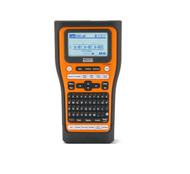
How to Load Tape in Brother P-Touch Label Maker? Easy Tips
9th Feb 2026
Key Highlights
- Power off the label maker before loading to protect the motor and cutter.
- Open the rear cover fully and seat the cassette flat until it locks in place.
- Ensure the tape feeds straight into the exit channel—no twisting or bending.
- Use the correct tape type and width (TZe, HGe, or HSe) for your model and task.
- Run a test print and cut to confirm clean feeding and accurate cuts.
- Avoid forcing tape, incorrect orientation, or expired/incompatible cartridges.
- For genuine Brother tapes and professional EDGE-series printers, source from DuraFast Label for reliable performance.
Misloaded label tape is one of the fastest ways to waste time and supplies. In busy offices, electrical jobs, and IT environments, even a small setup error can lead to repeated misprints, skewed labels, and cutter issues. This often results in inches of tape being wasted before a usable label is produced, increasing consumable costs and slowing down essential labeling tasks.
The core issue is that Brother P Touch label makers do not work like sheet labels or standard roll printers. They rely on cassette-based tape systems that must be seated, aligned, and locked correctly. When the tape width is mismatched or the cassette is not fully engaged, users may experience jams, uneven cuts, faded text, or unnecessary wear on the cutter and print head.
This guide explains exactly how to load tape into a Brother P-Touch label maker, clearly and correctly. Through practical instructions, model-specific guidance, and print quality tips, this blog helps reduce tape waste, protect your device, and achieve consistent professional results across models from Brother Industries.
Why Is It Important to Know How to Load Tape in a Brother P Touch Label Maker Correctly?
Loading tape correctly isn’t just about getting labels to print; it’s about protecting your device and ensuring consistent results.
Key reasons proper tape loading matters:
- Prevents tape jams and misalignment: A cassette that isn’t fully locked can cause the tape to skew or bunch inside the printer.
- Ensures clean cuts and cutter accuracy: Misfed tape puts stress on the cutter mechanism, leading to jagged edges or cutter failure.
- Improves print clarity and alignment: Proper tape positioning ensures the print head contacts the tape evenly across its width.
- Extends device lifespan: Correct installation reduces wear on the print head, motor, and cutter assembly.
Correct tape loading isn’t optional; it’s the foundation for accurate labels, reliable cutting, and long-term performance from your Brother P-Touch label maker.
How Do You Load Tape Correctly in a Brother P-Touch Label Maker? A Step-by-Step Guide
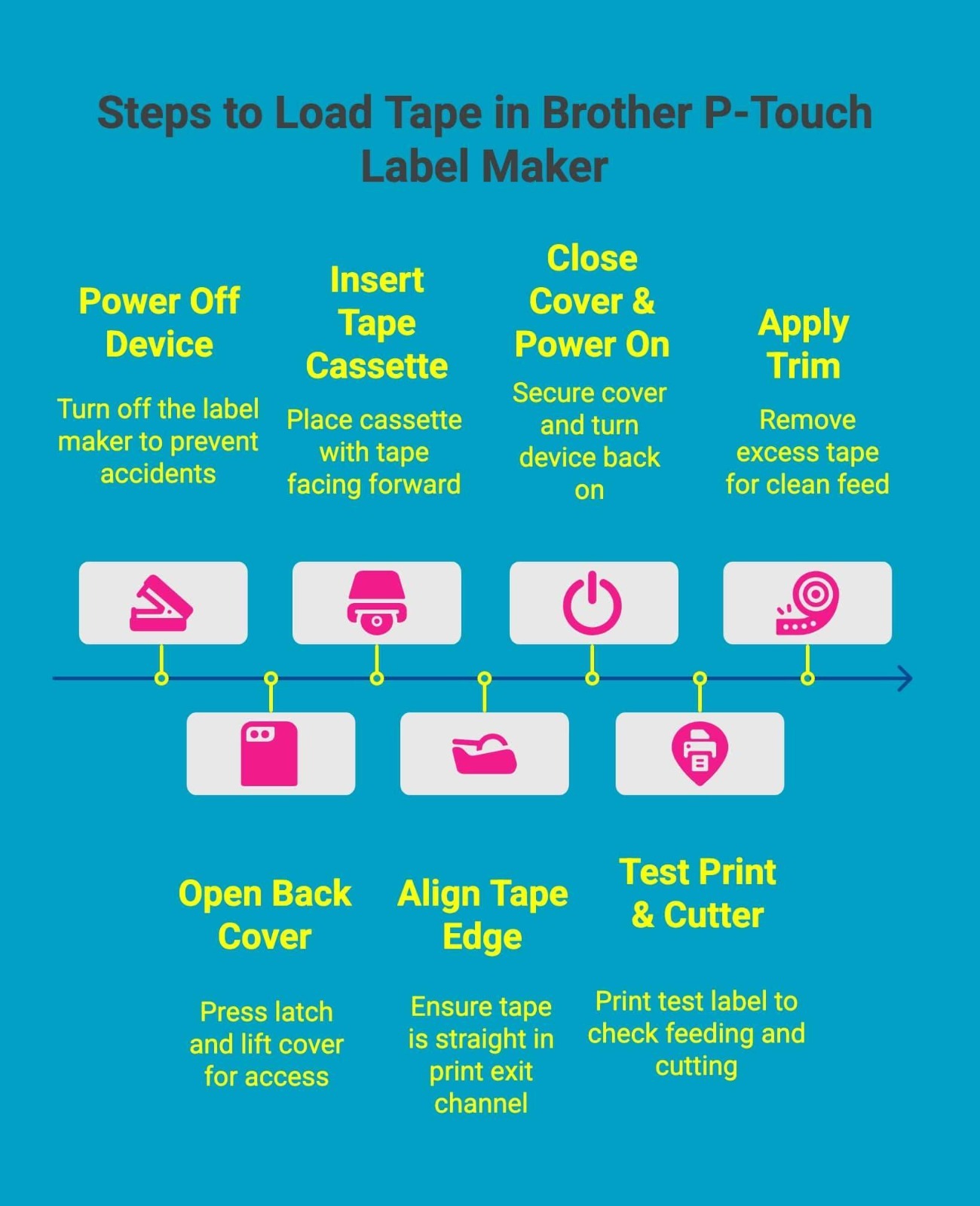
Loading tape correctly is the foundation of clean printing, accurate cutting, and trouble-free operation on a Brother P-Touch label maker. Whether you are replacing an empty cassette or installing tape for the first time, following the correct sequence ensures the tape feeds straight, the cutter works properly, and labels print at full clarity.
Below is a clear, step-by-step guide to loading TZe, HGe, or HSe tape cartridges the right way.
Step 1: Power Off The Device
Always turn the label maker off before loading tape. This prevents the motor or cutter from activating during installation and helps avoid misfeeds or internal stress on the mechanism.
Step 2: Open The Back Cover Using The Latch
Press the release latch and lift the back cover fully. The cover should open smoothly without forcing it. Opening the cover completely gives you proper access to the tape compartment and alignment guides.
Step 3: Insert The Tape Cassette With The Tape Facing Forward
Place the TZe, HGe, or HSe cassette into the compartment so the tape feeds toward the front of the label maker. The cassette should sit flat and click into position, indicating it is securely seated.
Step 4: Align The Tape Edge With The Print exit channel
Check that the tape edge is positioned straight into the print exit slot. The tape should follow the guide path cleanly without bending, twisting, or sitting outside the channel, as this can cause skewed labels or jams.
Step 5: Close The Cover Securely And Power On the device
Lower the back cover and press until it clicks shut. A properly closed cover ensures correct pressure between the print head and tape. Once closed, turn the label maker back on.
Step 6: Run A Test Print and Cutter Function
Print a short test label to confirm smooth feeding and proper cutting. The label should advance evenly and cut cleanly without frayed or uneven edges.
Step 7: Apply Trim For A Clean Feed
Use the trim or feed function, if available, to remove excess tape from the leading edge. This ensures the tape is straight and ready for accurate label printing.
Following these steps each time you load tape helps prevent jams, protects internal components, and ensures your Brother P-Touch label maker delivers consistent, professional results.
How to Install Tape in Brother P-Touch Label Maker Models Like PT-E110 and EDGE Series?
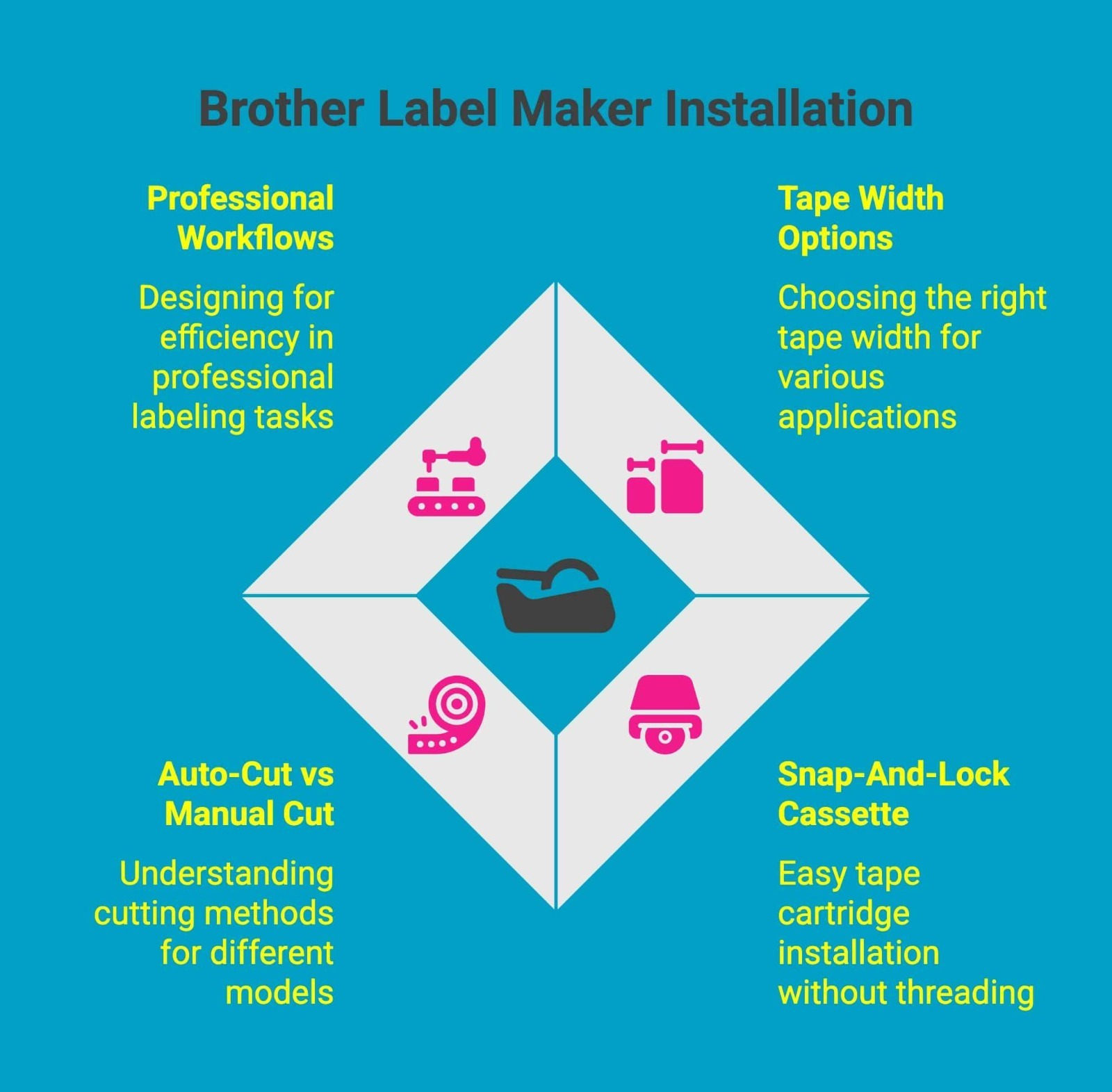
Installing tape in PT-E110 and P-touch EDGE series label makers follows the same core process, but there are a few important model-specific details that affect tape choice, cutting behavior, and real-world workflows.
1. Tape Width Options and Compatibility
These models support multiple tape widths depending on the application. Common options include 6 mm and 9 mm for wire wraps and small panels, 12 mm and 18 mm for equipment labels, and up to 24 mm for signage, patch panels, and safety labels. Choosing the correct width ensures text fits properly and remains readable in demanding environments.
2. Snap-And-Lock Cassette Design
Both PT-E110 and EDGE models use Brother’s snap-and-lock cassette system. The tape cartridge drops directly into the compartment and locks into place without threading or manual tensioning. When installed correctly, the cassette sits flat with no movement, ensuring consistent feed and print alignment.
3. Auto-Cut vs Manual Cut on EDGE Models
Industrial EDGE models often include automatic cutting, while entry models may rely on manual cutting. When using auto-cut, always run a test print to confirm clean cuts before batch labeling. For manual cut setups, advance the tape fully before cutting to avoid uneven edges or wasted tape.
4. Designed for Professional Labeling Workflows
These models are designed for electricians, IT technicians, and facility maintenance teams who label frequently and under time pressure. Correct tape installation ensures durable labels for cables, panels, racks, and equipment, reducing rework and maintaining compliance and organization across job sites.
Understanding these model-specific differences helps you install tape correctly the first time and get reliable, professional results from every label you print.
How Can You Install Tape in a Brother P-Touch Label Maker for Better Print Quality?
Small setup details during tape installation can have a big impact on label clarity, cutting accuracy, and overall device performance. The table below highlights the most important checks and best practices to follow before you start printing.
|
Setup Step |
Why It Matters |
Best Practice |
|
Check Tape Width |
Prevents text cutoff and misalignment |
Select the correct tape width before installing |
|
Smooth Tape Feed |
Reduces jams and skewed labels |
Trim the excess tape leader before printing |
|
Use Genuine Tapes |
Protects the cutter blade and feed path |
Use recommended TZe or HGe tapes |
|
Clean Print Head |
Maintains sharp, clear print quality |
Use a cleaning cassette when needed |
By following these tape installation best practices, you ensure consistently sharp prints, fewer errors, and longer-lasting performance from your Brother P-Touch label maker.
For demanding environments or textured surfaces, using extra-durable options like HGe tapes can further improve reliability and print results.
How to Load Brother P Touch Label Maker Tape for Multi-Width and Specialty Labels?
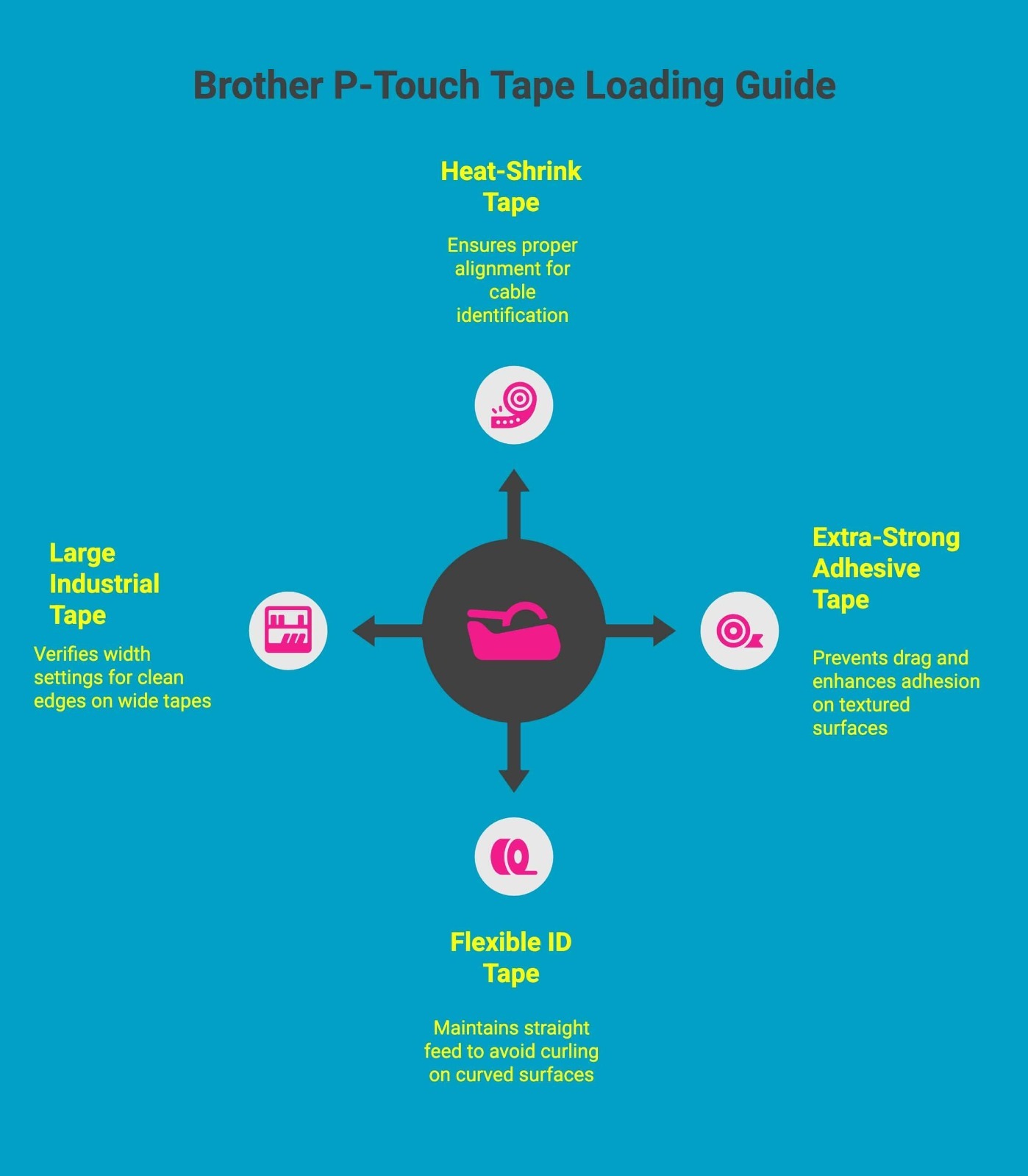
Brother P-Touch label makers support a wide range of tape widths and specialty materials, but proper loading is especially important when working with non-standard labels. Each tape type feeds and behaves differently, so correct installation ensures durability, legibility, and reliable cutting.
1. Heat-Shrink Labeling for Wires (HSe Tape)
HSe heat-shrink tape is designed for cable and wire identification. When loading, make sure the cassette is fully seated and the tape feeds straight into the exit channel. Run a short test print before shrinking to confirm spacing and alignment, as heat-shrink labels cannot be reused once applied.
2. Extra-Strong Adhesive Tapes for Textured Surfaces
Extra-strong adhesive tapes are thicker and require precise alignment. Ensure the tape leader is trimmed cleanly and the cover is fully locked. This prevents drag during feeding and helps the adhesive bond properly to textured or uneven surfaces.
3. Flexible ID Tapes for Curved Surfaces
Flexible ID tapes are commonly used on cables, pipes, and rounded equipment. Load the cassette carefully and avoid bending the tape during installation. A straight feed path is critical to prevent curling or skewed prints on flexible materials.
4. Large Industrial Tapes for EDGE Series Models
Industrial EDGE series label makers handle wider tapes, including 18 mm and 24 mm options. These larger tapes must sit perfectly flat in the compartment. Always verify the selected tape width in the device settings and perform a test cut before batch printing to ensure clean edges.
By adjusting your loading approach for each specialty tape type from Brother, you can produce durable, professional labels across wiring, equipment, and industrial environments without wasted tape or rework.
For everyday and industrial applications, choosing the correct TZe laminated tapes ensures long-lasting adhesion and print clarity across multiple surfaces.
How to Print After Loading Tape and Adjust Cutting Features?
Once the tape is loaded correctly, the next step is configuring print and cut settings to ensure clean labels, accurate spacing, and efficient workflows. Taking a moment to review these options helps avoid wasted tape and inconsistent cuts.
1. Print and Cut Preview
Before printing, use the print and cut preview to check text alignment, margins, and label length. This preview helps you spot spacing issues early, especially when working with multi-line labels or wider tapes.
2. Manual vs Automatic Cutter Modes
Some Brother P-Touch models use a manual cutter, while others offer automatic cutting. Automatic cutter mode is ideal for batch printing and repeat labels, delivering consistent cuts. Manual cutter mode requires advancing the tape fully before cutting to prevent uneven edges.
3. Half-Cut for Tabbed Labeling Efficiency
Half-cut mode partially cuts the tape backing while leaving the label attached. This is especially useful for electricians and IT technicians who need fast peel-and-apply labeling, as it speeds up handling without compromising label integrity.
4. Print Alignment Test
Always run a short print alignment test after changing tape types or widths. This confirms that the text prints centered and the cutter engages at the correct point, preventing clipped text or wasted tape during longer print runs.
Adjusting these print and cutting features after loading tape ensures precise labels, smoother workflows, and consistent results across everyday and industrial labeling tasks.
For heat-shrink and specialty wire identification needs, selecting the right STE-compatible heat-shrink tapes further improves fit, durability, and long-term legibility.
Brother P-Touch Label Maker Models Available at DuraFast Label
If you are looking to purchase a reliable Brother P-Touch label maker along with genuine tape supplies, DuraFast Label offers several professional-grade handheld models designed for electrical, IT, and industrial labeling.
1. Brother PTE560BTVP | P-Touch Edge 560BTVP Handheld Label Printer with Bluetooth and Dual Auto-Cutter (Up to 24mm Labels)
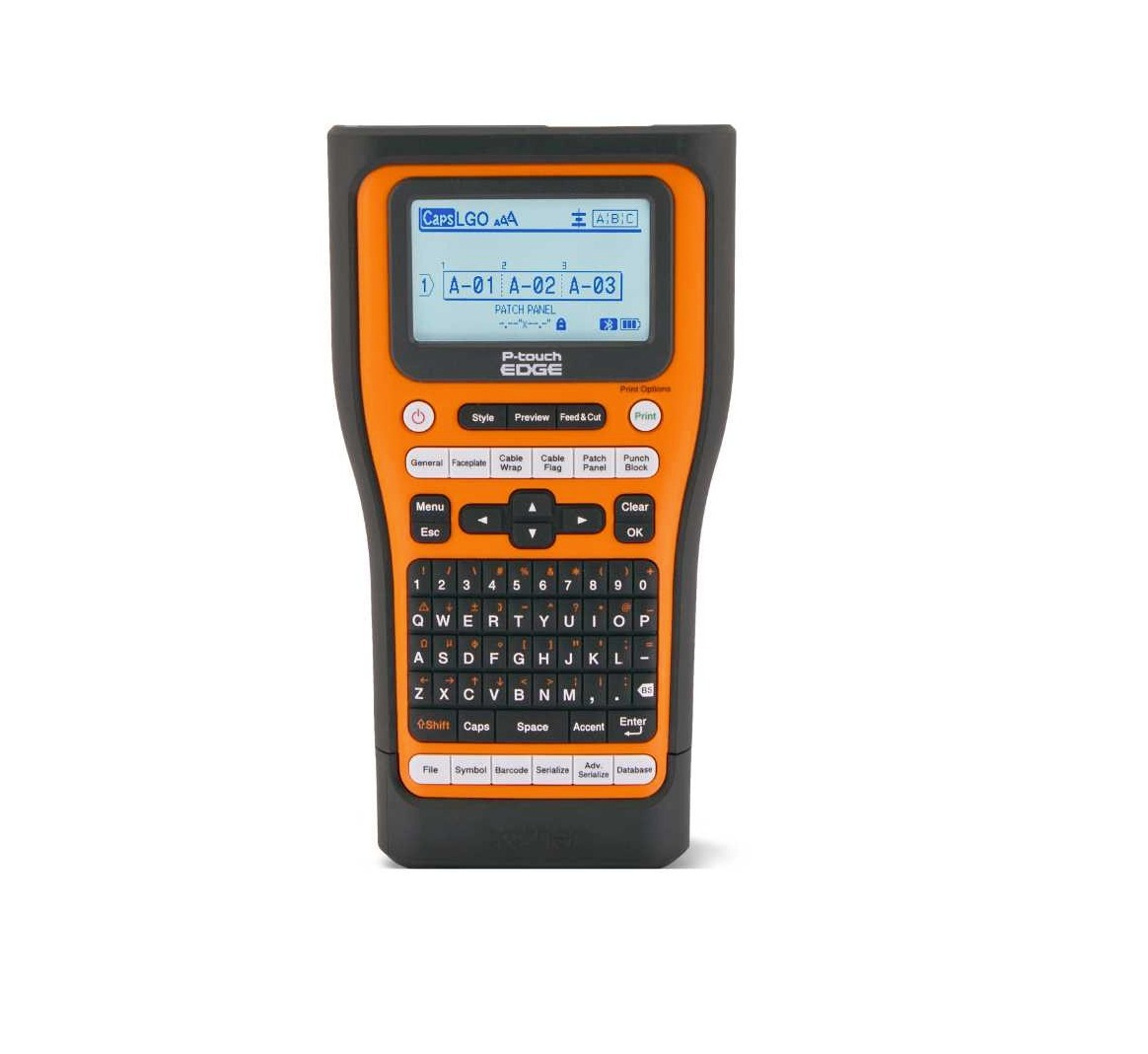
Built for professionals who need speed, durability, and precision, the Brother PT-E560BTVP is a high-performance handheld label printer designed for demanding electrical, network, and industrial labeling environments.
Why the PT-E560BTVP Is Built for Serious Job-Site Labeling:
- Industrial P-Touch EDGE platform: Engineered by Brother Industries for high-volume professional labeling where accuracy and reliability are critical.
- Supports labels up to 24 mm wide: Ideal for panels, patch cords, safety labels, equipment identification, and wide-format applications.
- Dual auto-cutter system: Provides fast, clean, and consistent cuts, reducing tape waste and improving batch labeling efficiency.
- Thermal transfer print technology: Produces durable, smudge-resistant labels suitable for harsh industrial and electrical environments.
- Bluetooth connectivity: Enables wireless printing from compatible devices, improving flexibility and on-site workflow efficiency.
- Fast print speed of 1.2 inches per second: Keeps labeling tasks moving quickly without compromising print quality.
- 180 dpi print resolution: Delivers sharp, readable text and barcodes for long-term legibility and compliance.
- Optimized for EDGE-compatible tapes: Designed to work seamlessly with TZe, HGe, and HSe tapes, including heat-shrink tubing for wire and cable identification.
For professionals who demand fast output, precise cuts, and long-lasting labels in challenging environments, the Brother PT-E560BTVP delivers the performance and reliability needed to get the job done right the first time
Brother PTE510VP | P-Touch Edge 510VP Handheld Label Printer with Dual Auto-Cutter (Up to 24mm Labels)
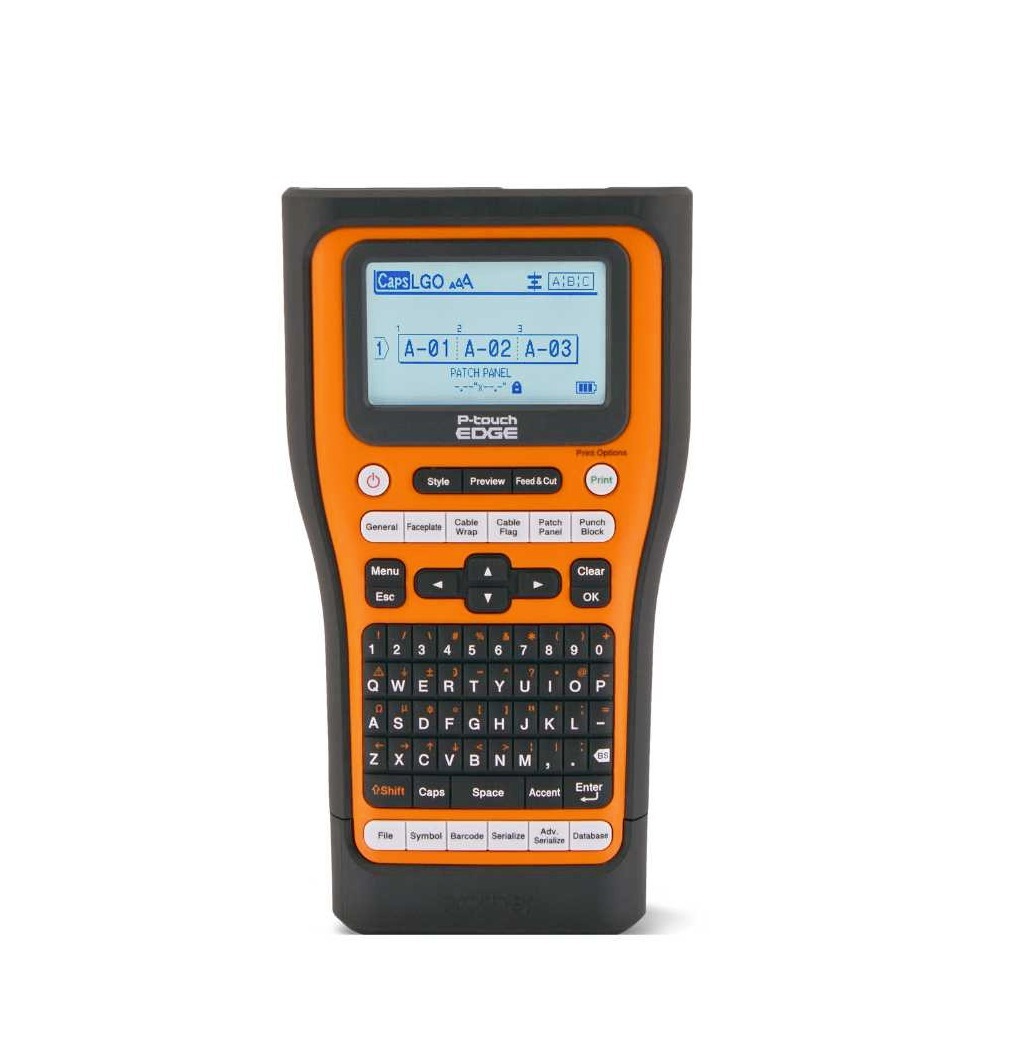
Designed for professionals who need industrial-grade labeling without wireless complexity, the Brother PT-E510VP delivers fast, accurate, and durable label printing for electrical, network, and facility applications.
Why the PT-E510VP Is a Reliable Workhorse for Professional Labeling:
- P-Touch EDGE industrial platform: Built by Brother Industries for consistent, high-volume labeling in demanding work environments.
- Prints labels up to 24 mm wide: Supports wide labels for panels, patch panels, equipment ID, safety markings, and cable management.
- Dual auto-cutter system: Produces clean, precise cuts every time, helping reduce wasted tape and speed up repetitive labeling tasks.
- Thermal transfer print technology: Ensures durable, fade-resistant labels suitable for industrial and electrical conditions.
- Fast print speed of 1.2 inches per second: Keeps productivity high on job sites without sacrificing print clarity.
- 180 dpi print resolution: Delivers sharp text and readable barcodes for compliance and long-term identification.
- EDGE-optimized tape compatibility: Works seamlessly with TZe, HGe, and HSe tapes, including heat-shrink tubing for wire and cable labeling.
For professionals who need dependable performance, clean cuts, and wide-format labeling without Bluetooth, the Brother PT-E510VP offers a powerful, no-nonsense solution built for real-world job sites
Brother PTE310BTVP | P-Touch Edge 310BTVP Handheld Label Printer with Bluetooth (Up to 18mm Labels)
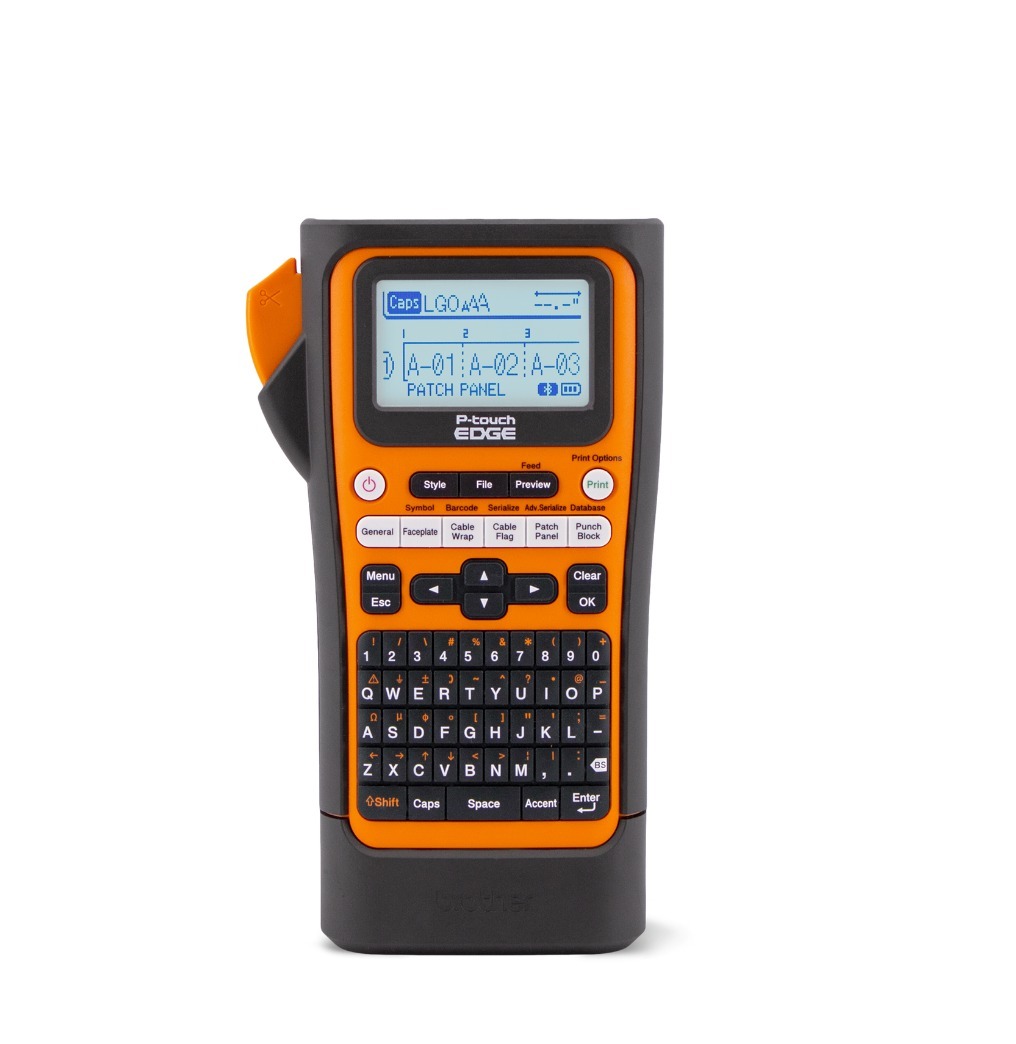
Compact, connected, and built for field work, the Brother PT-E310BTVP is a practical handheld label printer for technicians who need reliable labeling with the flexibility of Bluetooth connectivity.
Why the PT-E310BTVP Is Ideal for Mobile and Field Labeling:
- P-Touch EDGE professional platform: Developed by Brother Industries to deliver dependable performance for everyday electrical, network, and maintenance labeling tasks.
- Supports labels up to 18 mm wide: Well-suited for cables, patch cords, panels, faceplates, and compact equipment identification.
- Bluetooth connectivity: Allows wireless label design and printing from compatible devices, improving flexibility for on-site work.
- Thermal transfer print technology: Produces durable, smudge-resistant labels designed to withstand professional environments.
- 180 dpi print resolution: Ensures clear, legible text and barcodes for long-term readability.
- Optimized for EDGE-compatible tapes: Works seamlessly with TZe, HGe, and HSe tapes, including heat-shrink tubing for wire and cable labeling.
- Lightweight and portable design: At under six pounds, it is easy to carry and operate throughout the workday.
For technicians who need a compact, Bluetooth-enabled label printer that delivers professional results without unnecessary complexity, the Brother PT-E310BTVP is a dependable choice for everyday field labeling.
What Common Mistakes Should You Avoid When Installing Tape in a Brother P-Touch Label Maker?
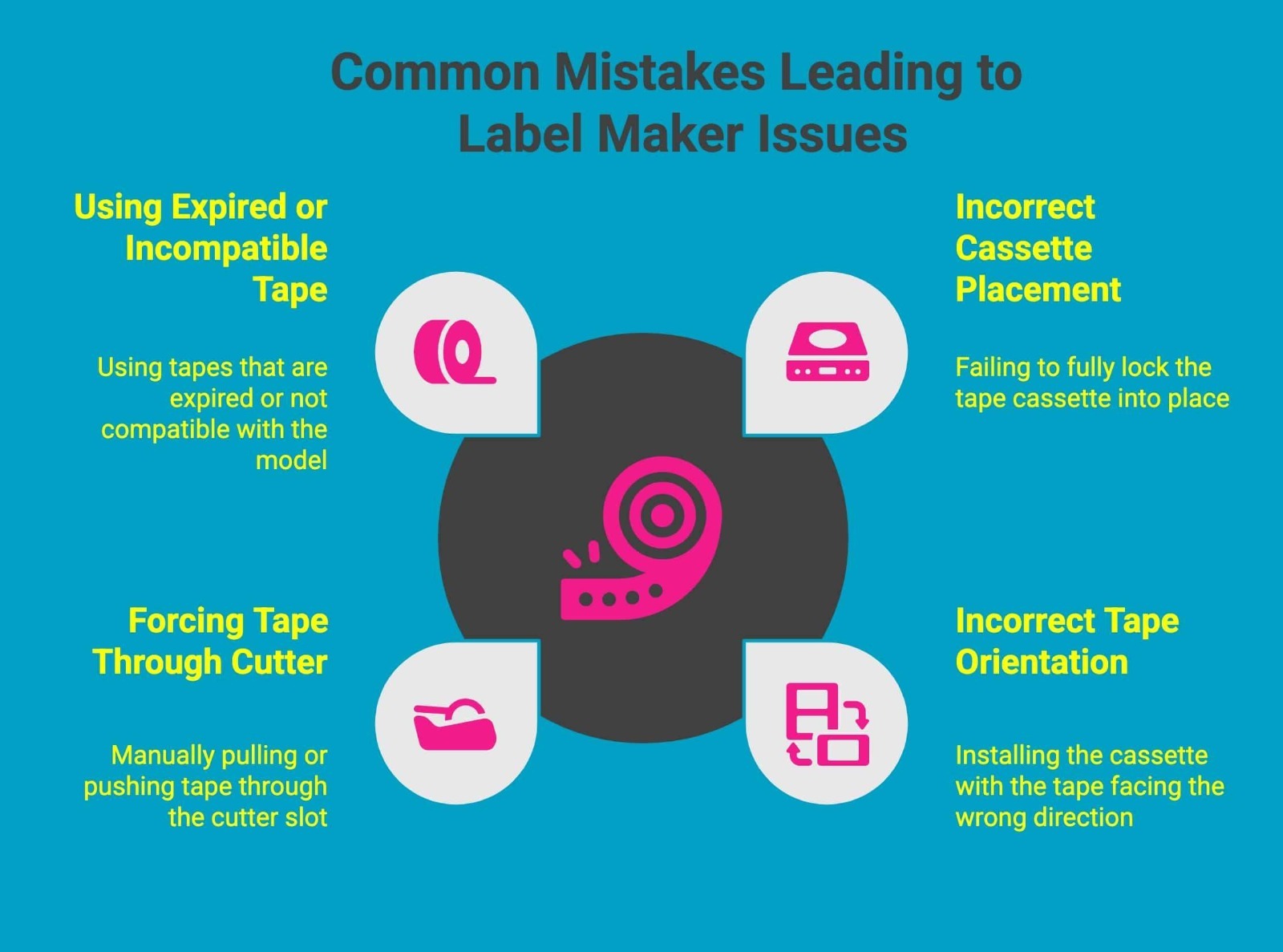
Most tape-related problems don’t come from the printer itself; they come from small setup errors that compound during printing. Understanding why these mistakes cause issues helps you prevent jams, wasted tape, and premature wear.
1. Not Locking the Cassette Fully Into Place
The tape cassette is designed to sit flush and lock into position. If it is only partially seated, it can lift or shift when the motor pulls the tape forward. This leads to angled feeding, inconsistent cuts, and repeated internal jams, especially during longer print jobs.
2. Incorrect Tape Orientation
Installing the cassette with the tape facing the wrong direction stops the tape from aligning with the print head and exit channel. This can cause the printer to pull against resistance, resulting in blank prints, error messages, or wrinkled tape inside the housing.
3. Forcing Tape Through the Cutter Path
Manually pulling or pushing tape through the cutter slot bypasses the controlled feed system. This can dull or misalign the cutter blade and throw off cut timing, causing uneven edges or tape getting stuck during the next print cycle.
4. Using Expired or Incompatible Tape
Expired tapes may have dried adhesive or warped backing, while incompatible tapes may be too thick or too thin for the model. Both issues affect feed tension and cutter pressure, increasing the risk of jams and poor adhesion on finished labels.
Avoiding these mistakes ensures smooth feeding, accurate cutting, and consistent label quality, keeping your Brother P-Touch label maker reliable in both everyday and professional use.
Where to Buy Genuine Tape Cartridges for Brother P-Touch Label Makers?
When label quality, durability, and printer performance matter, sourcing genuine Brother tape cartridges from a trusted supplier makes all the difference. Authentic tapes are precision-engineered to work seamlessly with P-Touch and EDGE series label makers, delivering clean prints, smooth feeding, and reliable cutting every time.
DuraFastLabel.ca is a go-to destination for professionals who need dependable, authentic Brother labeling supplies. They carry a full range of genuine TZe, HGe, and HSe tape cartridges in all compatible widths, making it easy to find the right tape for everything from everyday office labeling to industrial and electrical applications.
Need genuine Brother label tapes fast? Contact DuraFast Label today.
Final Thoughts
Getting consistent, professional labels from a Brother P Touch label maker comes down to precision rather than guesswork. When tape is installed correctly, matched to the right application, and paired with proper print and cutting settings, the device delivers reliable results without interruptions.
Whether you are labeling cables, equipment, or facility assets, using the correct tape type and handling it properly ensures labels stay legible, secure, and durable over time. With the right setup, your label maker becomes a dependable tool you can trust in any workflow.
Frequently Asked Questions
What type of tape does a Brother P-Touch label maker use?
Brother P-Touch labelers use cassette-based laminated tapes such as TZe, HGe, and HSe. These cartridges contain an internal ink ribbon and are designed to load under the cassette cover for precise feeding and long-lasting labels across compatible models.
Why does my tape jam after installation?
Tape jams usually happen when the cassette is not seated correctly or the direction of the arrow is ignored. If the tape cover or release lever is misaligned, the toothed wheel cannot pull the tape smoothly through the labeler.
How do I stop wasted tape when printing small labels?
To reduce wasted tape, preview label length in the app or on the device before printing. Use half-cut where available and avoid repeated test prints. Proper alignment under the tape cover also prevents unnecessary lead tape loss.
Can I use third-party tape cartridges?
While some third-party cartridges fit physically, they may not align correctly with the labeler’s feed system or ink ribbon mechanism. This can cause poor cuts, fading prints, or jams, which is why manufacturer-approved tapes are generally more reliable.
How often should I replace or clean the cutter?
Cutter cleaning depends on usage frequency. For regular users, inspect the cutter every few months. Adhesive buildup from tape edges can affect performance, so cleaning during routine maintenance or when cutting issues is recommended.
Where is the tape cassette compartment located on a Brother P Touch label maker?
The tape cassette compartment on a Brother P Touch label maker is located at the back of the device. For a correct Brother P-touch label maker tape install, release the rear latch, open the back cover fully, and seat the tape cassette securely inside.
What should I do if the tape cassette won't fit in my Brother P Touch label maker?
Check that the tape width and cassette series match your model. Remove packaging, reseat the cassette flat, and align it with the exit channel. Never force it. If it still won’t fit, use the correct TZe, HGe, or HSe cartridge.